4Create an Event Display object to display alarm history
1. From the Parts menu, click Event Display. Or click the Event Display icon in the Part2
toolbar. The Create Event Display Object dialog box appears.
2. Enter the following parameters for each event:
Tab Attribute Setting
General Read Address LW0, BIN
Write Address LW1, BIN
Event Display Display Line: 3
Character length: 31
Text Space: 0
Acknowledge Style Click
Color: Acknowledge Any color
Color: Return to
Normal
Any color
Color: Select box Any color
Format Sequence No.
3. Click OK. Place object directly under the “Alarm History” text box.
Using the Alarm His tory
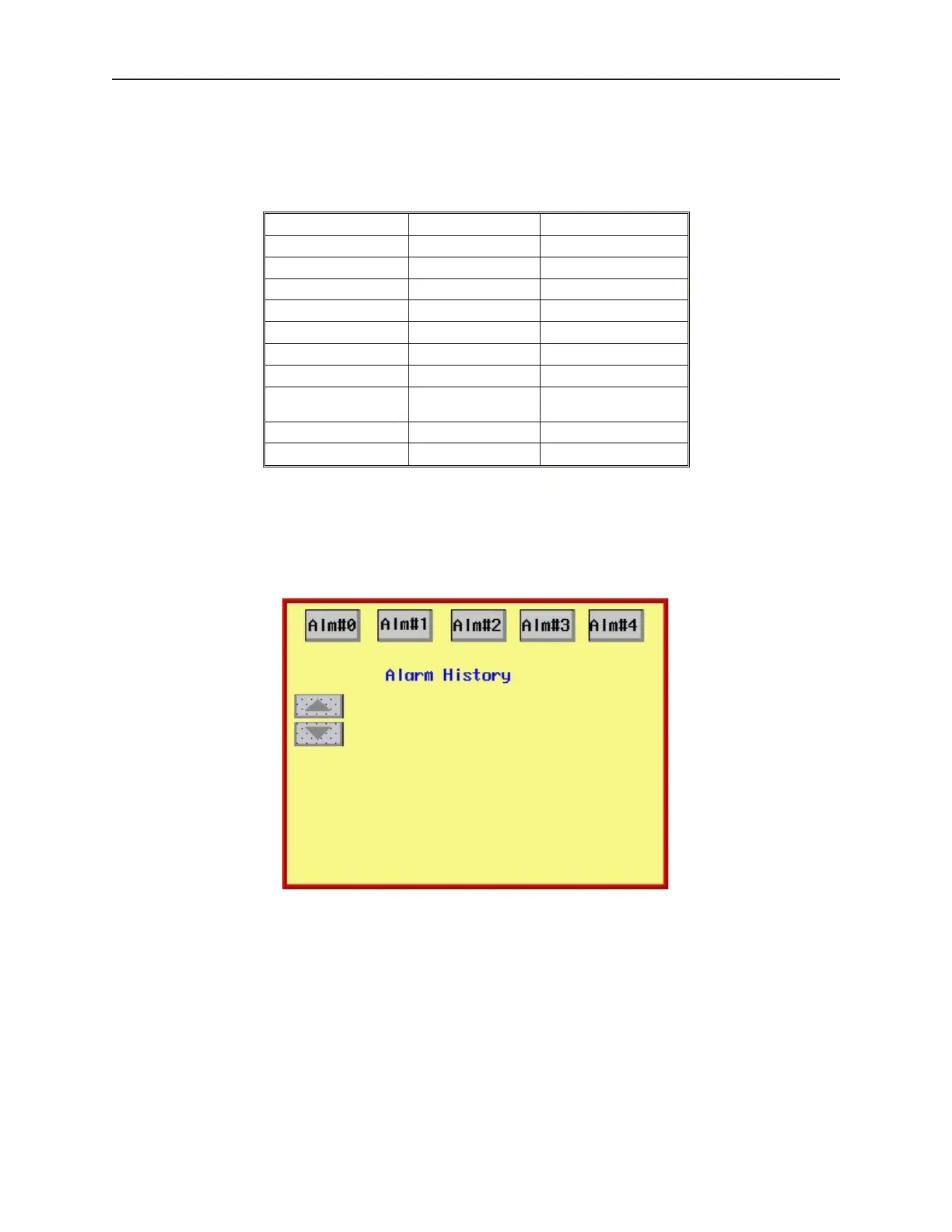
Save and compile the project, then download the project to the OIT or run the simulation mode. The startup screen
should display:
Press each alarm button. Note that as each alarm is activated, the alarm history window displays the most recent
alarm on the top of the list.
1010-1001a, Rev 02
Cap turing Alarms and Events 237



 To Next Page