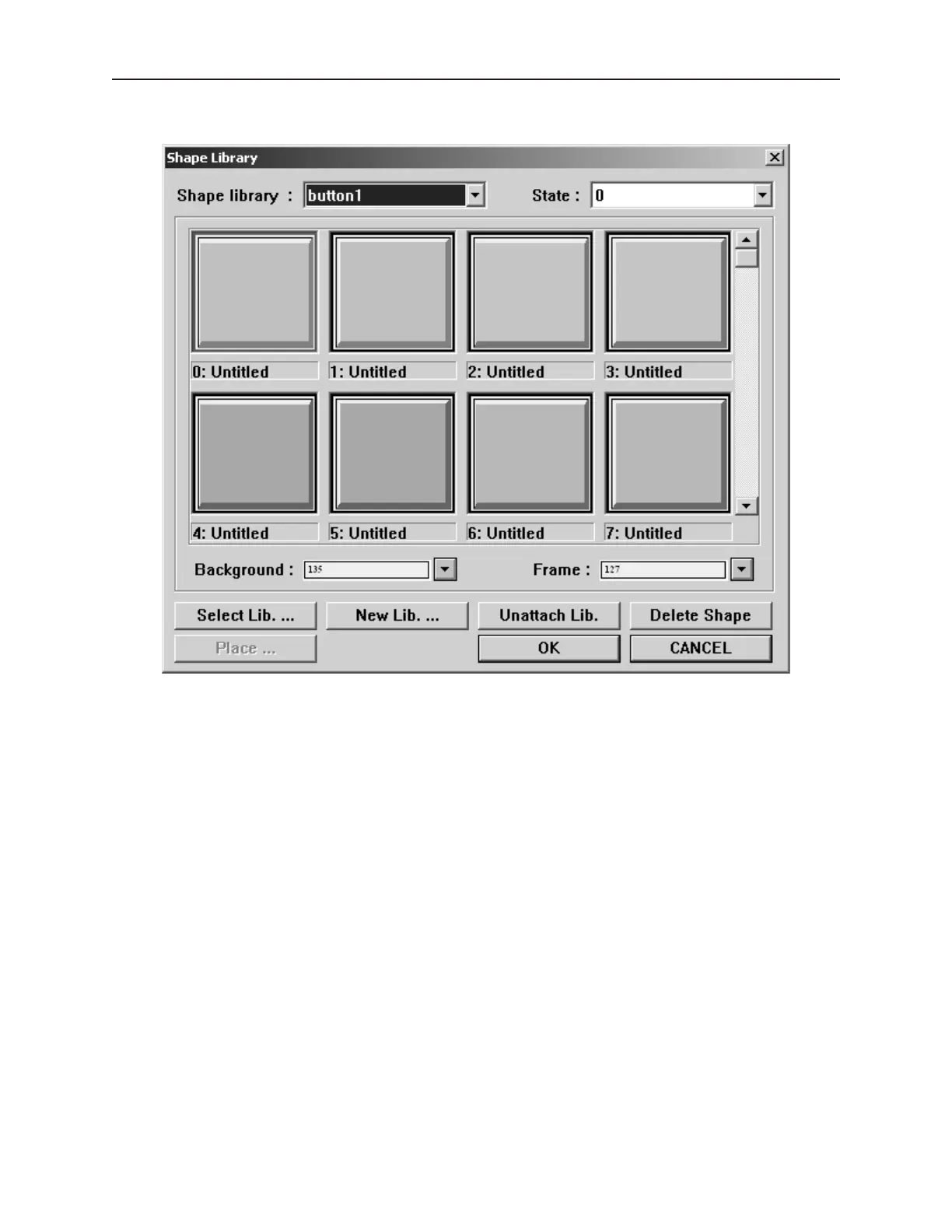
2. Click the Shape library… button. The Shape Library dialog box appears.
3. Click the pull-down box of Shape library: and choose from one of the open libraries of
shapes.
4. Use the scroll bar to view available shapes. Click on the shape that you want.
5. Click OK The Create Shape Object dialog box reappears. The shape that you selected
should be displayed in this dialog box.
6. Click OK. The main screen of EasyBuilder reappears with an outline of the shape object in
the upper left corner of the work area.
7. Move the shape to the location desired and click. The shape appears with small square boxes
around the perimeter of the shape.
8. The shape can be resized or you can edit the shape’s parameters by double-clicking to enter
the Shape Object’s Attribute dialog box.
Using a Pre de fined Bitmap
You can select from many bitmaps that are included in the EasyBuilder configuration software. Bitmaps can be
used for active or passive objects. The following procedure describes using a passive bitmap object.
1010-1001a, Rev 02
Cre ating Graphic Ob jects 131



 To Next Page