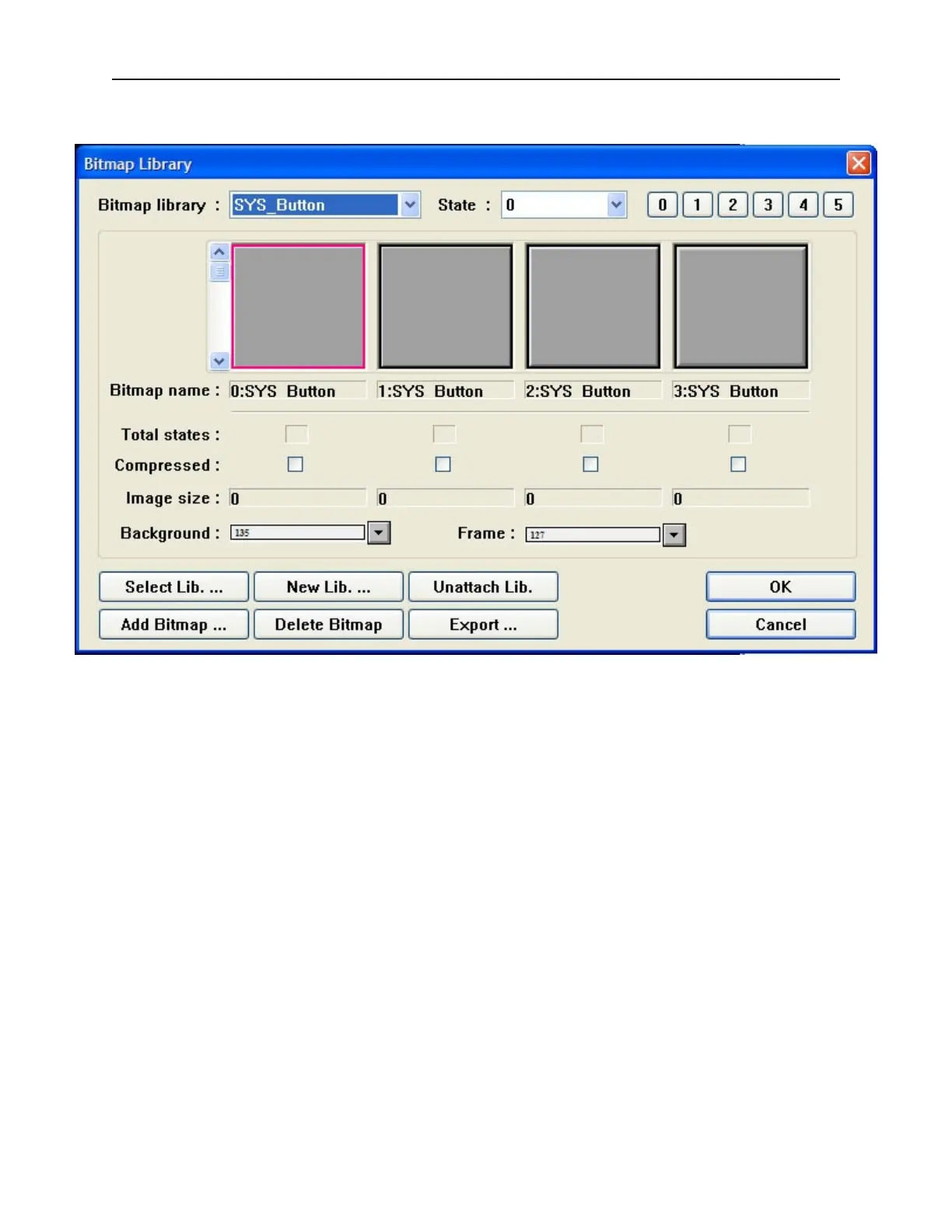
2. Click the Bitmap library… button. The Bitmap Library dialog box appears.
3. Click the pull-down box of Bitmap library: and choose from one of the open libraries of
bitmaps.
4. Use the scroll bar to view available bitmaps. Click on the bitmap that you want.
5. Click OK The Create Bitmap Object dialog box reappears. The bitmap that you selected
should be displayed in this dialog box.
6. Click OK. The main screen of EasyBuilder reappears with an outline of the bitmap object in
the upper left corner of the work area.
7. Move the bitmap to the location desired and click. The bitmap appears with small square
boxes around the perimeter of the bitmap.
8. The bitmap can be resized or you can edit the bitmap’s parameters by double-clicking to enter
the Bitmap Object’s Attribute dialog box.
Graph ics Li braries
Graphics Libraries are files that come with EasyBuilder which contain graphics shapes and bitmaps. Over 500
predefined shapes and bitmaps are included with EasyBuilder. In addition, you can create new bitmaps or shapes
and add them to the libraries. You can even create new libraries as you need them. Each library contains a
maximum of 48 shapes or bitmaps. Each shape or bitmap has a maximum of 32 ‘states’ or pictures tied to it.
EasyBuilder allows a maximum of ten bitmap libraries and ten shape libraries to be open per project file. Finally, a
group library can be used to store several graphics objects (such as a keypad) to be easily used when needed. For
example, you may create a bar graph that could be used in several different projects. The bar graph can be stored
into the group library for easy retrieval.
All libraries are accessed from the Library menu or by clicking the appropriate icon in the Standard toolbar.
1010-1001a, Rev 02
Cre ating Graphic Ob jects 133



 To Next Page