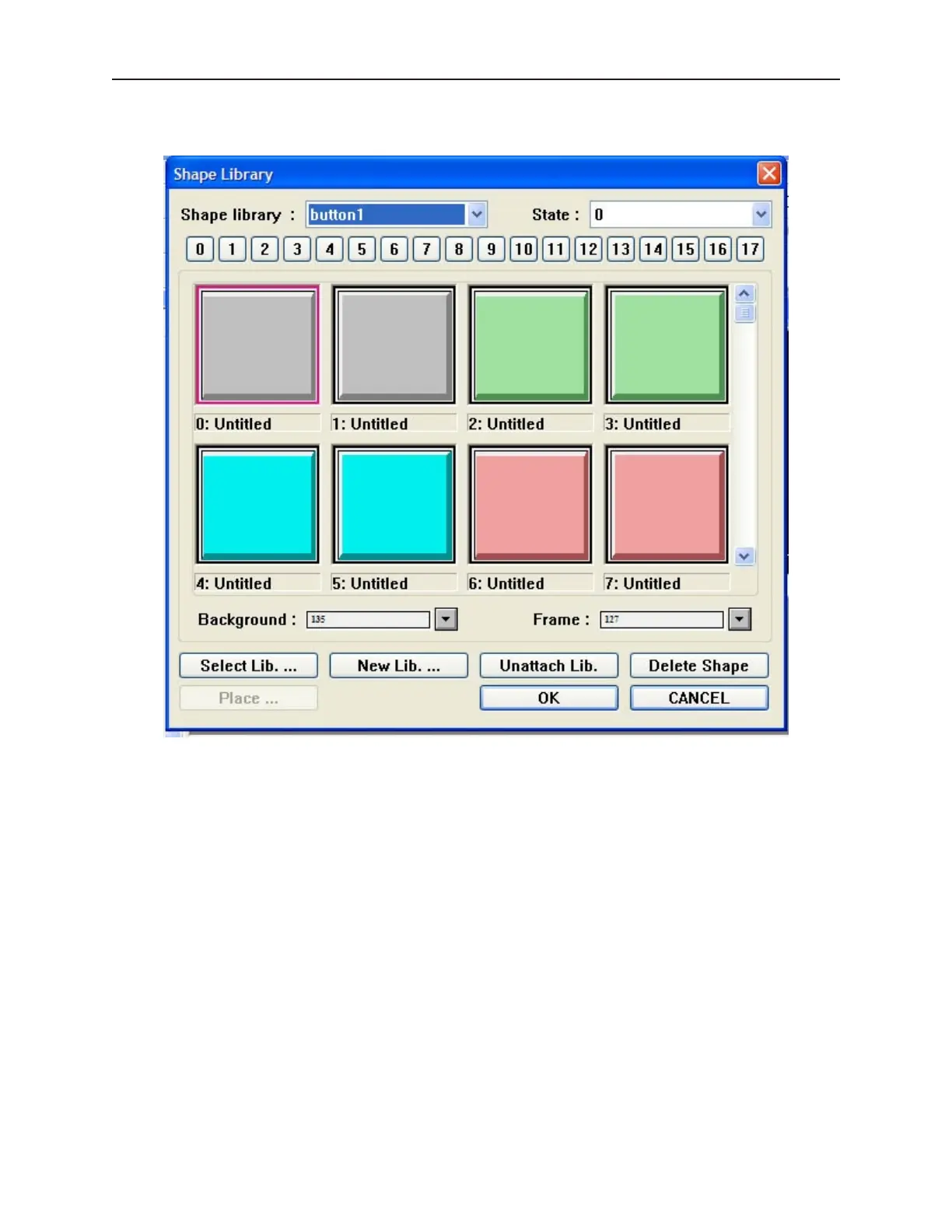
Let’s look at the Shape Library dialog box:
The Shape Library provides several options which are discussed in the following sections.
Ac cess ing and Cre at ing Shape Li brar ies
You can open, close, or even create new shape libraries easily using the Shape Library dialog box.
4To open other shape libraries
1. With the Shape Library dialog box displayed, click Select Lib… The Open dialog box
appears.
2. Select which library you would like to open, then click Open. The Shape Library dialog box
reappears with the selected library displayed.
If the project has ten libraries open, you may want to close a library so that another one may be opened.
4To close or ‘unattach’ an open shape library
1. With the Shape Library dialog box displayed, click the pull-down box of Shape library: and
choose from one of the open libraries of shapes.
2. Select which library you would like to close, then click Unattach Lib. A dialog box appears
asking if you really want to unattach the selected library. Click Yes.
3. The Shape Library dialog box reappears and the library is removed from the Shape library:
list.
You have the option of creating a new library. This can be very useful when organizing shapes.
1010-1001a, Rev 02
Cre ating Graphic Ob jects 135



 To Next Page