4 To close or ‘unattach’ an open bitmap library
1. With the Bitmap Library dialog box displayed, click the pull-down box of Bitmap library:
and choose from one of the open libraries of bitmaps.
2. Select which library you would like to close, then click Unattach Lib. A dialog box appears
asking if you really want to unattach the selected library. Click Yes.
3. The Bitmap Library dialog box reappears and the library is removed from the Bitmap
library: list.
You have the option of creating a new library. This can be very useful when organizing bitmaps.
4To create a new bitmap library
1. With the Bitmap Library dialog box displayed, click New Lib… The New Library dialog box
appears.
2. Enter a name for the new library. Click OK.
3. The Bitmap Library dialog box appears with the new library loaded. Click Close.
4. The new library is now available to this project but it is not stored into the Library
subdirectory of EasyBuilder until the project file has been saved.
Cre ating and ex port ing bitmaps
Although EasyBuilder does not provide the ability to create bitmaps, the software can import bitmaps created from
some other application program. This allows the ability to use a wide selection of bitmaps that can be permanently
added to your bitmap libraries. EasyBuilder only accepts bitmaps that are 256 color or less resolution.
4 To add a new bitmap to a library
1. Display the Bitmap Library dialog box.
2. Click the Bitmap Library: pull-down box and select one of the bitmap libraries.
3. Click on the box location where you would like to enter the new bitmap.
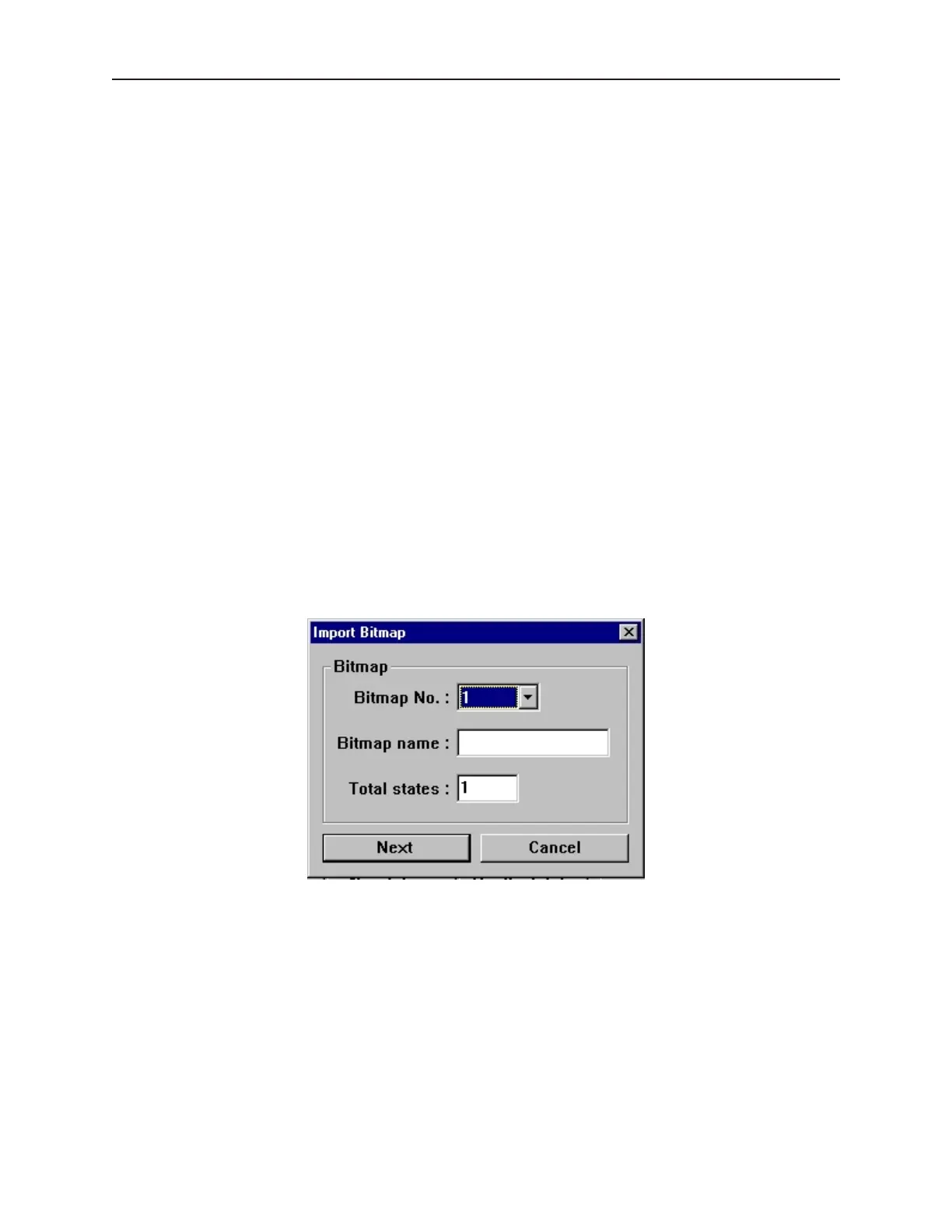
4. Click Add Bitmap… The Import Bitmap dialog box displays.
5. The Bitmap No.: is the location of the bitmap in the bitmap file. This should reflect the box
location that you selected in step 4.
6. Enter a title for the new bitmap in the Bitmap name: box.
7. Enter the total number of states (max. 32) for the bitmap in the Total states: box.
1010-1001a, Rev 02
Cre ating Graphic Ob jects 143



 To Next Page