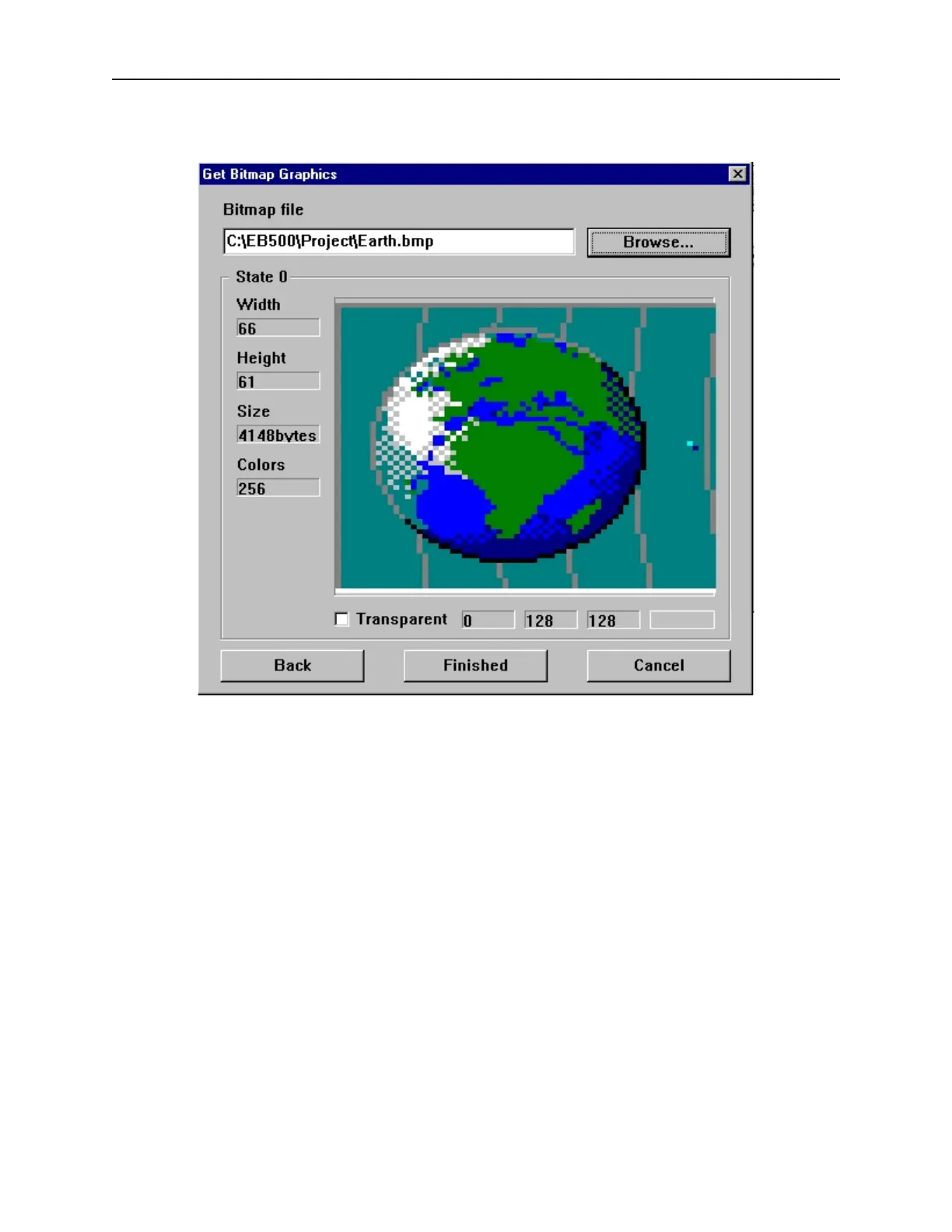
10. The Get Bitmap Graphics dialog box reappears with the bitmap displayed, along with
information about the bitmap.
11. The Transparent checkbox is used to make any color selected on the bitmap ‘transparent’. If
the color is configured as transparent, then when the bitmap is placed on a window, all areas
of the bitmap with the transparent color will not be shown. This is very useful when you
want to overlap several bitmaps, (for example, when configuring a bar graph). To use the
transparent feature, click on the bitmap picture in the Get Bitmap Graphics dialog box on the
color that is to be transparent. The three boxes to the right of the Transparent checkbox will
show the red, green, and blue mixture of the color and the fourth box actually shows the
color. Then check the Transparent checkbox.
12. If you are creating a multi-state bitmap, then click Next to select the next bitmap picture for
1010-1001a, Rev 02
Cre ating Graphic Ob jects 145



 To Next Page