Cre at ing, de let ing and plac ing groups
Once a complex group object has been created, it must be stored permanently into a group library where it can be
retrieved and used in multiple projects. At any time, it is possible to place a group object onto the work area of
EasyBuilder for usage or editing.
4To add a new group to a library
1. Highlight the group object by clicking the mouse and dragging a rectangular outline so that it
covers the entire group. When you are done, you should see small black squares around the
perimeter of the group. For this example, the scale meter shown at the beginning of this
section is highlighted.
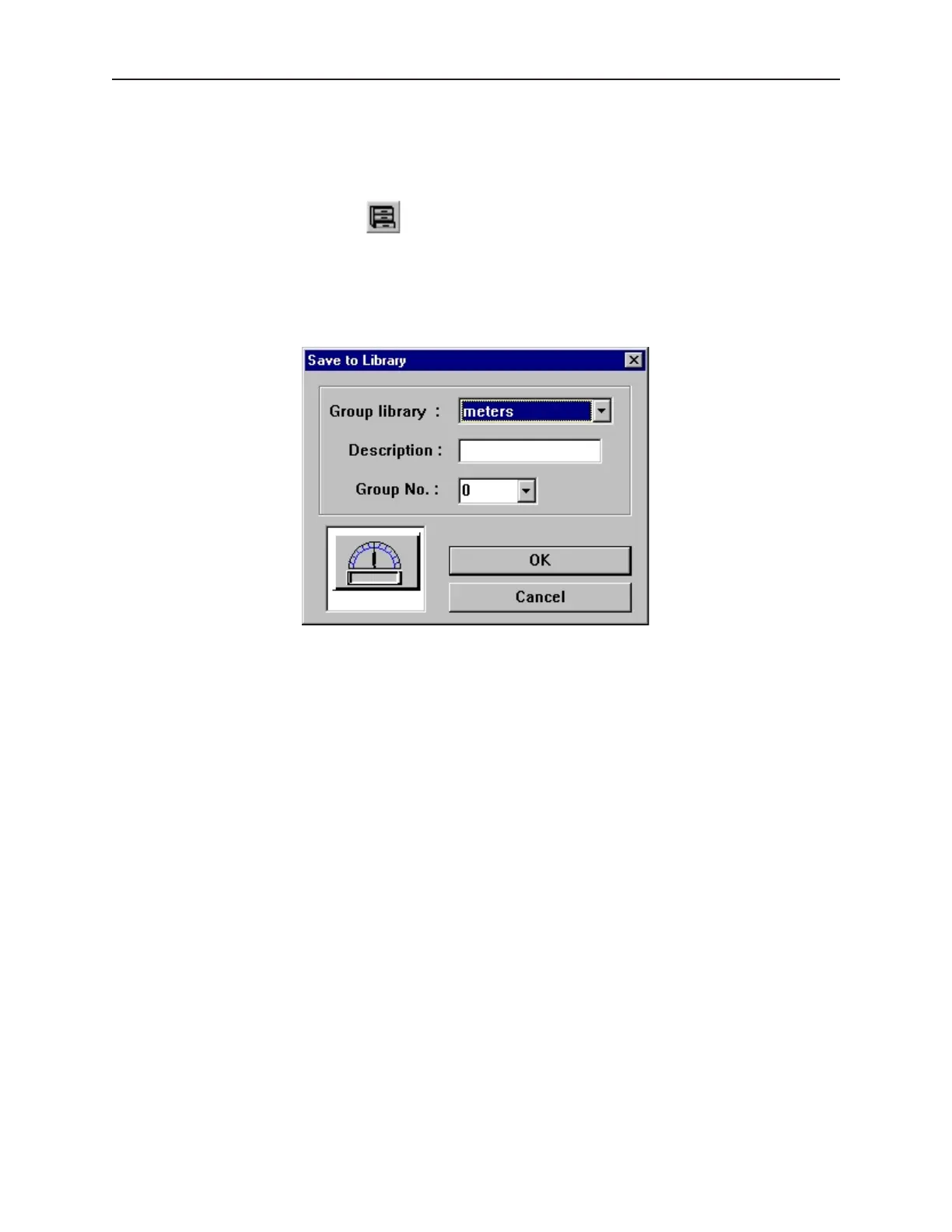
2. From the Library menu click Group, then Save to library. Or click the Save to Group
Library icon in the Standard toolbar. The Save to Library dialog box appears.
3. Click the Group library: box and select the library you wish to store the group in, (for this
example meters).
4. Click the Group No.: pull-down box to select the location (0) to store the group. Note that
the Group No.: will automatically change to 0, (first group not used).
5. Enter a title for the new group in the Description: box, (ex. Scale1).
1010-1001a, Rev 02
Cre ating Graphic Ob jects 149



 To Next Page