4 To create a Set Bit Object
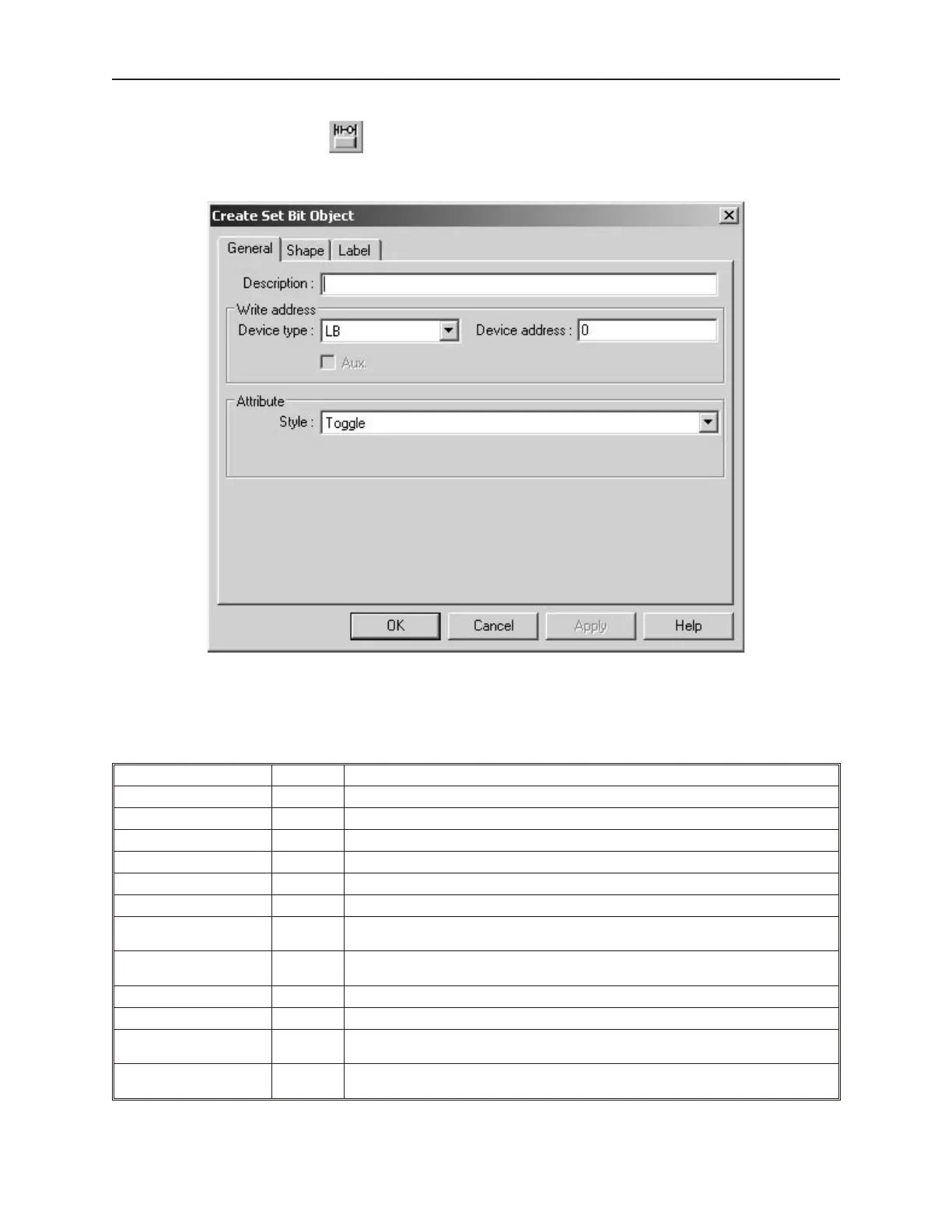
1. From the Parts menu, click Set Bit. Or click the Set Bit icon in the Part1 toolbar. The
Create Set Bit Object dialog box appears.
2. Use the Description: box to enter a title for the Set Bit part. A description is not necessary
but does help you identify the purpose of the part.
3. In the Write address frame, select the PLC coil or OIT internal memory address.
4. In the Attribute frame, select how you want the Set Bit object to operate:
Style Option Description
ON Sets a PLC coil when pressed.
OFF Clears a PLC coil when pressed.
Toggle Alternates between setting and clearing a PLC coil.
Momentary Sets a PLC coil when pressed; clears a PLC coil when released
Set ON at window open Automatically sets a PLC coil when the window that the part is located in is opened.
Set OFF at window open Automatically clears a PLC coil when the window that the part is located in is opened.
Periodical toggle
Automatically sets and clears a PLC coil as long as the window that the part is located
in is open (or minimized).
Interval:
Used for the Periodical toggle feature to determine the period at which the bit is
toggled. Range: 0.0 to 3.0 seconds
Set ON at window close Automatically sets a PLC coil when the window that the part is located in is closed.
Set OFF at window close Automatically clears a PLC coil when the window that the part is located in is closed.
Set ON at window
maximized
Automatically sets a PLC coil when the window that the part is located in is maximized.
Set OFF at window
maximized
Automatically clears a PLC coil when the window that the part is located in is
maximized.
1010-1001a, Rev 02
174 Sil ver Se ries In stal la tion & Op er a tion Man ual



 To Next Page