Single Float
No. above Dec.: 1-10 specifies number of digits to the left of the decimal point.
No. below Dec.: 0-10
specifies number of digits to the right of the decimal
point.
Input low:
-2147483648 to
+2147483647
This is the lowest data value allowed when the OIT
operator enters a number.
Input high:
-2147483648 to
+2147483647
This is the highest data value allowed when the OIT
operator enters a number.
Double Float
No. above Dec.: 1-10 specifies number of digits to the left of the decimal point.
No. below Dec.: 0-10
specifies number of digits to the right of the decimal
point.
Input low:
-2147483648 to
+2147483647
This is the lowest data value allowed when the OIT
operator enters a number.
Input high:
-2147483648 to
+2147483647
This is the highest data value allowed when the OIT
operator enters a number.
9. Click the Shape tab to configure a shape or bitmap that is displayed behind the number.
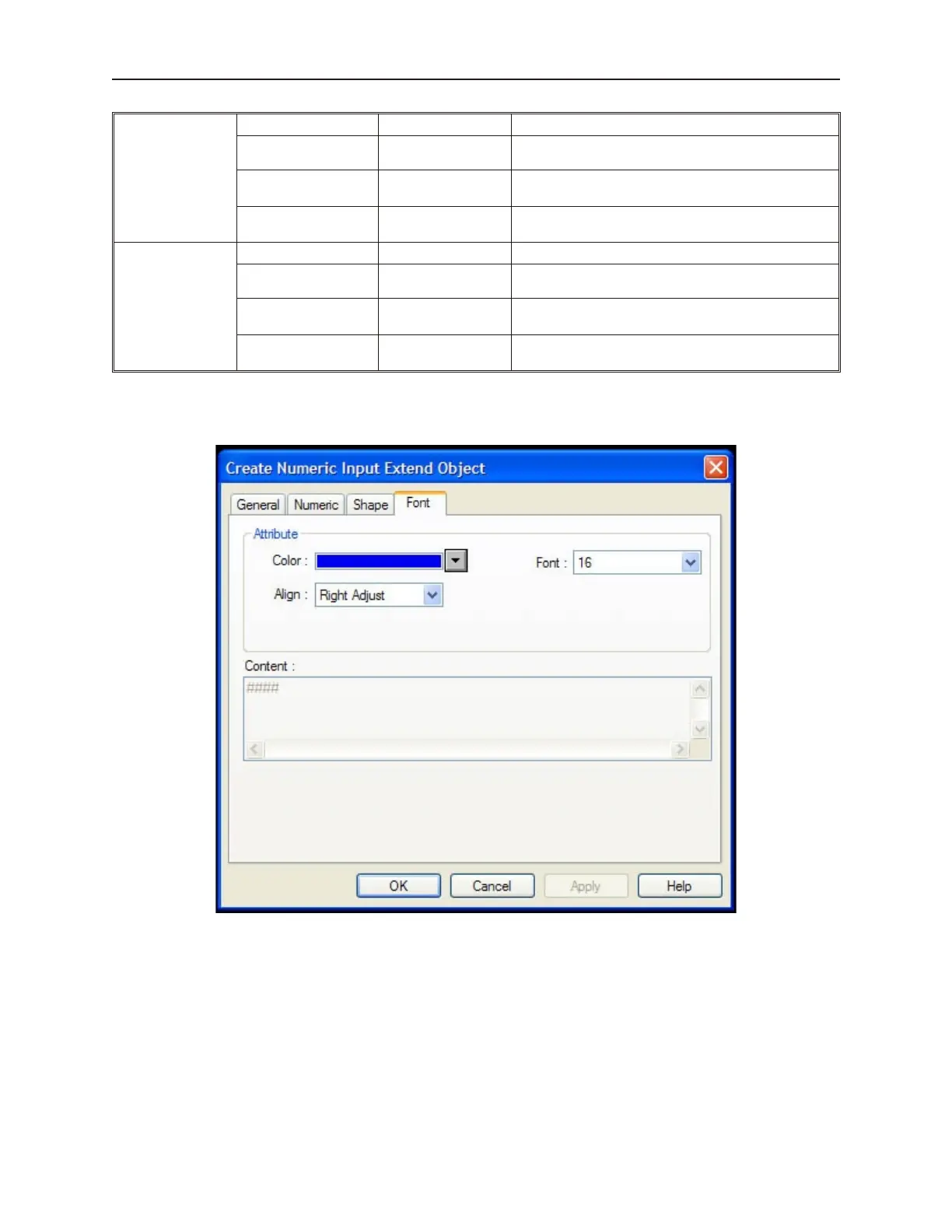
10. Click the Font tab to display the Font form.
\
11. Enter the color that you want for the digits displayed in the Color: box.
12. Enter how you want the digits to be positioned in the Align: box. The choices are:
• Right Adjust - aligns the number to the right margin of the part.
• Left Adjust - aligns the number to the left margin of the part.
• Leading Zero - inserts leading zeroes
13. Enter the size of the digits in the Font: box.
14. Click OK. The Numeric Input Object form closes and the main screen of EasyBuilder appears
with the cursor tied to a rectangular outline of the part you just created at the upper left corner
of the screen. Move the part to the desired location on the window.
1010-1001a, Rev 02
190 Sil ver Se ries In stal la tion & Op er a tion Man ual



 To Next Page