6. The No of words: box is set at 1 and cannot be changed.
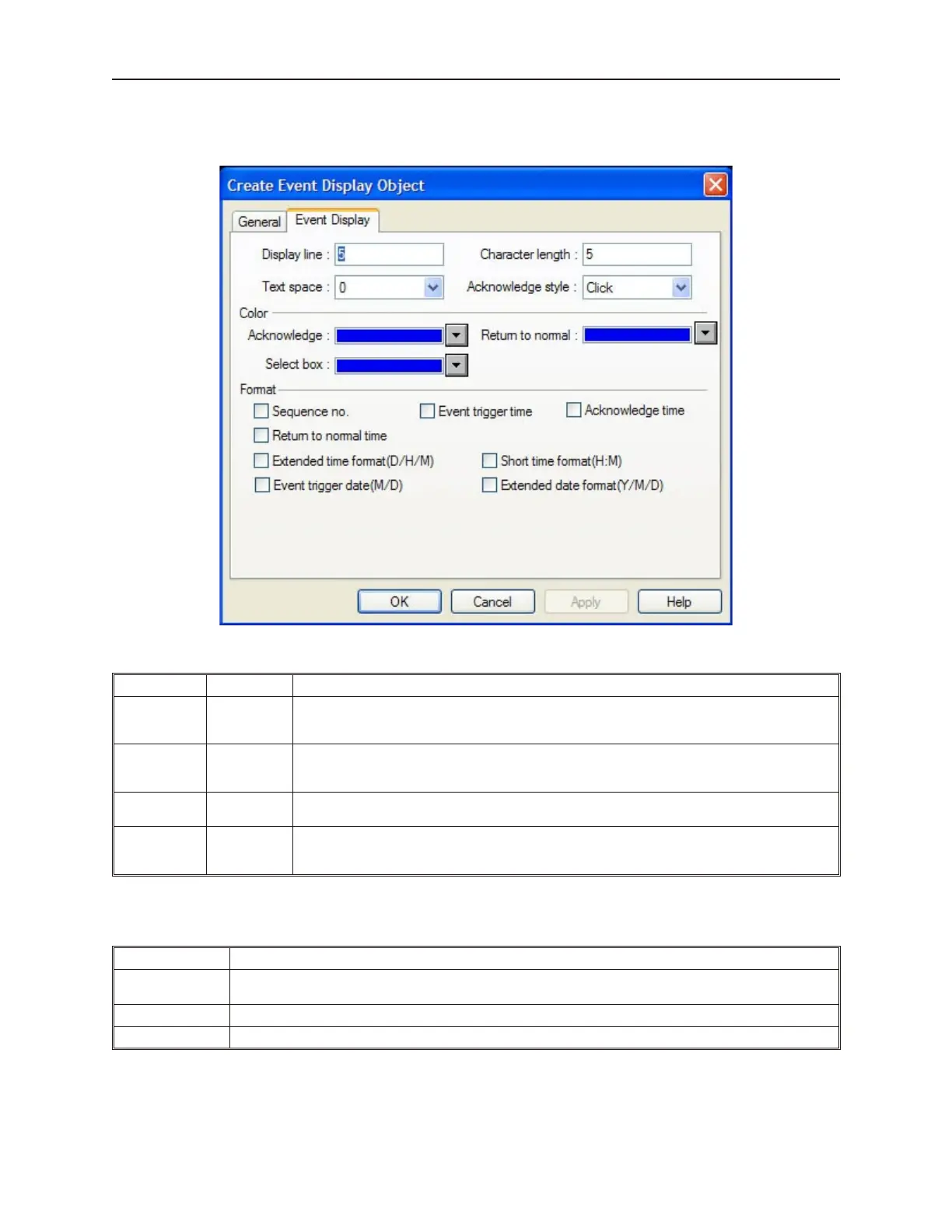
7. Click the Event Display tab to display the Event Display form.
8. Select the type of options the Event Display uses:
Function Range Description
Display line: 1 to 60
Selects how many events to display in the scrollable window. The number of lines refers to
lines that are size 16 font. If the Event text string is size 24 font, then two lines are required for
every event displayed.
Character
length
1 to 80
Selects how long the scrollable window is. Select a length, which is equal to the maximum
length of the largest event text string. If Size 24 font is used for the event text string, then two
characters are required for each character in the text string.
Text space: 0 to 5
Select this option to insert extra rows of pixels between each event text string displayed. In
other words, this sets the spacing between the lines of the scrollable window.
Acknowledge
style:
Click or
Double click
This setting determines what the OIT operator must do to acknowledge a triggered event. To
acknowledge an event, the OIT operator must either click or double-click (press the same spot
twice quickly) on the touch screen where the event string of the triggered event is located.
9. In the Color frame, select what type of colors the Event Display uses for some of the
functions:
Function Description
Acknowledge:
If the condition that triggered the event is still true, then this color is used for the event string when the OIT
operator acknowledges or touches the string.
Select Box: This color is used to highlight the event string that was last touched by the OIT operator.
Return to normal: This color is used to indicate that the condition that triggered the event is no longer true.
1010-1001a, Rev 02
Cap turing Alarms and Events 233



 To Next Page