Using the Maxtor System Tray Icon 10
Maxtor Black Armor
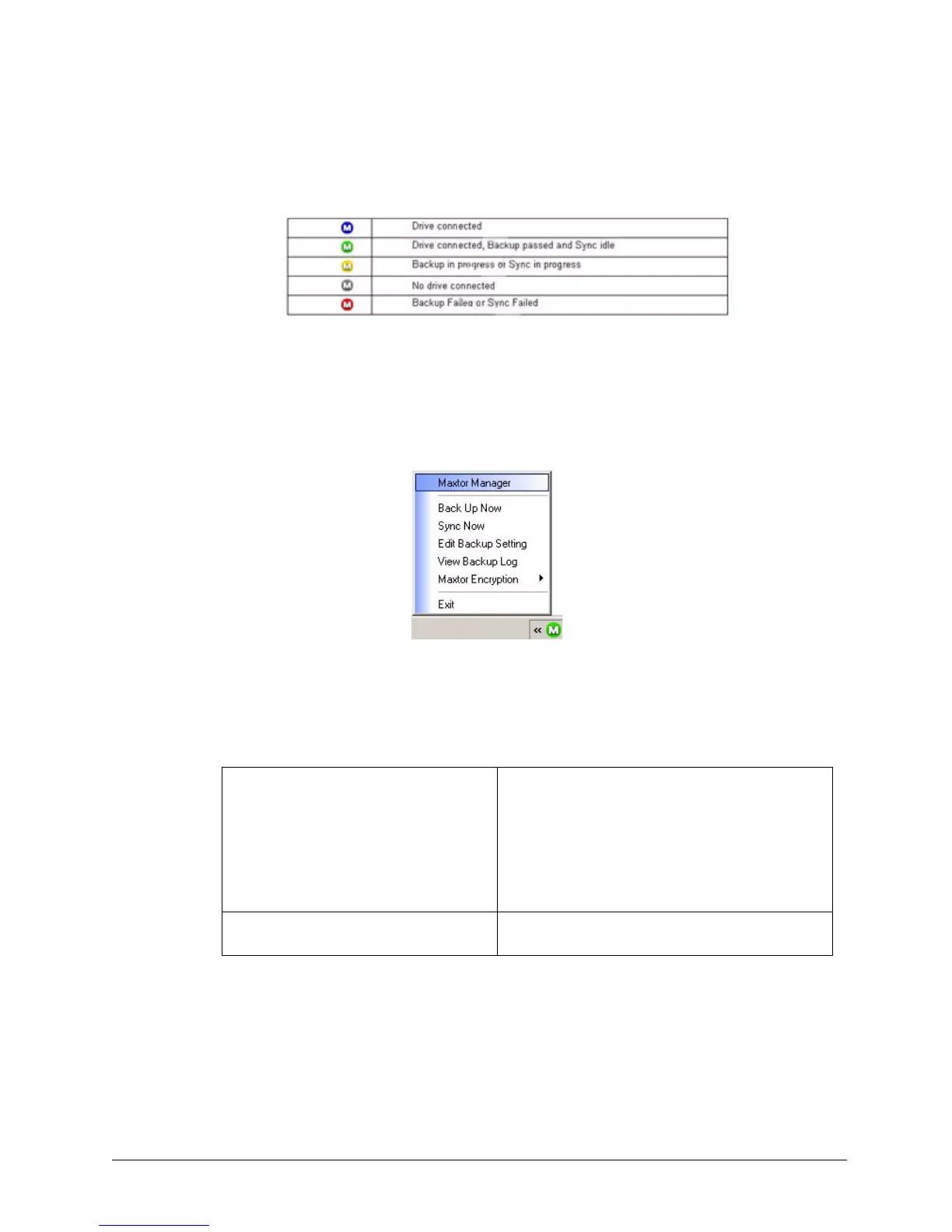
The color of the system tray icon conveys this information:
Note: When a backup or sync has failed, the red icon continues to display until the next
successful backup or sync.
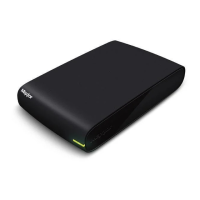
Step 2: To display the Maxtor Manager menu, click the system tray icon:
Step 3: Select the feature you want to access or select Exit to close the menu (the
BlackArmor application remains open).
Restoring the System Tray Icon
If you select Exit from the System Tray menu, the Maxtor icon disappears from the System
Tray. To restore the Maxtor icon to the System Tray, go to
Start > Programs > Maxtor > Maxtor Status Icon
Figure 14: System Tray Icon Information
Figure 2: System Tray Menu
Table 1: Using your Mouse with the Maxtor System Tray Icon
Click the system tray icon to • Launch Maxtor Manager
• Back Up Now
• Sync Now
• Edit Backup Settings
• View Log
• Open Maxtor Encryption
• Exit
Run your mouse over the icon to show • Status Information
• Status for Multiple Events






 To Next Page