TTR 300 Series PowerDB Lite User Manual
AVTMTTR310 Rev 8 May 2016
99
7. Loading Data Files
When testing with the TTR 320 or TTR 330 you may load files saved on the
instrument’s USB drive. Refer to Step 7 for instructions on selecting and opening
files.
8. Setting the Logos
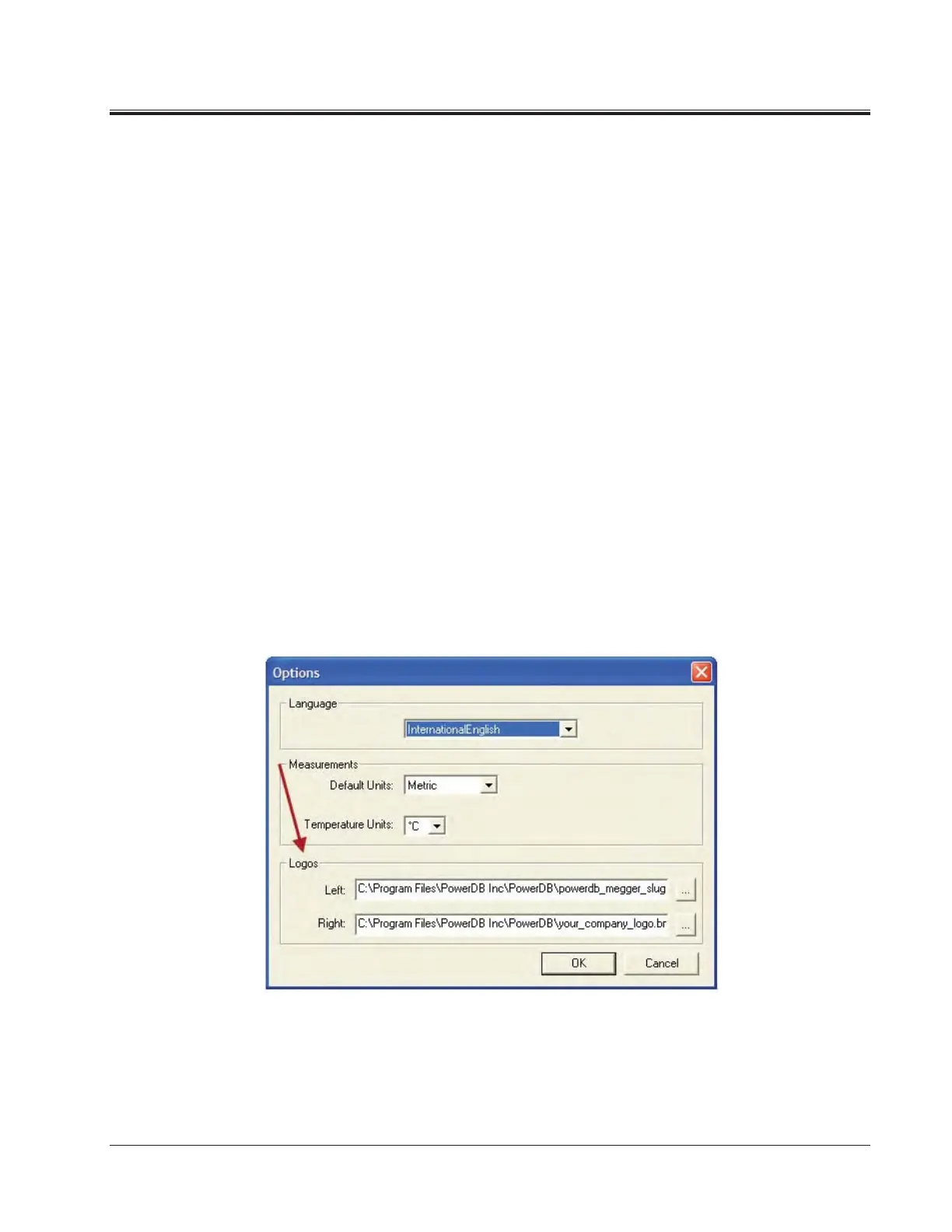
a. Select the Tools>Options menu item.
b. The Logos section specifies paths to the left and right logos files to
use.
c. To change the left logo press the “…” button by the left logo path.
d. The Open screen allows you to browse to a file location, select a
.JPG or .BMP file, and press the Open button.
e. Repeat steps (c) and (d) for the right logo path.
f. Note that a logo will not be shown if the logo file path is blank or the
file does not exist.
g. Note after specifying the logo files the image will not be shown until
the next time a form is opened (File>Open, or the File>New menu
items).
h. Note that the logos will look the best if the resolution of the file is
pixels wide by 240 pixels high. DPI is not important.


 To Next Page