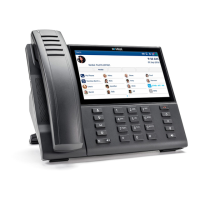
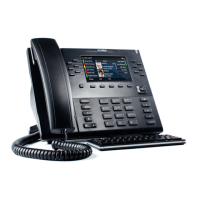
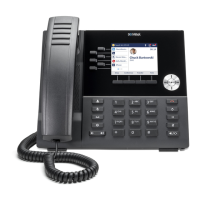
Mitel 6865i SIP Phone Release 4.1.0 User Guide
CONFIGURING CFWD USING THE MITEL WEB UI
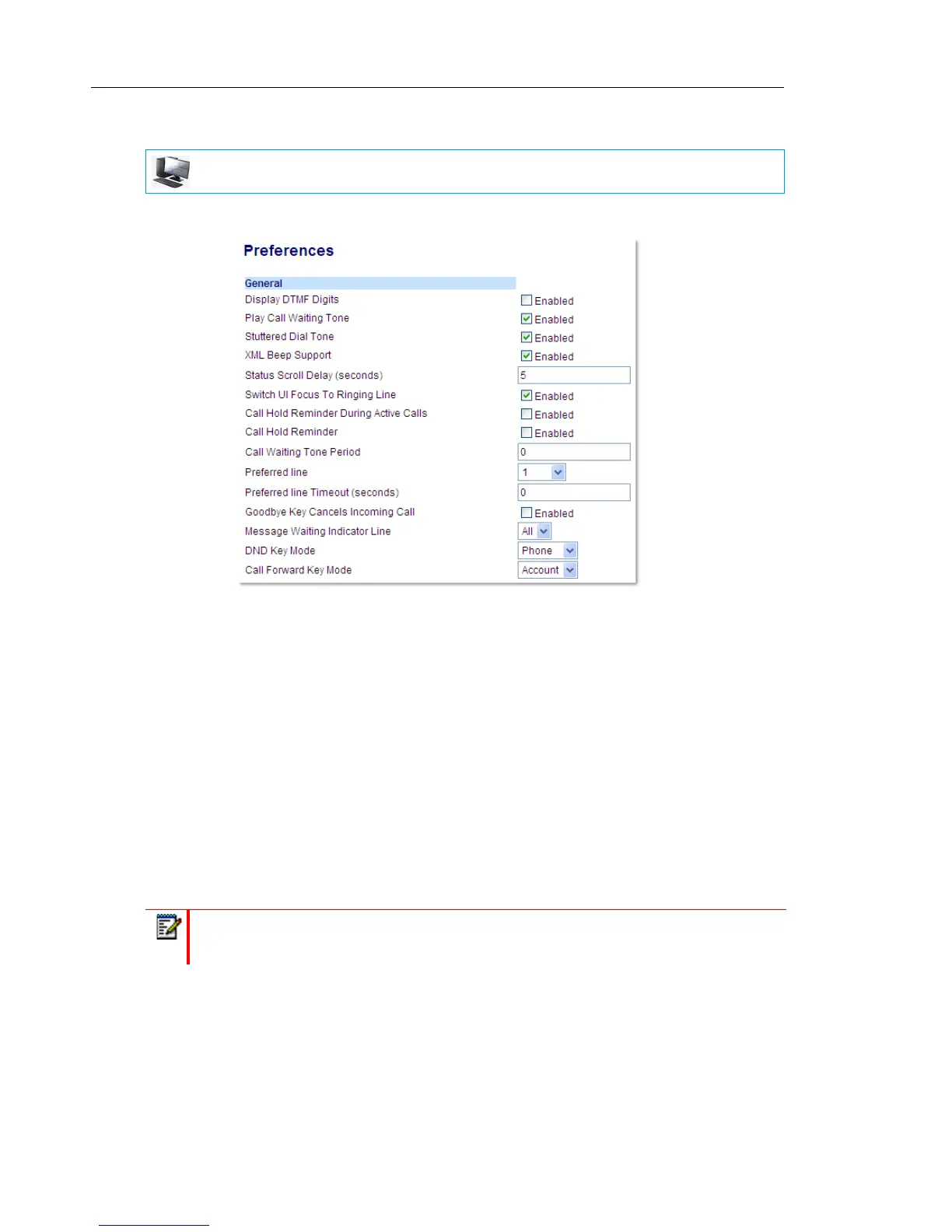
1. Click on Basic Settings > Preferences > General.
2. In the Call Forward Key Mode field, select a call forward mode to use on the phone.
• Account (default): The Account mode allows you to configure CFWD on a per account
basis. Pressing a configured CFWD key applies to the account in focus.
• Phone: The Phone mode allows you to set the same CFWD configuration for all ac-
counts (All, Busy, and/or No Answer). When you configure the initial account, the phone
applies the configuration to all other accounts. (In the Mitel Web UI, only the account
you configured is enabled. All other accounts are grayed out but set to the same
configuration.) Using the Mitel Web UI, if you make changes to that initial account, the
changes apply to all accounts on the phone.
• Custom: The Custom mode allows you to configure CFWD for a specific account or all
accounts. You can configure a specific state (All, Busy, and/or No Answer) for each
account independently or all accounts. On the 6865i, you can set all accounts to All
On or All Off.
3. Click Save Settings.
The changes takes affect immediately without a reboot.
MITEL WEB UI
Note: If there is only one account configured on the phone, then the mode setting is
ignored and the phone behaves as if the mode was set to Phone.



 To Next Page