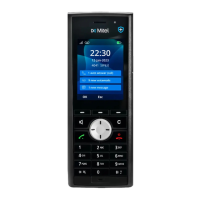
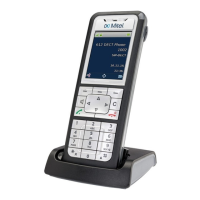
Mitel 700 DECT Phone User Guide
44
TEXT MESSAGES MENU
With OpenMobility SIP-DECT, your system can be operated with message and alarm solutions.
Message and alarm management is possible by connecting external alarm servers or by using
the basic functions of the OpenMobility Integrated Messaging and Alerting service (OM IMA).
In addition, the system can be equipped with the “OpenMobility Locating application (OML)”
which enables location of handsets attached to the base stations in use. The relevant descriptions
can be found in the separate User Guide (SIP-DECT Message and Alerting Applications) for this
topic, available on the Mitel web site.
DIRECTORIES MENU
The Directories menu gives you access to the Personal directory, the Central directory and the
VIP list.
Further details for dialling from the phone book and for creating a new entry can be found in:
• “Menu navigation” on page 18
• “Making internal / external calls” on page 33
You can make changes in the phone book as follows:
Bluetooth Switch on/off and configure the Bluetooth function - not Mitel 712dt (see
“
Bluetooth” on page 57).
Mandown,
No movement alarm,
Escape alarm
Switch on/off and configure the alarm sensors - Mitel 732d and 742d only
(see “SOS call” on page 47).
Call filter Access to the filter settings (if supported by the system) (see “Call filter
menu” on page 50).
Profiles Quick swapping between the various profiles (see “Profiles” on page 28).
Alarm clock Switch on/off and configure the alarms 1...3. The respective alarm clock is
selected with the left and right navigation keys.
Appointment Switching on/off and configuring the appointments 1...3. The respective
appointment is selected with the left and right keys.
Personal Directory (Personal phone book)
Select an entry from the list.
-> Sort For the next call, entries will be sorted by the selected call number category
(e.g. Private, Business, etc.).
Edit The entry can be modified. If you want to change the call number display
(when opening the phone book). Select the entry and press the key.
The selected entry will be marked with a *.
Press the softkey to save the changes.
See “Example: Personal phone book/editor” on page 19.
New entry Create a new entry.
Add to ... The selected phone number is added to the call filter or the VIP list.



 To Next Page