23
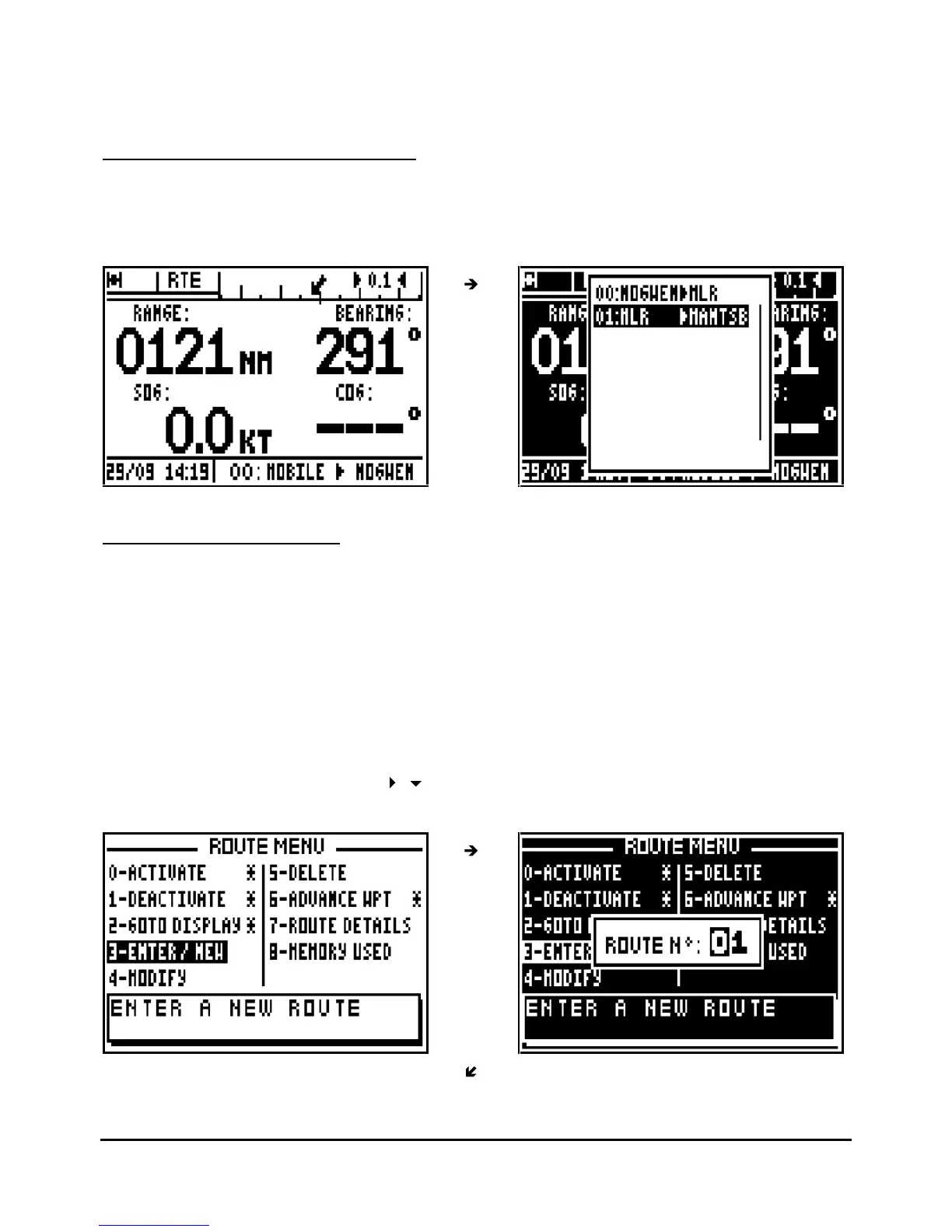
Note: The DATA, COMPASS, 3D ROAD and RADAR displays are identical to those of the
GOTO WAYPOINT function.
4.4.
–
CHANGING THE ROUTE IN USE
From the GOTO ROUTE functio
n, press the
9
WXY List
key to display the list of your routes, then
select the new route to follow in the same way as paragraph 4.1 ACTIVATE THE GOTO
ROUTE FUNCTION.
4.5.
–
ENTER A NEW ROUTE
In your receiver you can enter a new route whilst following instructions from the windows
displayed when you press the
GoTo
key or from the ROUTE MENU. From the ROUTE MENU,
press key
3
(or select 3
-
ENTER/NEW and press
Enter
).
The first available route number is displayed. Press the
Enter
key if you wish to pr
oceed.
Should you wish to use an alternative number, make your choice and press
Enter.
To display the list of waypoints now press key
9.
Select your first waypoint then press
Enter
.
The name of this waypoint is displayed in the route and the cursor advances to the following
slot. Repeat this operation to enter all waypoints. When you have finished entering your route,
move the cursor to OK? using the
arrow keys and press
Enter
to validate and to store
your new route.



 To Next Page