FX312 & FX412 VERSION 2.0
14
3.3.4
–
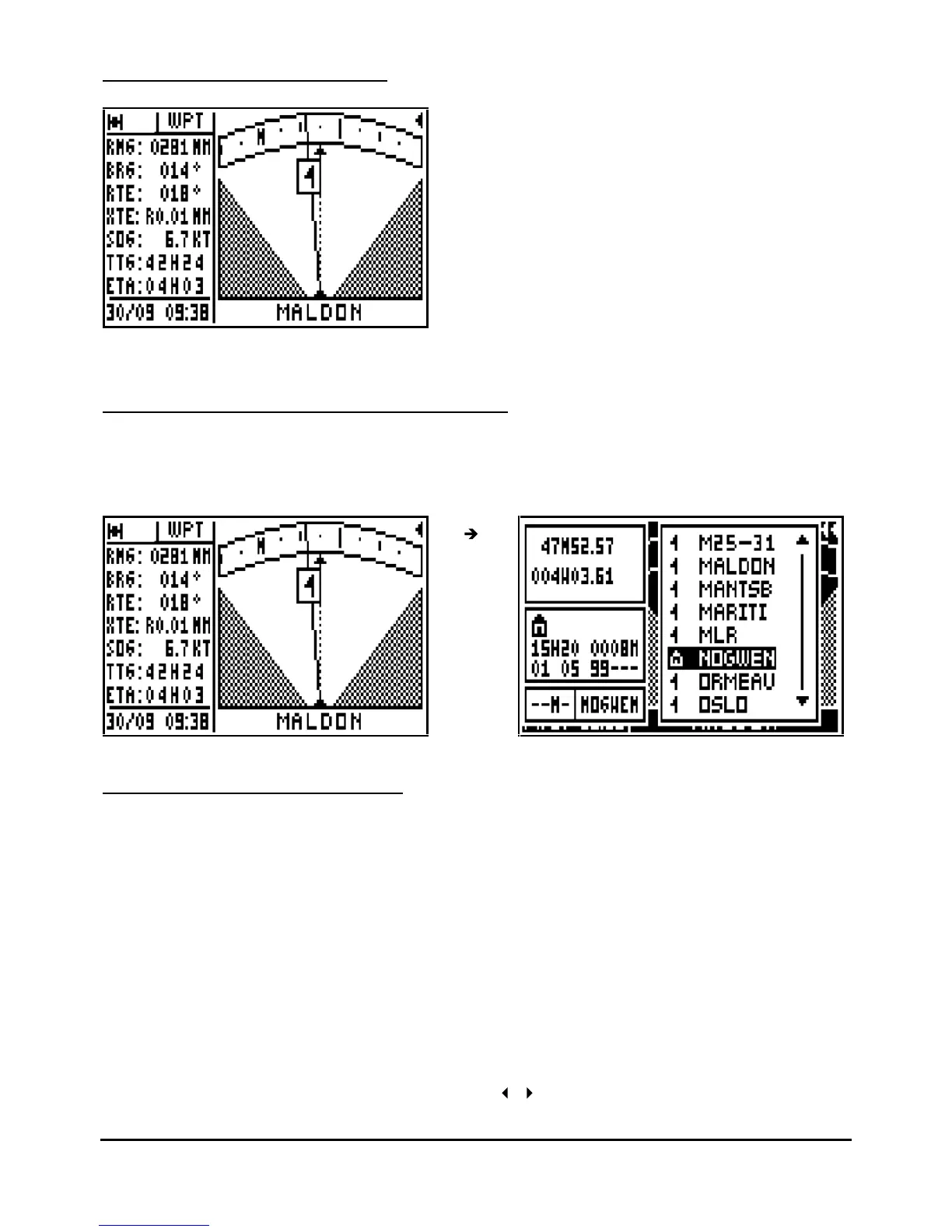
GO TO WAYPOINT RADAR
Your course is represented by the dotted
line in the centre of the screen. A
con
tinuous line with the destination
waypoint icon is displayed to show the
bearing of the waypoint from your current
course. When the dotted line (vessel
course) is directly over the line with the
waypoint you are on course. If two
arrows are shown simultaneously this
indicates that the waypoint is outside of
the display area.
3.4.
–
CHANGING THE DESTINATION WAYPOINT
From the GOTO WAYPOINT function, press the 9
WXY
List
key to display the list of your
waypoints, then select the new destination waypoint while proceeding in the same way as
paragraph B.3.1 ACTIVATE THE GOTO WAYPOINT FUNCTION.
3.5.
–
CREATING A NEW WAYPOINT
With your receiver you can create a new waypoint by following the instruction windows
displayed after pressing the
GoTo
key or fr
om the WAYPOINT MENU.
From the GOTO WAYPOINT function, press the
Menu
key then press key 3 (or select 3-
ENTER/NEW and press
Enter
).
When the entered waypoint window is displayed, enter the NAME of the waypoint, select an
ICON for representation in the PLOTTER function, enter a COMMENT (optional), enter the
LATITUDE and the LONGITUDE then press
Enter
to validate your entry and store the new
waypoint.
Note: To enter a letter, press repeatedly the corresponding key (e.g. to enter a B, press 3 times
on key 2). Once the letter or the number is displayed, the cursor will advance automatically to
the next character. If you make a mistake, use the
arrow keys to move back or to advance



 To Next Page