MiiNePort E2/E3 NetEZ Technologies
ATTENTION
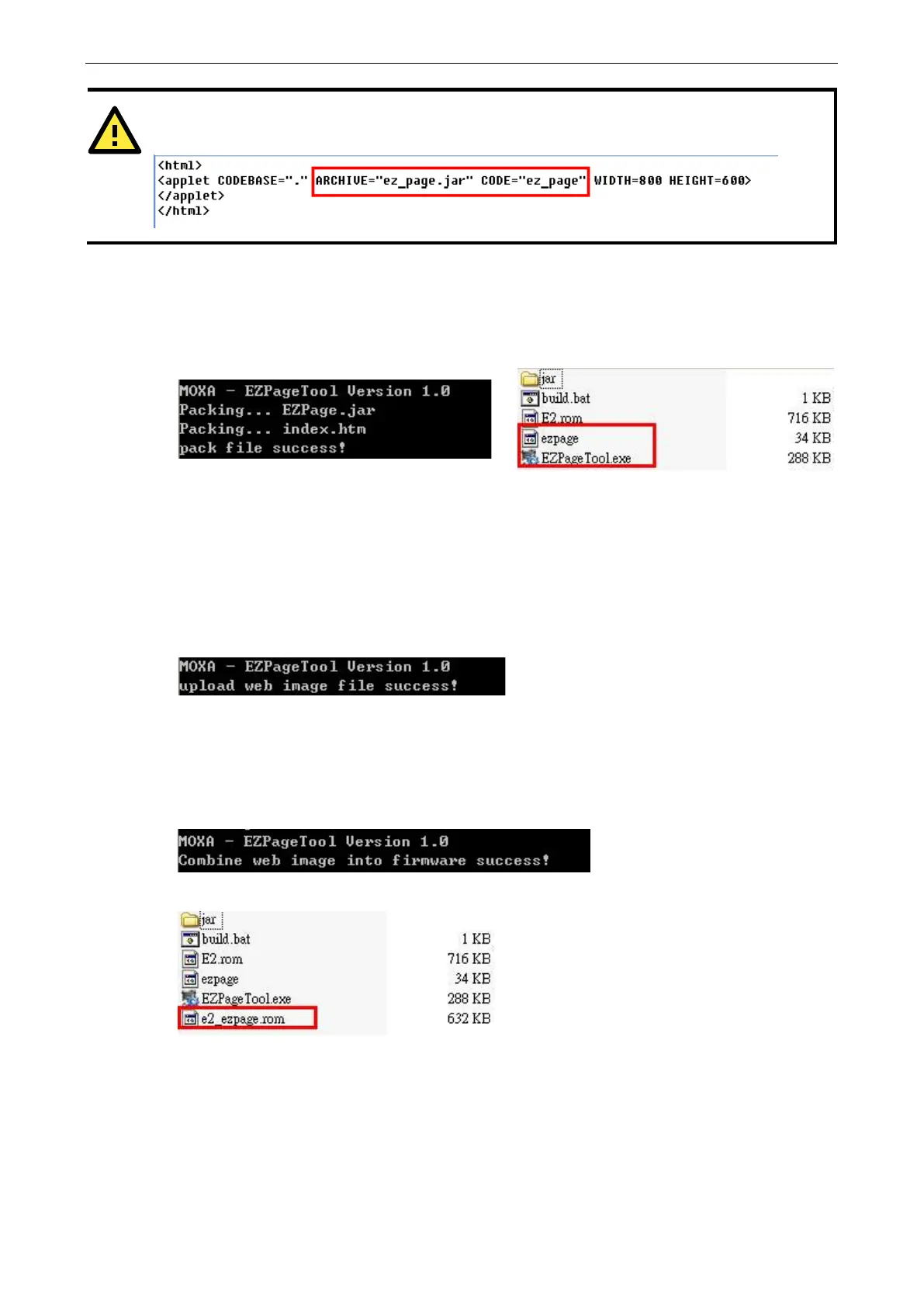
You need to assign the correct target jar file on index.htm
3. Execute the EZPageTool command with the makefs parameter to pack all files in command prompt mode.
Usage: EZPageTool /makefs [file path] [file name]
Example: EZPageTool /makefs c:\jar ezpage
4. You will see the following message if the packing process is executed successfully and the packed file can
be found in the same directory.
Step 3. Upload EZPage to the MiiNePort
There are three ways to upload EZPage to the MiiNePort.
• EZPageTool:
Execute the EZPageTool command updatefs parameter to upload EZPage to the MiiNePort in command
prompt mode.
Usage: EZPageTool /updatefs [file to upload] [device IP]
Example: updatefs ezpage 192.168.35.101
You will see the following message if the upload is successful.
• Combine EZPage and MiiNePort’s firmware in one file and upload it via the NPort Search Utility:
Execute the EZTool command with combine parameter to combine EZPage and firmware in the command
prompt mode.
Usage: /combine [file name of EZPage] [file name of firmware] [file name after combination]
Example: /combine ezpage E2.rom e2_ezpage.rom
You will see the following message if the combine process executes successfully.
The file can be found in the same directory.
Execute the NPort Search Utility and select the combined firmware file to upload to the MiiNePort.
• Combine EZPage and MiiNePort’s firmware as one file and upload it via the MiiNePort’s web
console:
Log in to the MiiNePort’s web console and upgrade the firmware by using combined firmware.


 To Next Page