© Munters AB, 2020 149
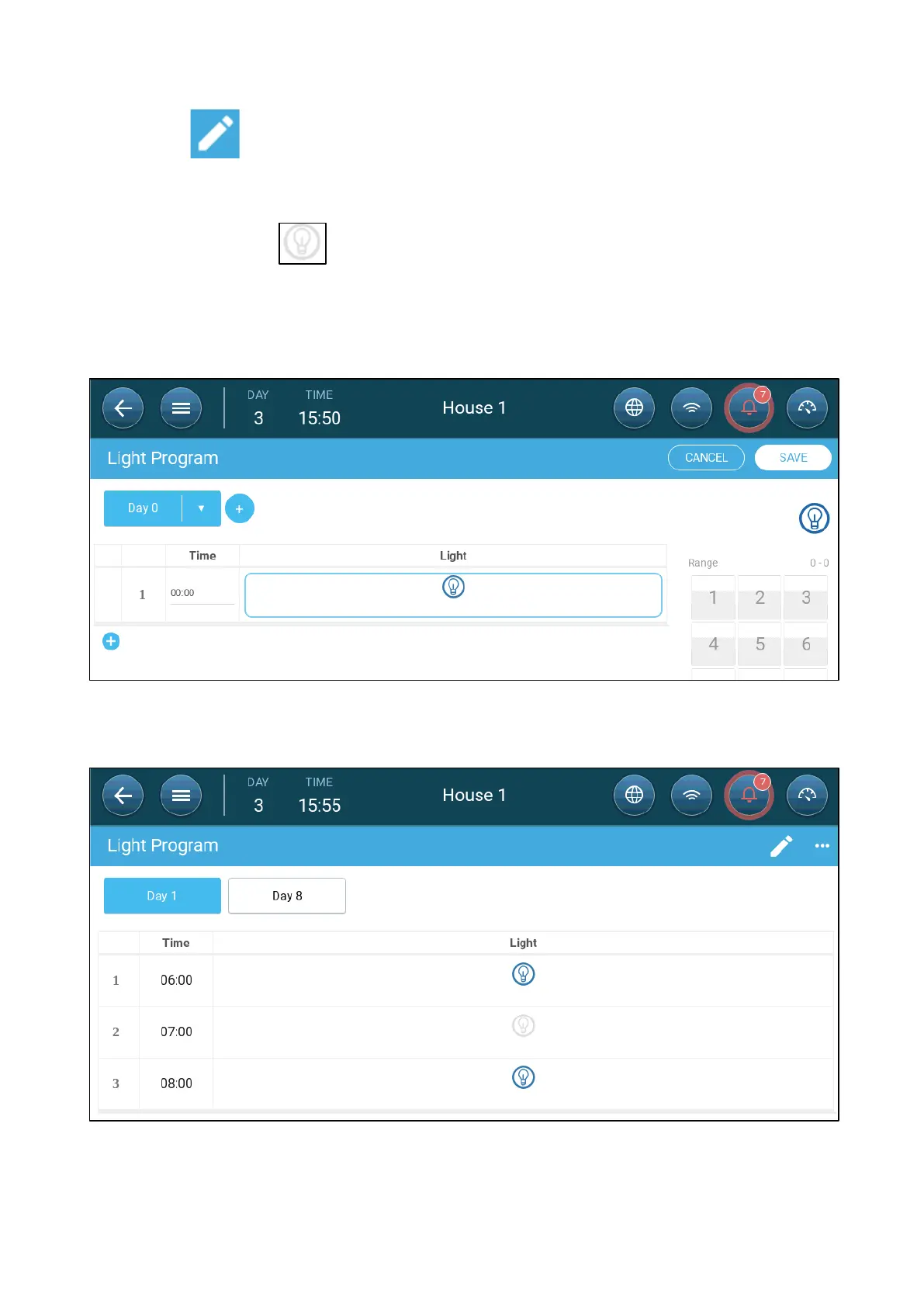
3. Click .
4. Define the growth day.
5. In line one, define the time that the lights go on.
6. Enable the line(s) :
o
In single line control, click the light icon. Another light icon appears. Click that icon. Both
icons turn blue.
o
In multi-line control, click the icon of each required line. Another light icon appears. Click
that icon. All icons turn blue
7. Add additional programming lines to define when the light lines go off and then on. Repeat for
each growth day.
8. Click Save.
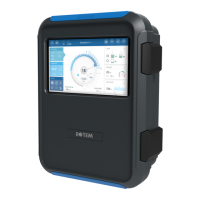
In this scenario, all lights go on at 6:00, turn off at 7:00, and turn on at 8:00.


 To Next Page