Terminal Web Interface
User Manual for the Satellite Terminal
version 3.0
9
3.2.2 No Satellite Connection
Make sure your computer is able to receive an IP address via DHCP, by following
the procedure described in Appendix B – Setting and Changing your IP Settings.
When the terminal is not li
nked to the satellite network, after three minutes, the
computer will automatically receive its IP address, via DHCP, from the IPmodem and
you will then be able to browse the web interface.
If no DHCP address is assigned to your terminal: remove the Ethernet cable from
your computer, wait a few seconds, and plug the Ethernet cable back into your
computer.
Type the IPmodem’s address in the address bar of the browser:
192.168.1.1.
You will be redirected to the Status page of the terminal.
If the problem remains, you need to assign a static IP address to your computer by
following the procedure in Appendix B – Setting and Changing your IP Settings.
3.3 Overview Web Interface
3.3.1 General Layout
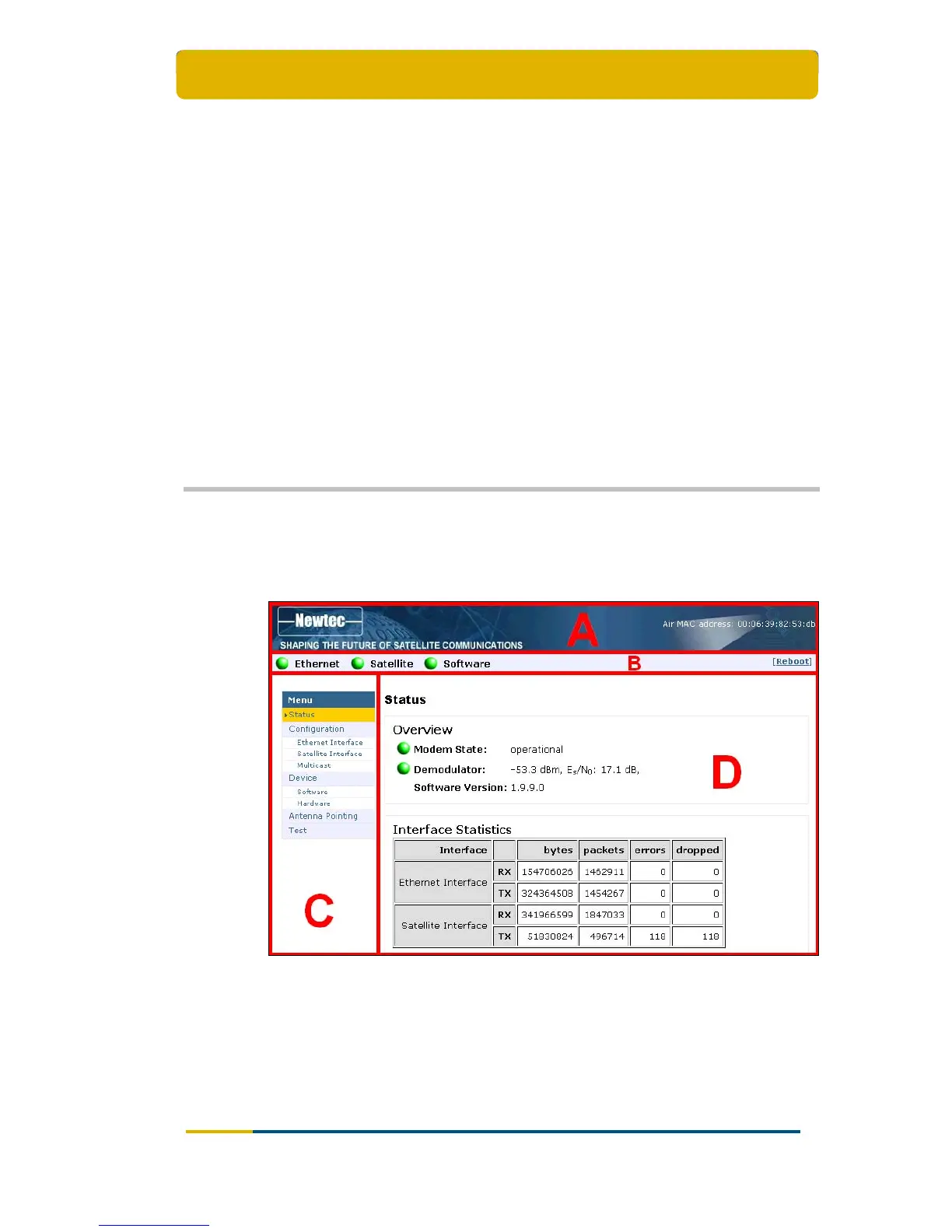
Figure 9 – Page Layout of Web Interface
Each of the web interface pages contains the same elements.
A – Banner : The banner contains the Newtec logo and shows the Air MAC
address.
B – Status bar : The status bar always shows the most important status LEDs.
This information will be specified in the body of the Status page.



 To Next Page