40
Alternatively, to go back to the Test Setup screen without logging a new sample, click “Cancel”
in the Sample Details box.
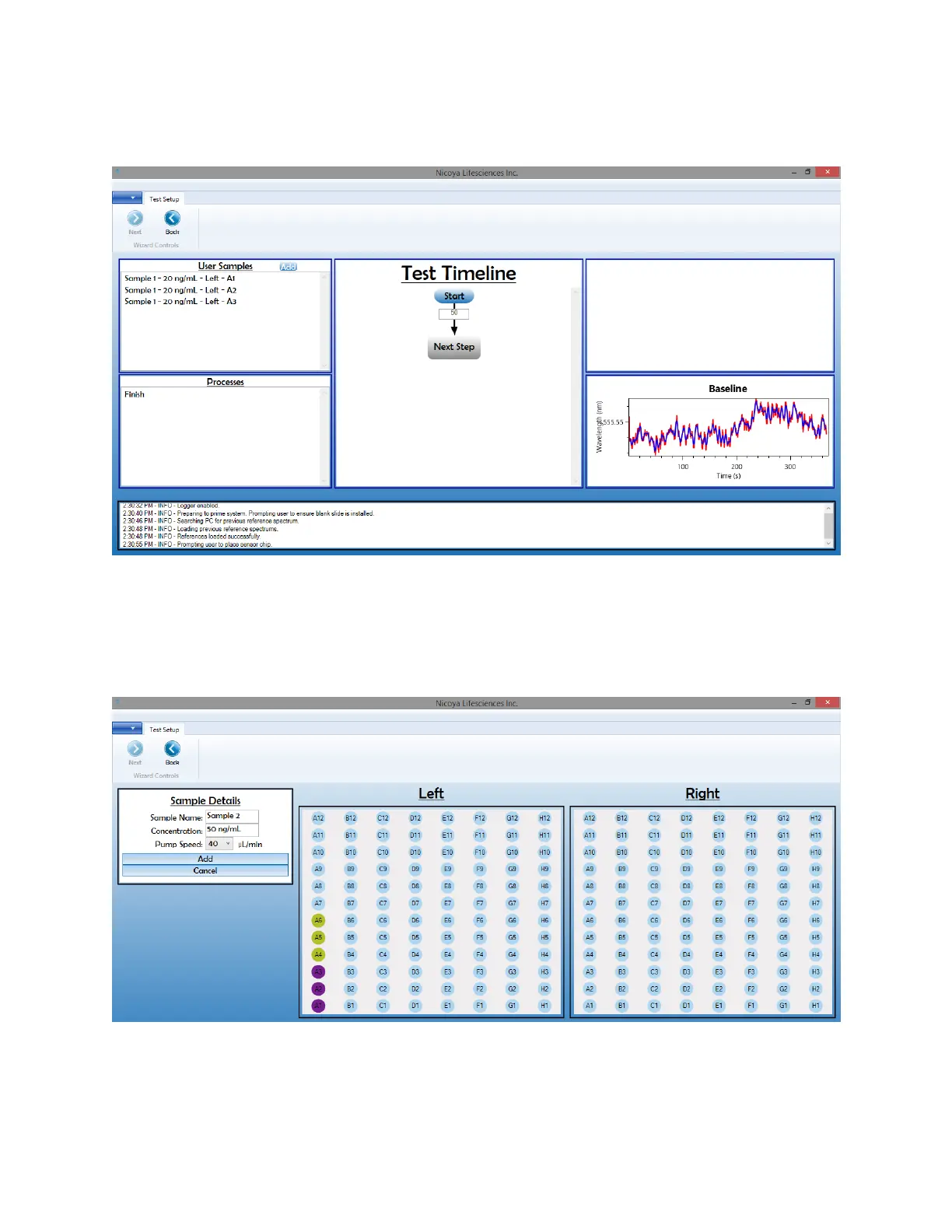
Figure 2.26 Test Setup screen with first sample details loaded into the User Samples window.
6. Click the “Add” button again to add additional samples. Note that all user injections including
ligand, blocking solutions, analyte, regeneration solutions, etc will need to be added as
samples. When adding each additional sample, the wells already occupied by logged samples
will appear purple in colour and you will not be able to select them [Figure 2.27].
Figure 2.27 Adding additional samples, well that are already occupied will be purple in colour and you will not be able to select
them.


 To Next Page