118 Chapter 13 — The Toolbar | Fill / Remove Tools
Fill / Remove Tools
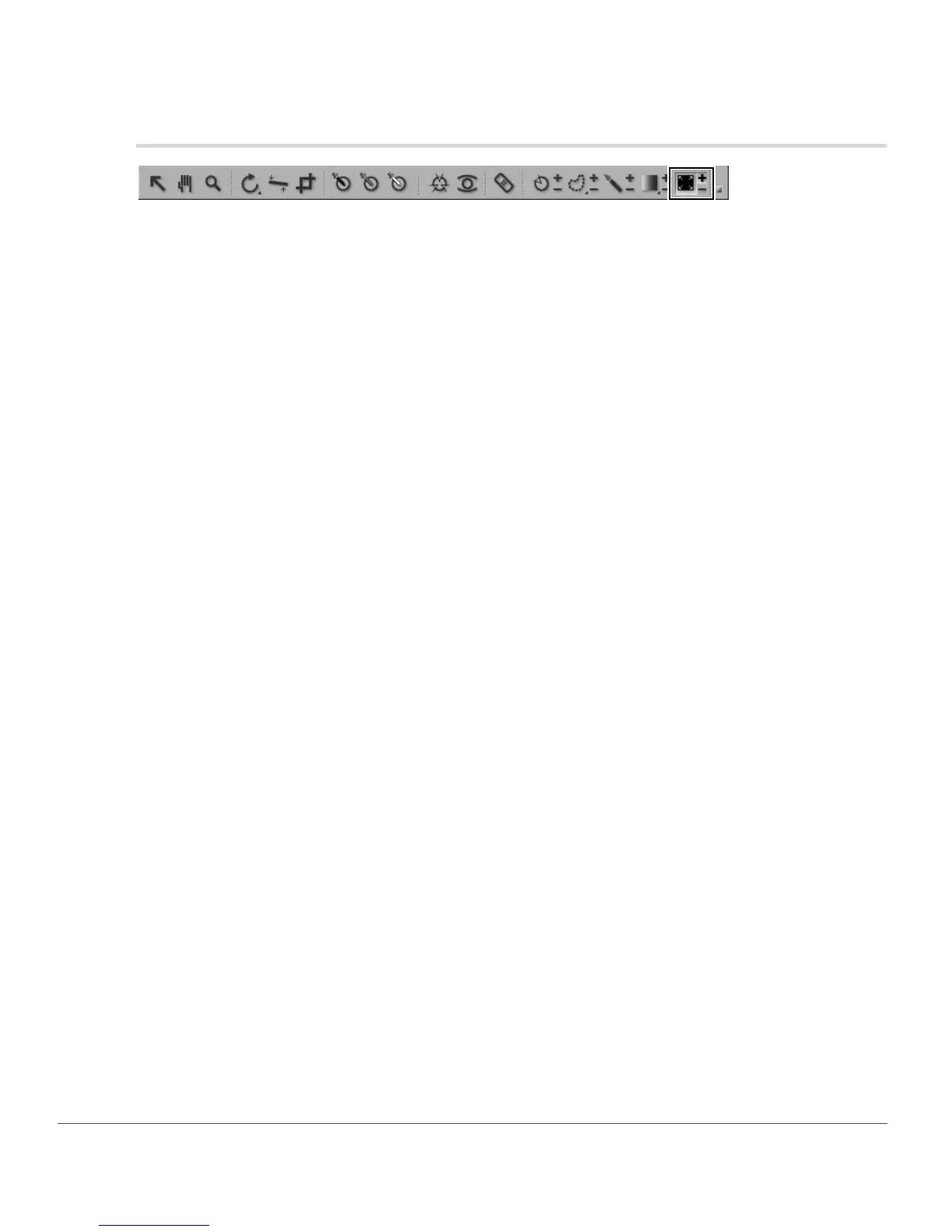
The fill / remove tools enable you to either fill the current step’s enhancements or clear the selections made
by the selection brush, gradient tools, or fill tool, either in the entire image or the area within a selection
created by the lasso and marquee tools.
To fill or remove the current step’s enhancements, follow these steps:
1
Click on the fill / remove tools icon within the toolbar. Click on the (+) icon to fill the current step’s
enhancements or click on the (–) icon to clear the selection previously made by a selection brush,
gradient tool, or fill tool. The cursor will change.
2
Click within the active image window to either fill or remove the current step’s enhancements,
depending on in you chose the (+) or (–) icons. If there is a selection made by one of the lasso or
marquee tools, click within a selected area to fill or remove the effect from within that area.
3
To delete a selection created by the fill or remove tool, click on the delete button found in the
current step’s selection information section next to the “Paint & Fill Mask” section. Alternatively,
ensure that the image window is active by clicking on the image window’s title bar and press the
delete key.



 To Next Page