d-Color MF222 plus/MF282 plus/MF362 plus/MF452 plus/MF552 plus 3-51
3.5 Registering a destination
3
Using a computer to register a one-touch destination
In addition to using the Control Panel, address books can be registered from a computer using the utility
software, Web Connection.
NOTICE
When using Internet Explorer 6 in the IPv6 environment, you need to correct the hosts file in advance. For
details, refer to the [User's Guide Online] on the DVD.
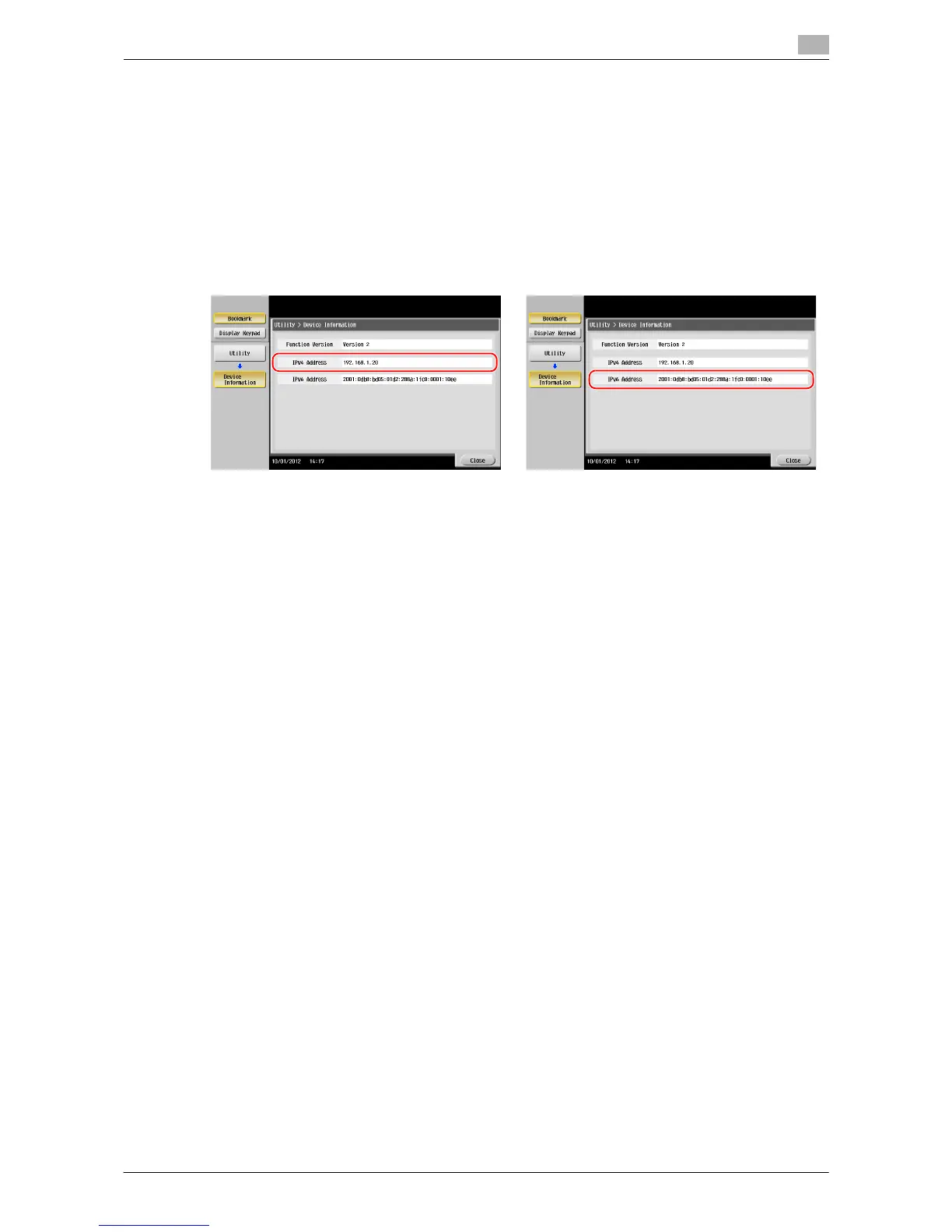
1 Check the IP address of this machine
% Tap [Utility], and select [Device Information]. Check that the IP address is displayed.
% If no IP address is displayed, you need to configure the network. For details, refer to the [User's
Guide Online] on the DVD.
2 Start a Web browser, enter the IP address of this machine into the URL field, then press the [Enter] key.
% For "http://192.168.1.20/", "192.168.1.20" is an IP address.
% If you use a Web browser other than Internet Explorer 6 in the IPv6 environment, enclose the IPv6
address in [ ]. For example, if the IPv6 address of this machine is "fe80::220:6bff:fe10:2f16", type in
"http://[fe80::220:6bff:fe10:2f16]/".
% If the login screen appears, enter the required items, then click [Login].
3 Select [Store Address] and click [New Registration].
4 Select the type of the destination you want to register.
5 Enter the required information such as the name, fax number, and index.
• For IPv4 environment • For IPv6 environment



 To Next Page