Using a USB memory device
3
3-62 d-Color MF222 plus/MF282 plus/MF362 plus/MF452 plus/MF552 plus
3.6
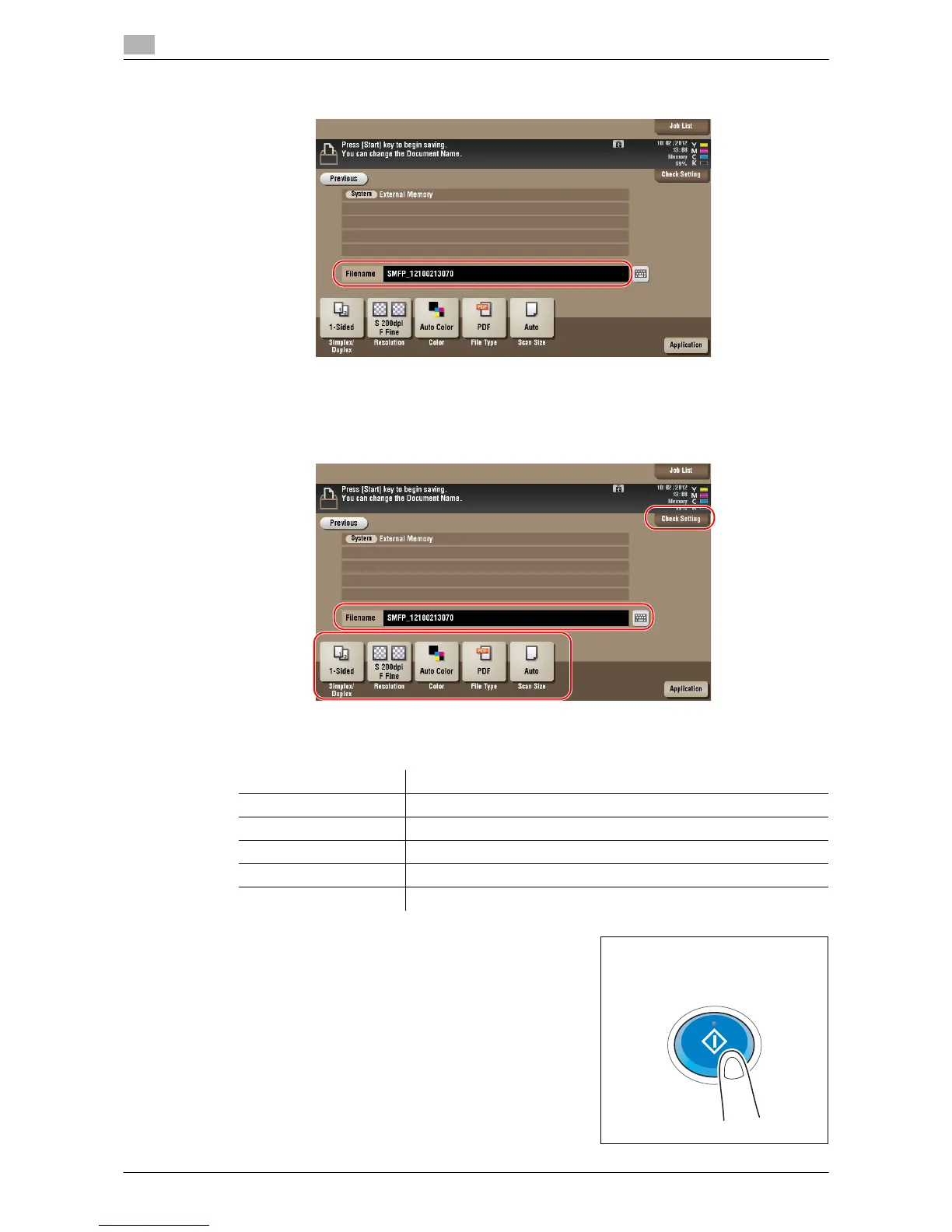
4 Check the file name.
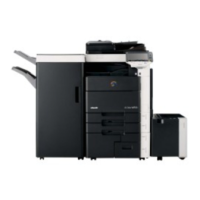
5 If necessary, check the setting to save data.
% Tap [Check Setting] to check the setting.
% To change a file name, tap the file name or keyboard icon.
% You can also check the setting using the keys displayed on the Touch Panel.
% To change the setting, tap the desired key on the Touch Panel.
6 Press the Start key.
NOTICE
Do not disconnect the USB memory device during data sav-
ing.
Settings Description
[Simplex/Duplex] Select whether to scan one or both sides of the original.
[Resolution] Specify the scanning resolution.
[Color] Select whether to scan the original in color or black and white mode.
[File Type] Select the type of the file to save scanned data.
[Scan Size] Specify the size of the original to be scanned.



 To Next Page