-19-
7-4
Detection area check
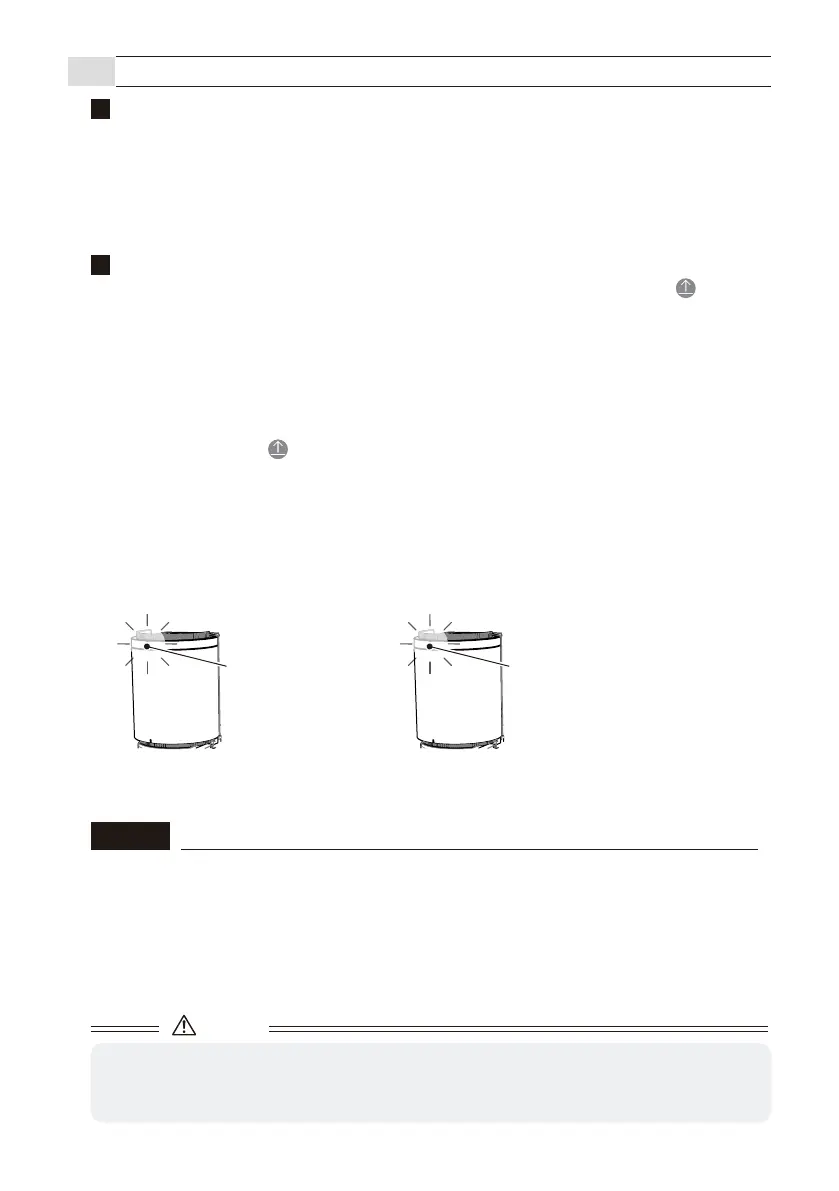
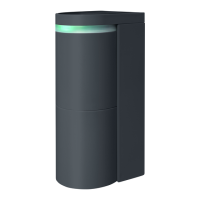
Blinking green
• In the detection area: Blinking red
• In the pre-detection area: Blinking yellow
When something is detectedDuring normal area check mode
* Delay / Hold timer settings are not applied during the detection area check mode.
Caution
・
If the sensor is detected (not detected) in an unexpected location in the area check mode and the
sensor installation angle or detection range is reset, be sure to perform calibration after resetting the
detection area and adjusting the angle of the sensor.
Corresponding to malfunction in the area check mode
-The sensor may not work properly when there is a large metal body such as a
shutter in the detection area or when the immediate area of the sensor is
covered. In such a case, the operation indicator turns on purple when the sensor
is in standby status to indicate that it is in an unfavorable environment.
- When the operation indicator turns on purple, check the condition in the detection
area and remove the cause by removing metal objects from the surrounding
area.
NOTE
This function allows you to virtually check the invisible detection area using indicators on the App or the
operation indicator.
It is possible to verify the correct angle and size of the detection area.
During this process, the human cancellation function is disabled, and any moving objects can be detected.
* Be sure to perform the area check after transmitting the settings and performing calibration.
(1) On the “Status” screen of the App, turn On the area check mode and tap Send icon .The mode
changes to detection area check mode, and the operation indicator blinks in green. If the operation
indicator blinks yellow even when there are no people or objects in the detection area, perform
calibration again.
(2) Perform steps [1] and [2] on the next page.
(3) After checking the detection area, On the “Status” screen of the App, turn Off the area check mode
and tap Send icon . The mode will switch to the normal operation mode and the operation
indicator will change back to blinking in green (slow).
* If it keeps blinking in green (non-detection status) for 30 seconds, it will automatically change back to
normal operation mode.
Detection area check
1
How to check the detection area
2


 To Next Page