-21-
Check and change settings (How to use the app)
8
8-1
Icons
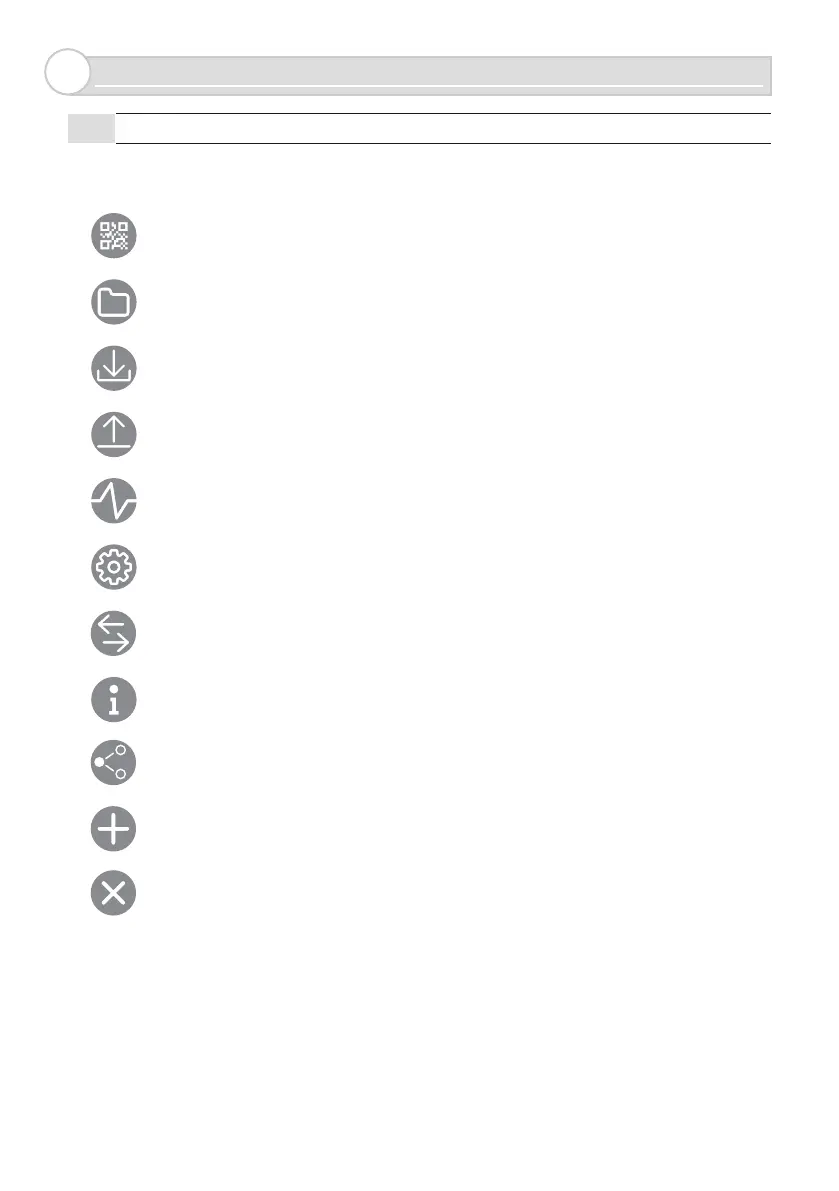
Below are the icons used in the App.
2D code : This is used to log in to the sensor, or to share Favorites.
Folder : This is used to read a 2D code that has been saved onto a smartphone.
Save : This is used to save 2D codes and Favorites.
Send : This is used to transmit settings to the sensor.
If a red circle appears on the top right of the icon, make sure to press this.
Status : This is used to verify sensor operation. If a red circle appears on the top right of
the icon, make sure to perform the “Send” operation.
Parameter : This is used to set sensor parameters. If a red circle appears on the top
right of the icon, make sure to perform the “Send” operation
Input and output : This is used to set sensor inputs and outputs. If a red circle appears
on the top right of the icon, make sure to perform the “Send”
Information : This is used to verify or edit sensor information.
Delete : This is used to delete Favorites.
Share : This is used to share Favorites with others.
Add : This is used to add a Favorite.


 To Next Page