-23-
8-2
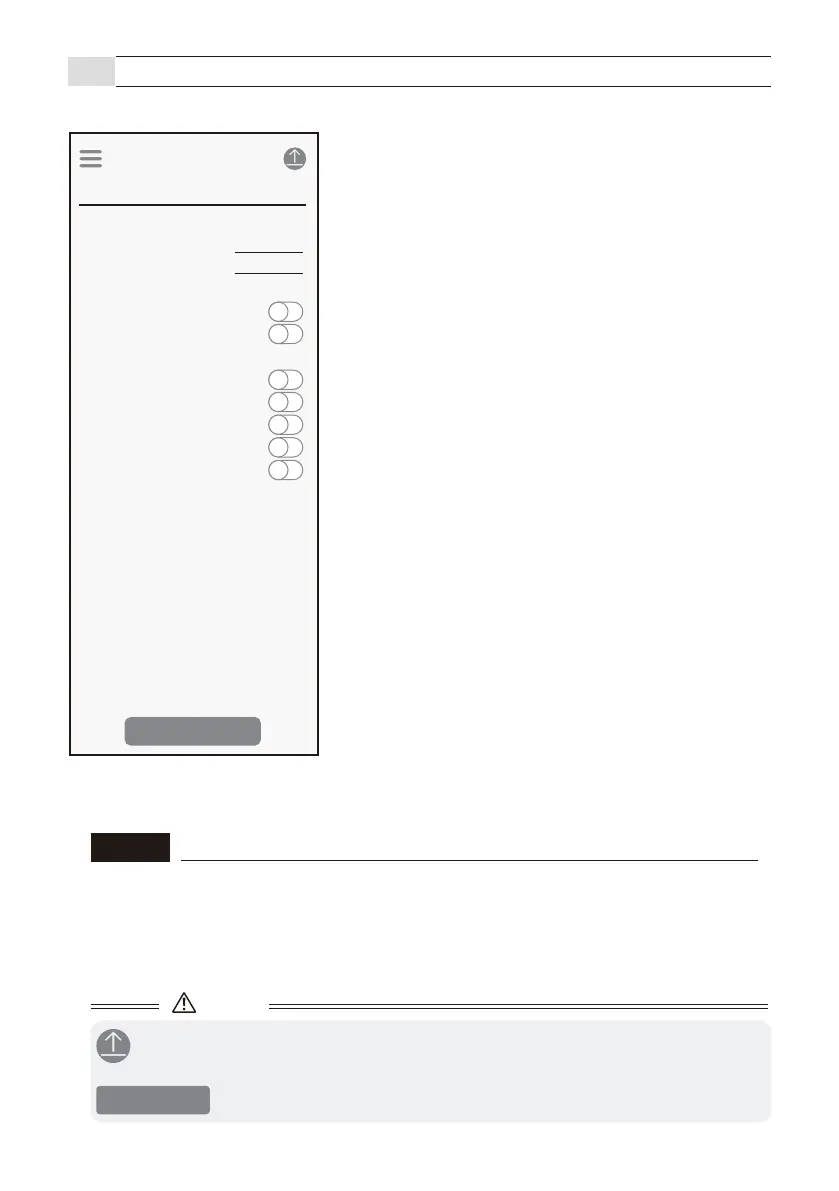
App description (Status screen)
- Check and set the sensor status.
■ Applications
Change it by selecting Menu Icon > Favorite > Select application.
● Detection status
[1] Detection
This indicates the detection status of the sensor. (Updated
approximately once per second. )
[2] Pre-detection (Area check)
This indicates whether the sensor has started a detection
response or not. (Updated approximately once per second. )
● Detection beep
[3] Detection
[4] Pre-detection (Area check)
A beep sound is made when the detection (pre-detection) status
changes.
● Installation guide
[5] Area check mode
When this is On, the sensor detects moving objects such as
vehicles and pedestrians. Use this for checking the area.
If the operation indicator keeps blinking in blue
(non-detection status) for 30 seconds, this will automatically
change back to normal operation mode.
[6] Output hold
Outputs from the sensor can continuously be On. Use this for
checking the system operation while outputs are active.
[7] Input status
Inputs can continuously be On. Use this for checking the system
operation while inputs are active.
[8] Inhibit input
The sensor will keep operating without changing its
operation even if it receives inputs. Use this for checking the
system operation while inputs are not active.
* Installation guide items will be automatically turned Off when a user
logs out from the sensor, or when the connection between the sensor
and smartphone is lost.
Detection and Pre-detection
“Detection” indicates the space incorrect detection status. Use this as a check for
actual operation.
“Pre-detection” indicates if the sensor has captured an object. If there are no
vehicles, people, or other objects in the detection area, but “Pre-detection” is still
detected, there may be a problem with the sensor orientation or settings, or there
may be a false factor in the surrounding environment.
NOTE
Status
Application
Detection Detection
Pre-detection
Detection status
Barrier Protection 90 deg
Detection
Detection
Pre-detection
Detection beep
Area check mode
Output1 hold
Installation guide
Output2 hold
Input status
Inhibit input
Caution
- After changing settings, be sure to tap the Send icon to send the settings to the sensor.
- Perform this if the operation is unstable, or there is a false detection or loss of detection.
- Please perform this when there are no vehicles or objects in the surrounding.
Calibration
Calibration


 To Next Page