30
31
> Prerequisite: The device registration has been
activated (see Page36).
1) Turn on the wheelchair control device.
2) On the Android device, open the Settings menu.
3) Under the item Wireless and networks, open the
Bluetooth menu item and activate the Bluetooth
function.
Alternatively, open the Bluetooth menu item dir
ectly and activate the Bluetooth function.
4) Select the Bluetooth mode on the TEN° control pan
el by pressing the [Profile/mode] button a number
of times if necessary.
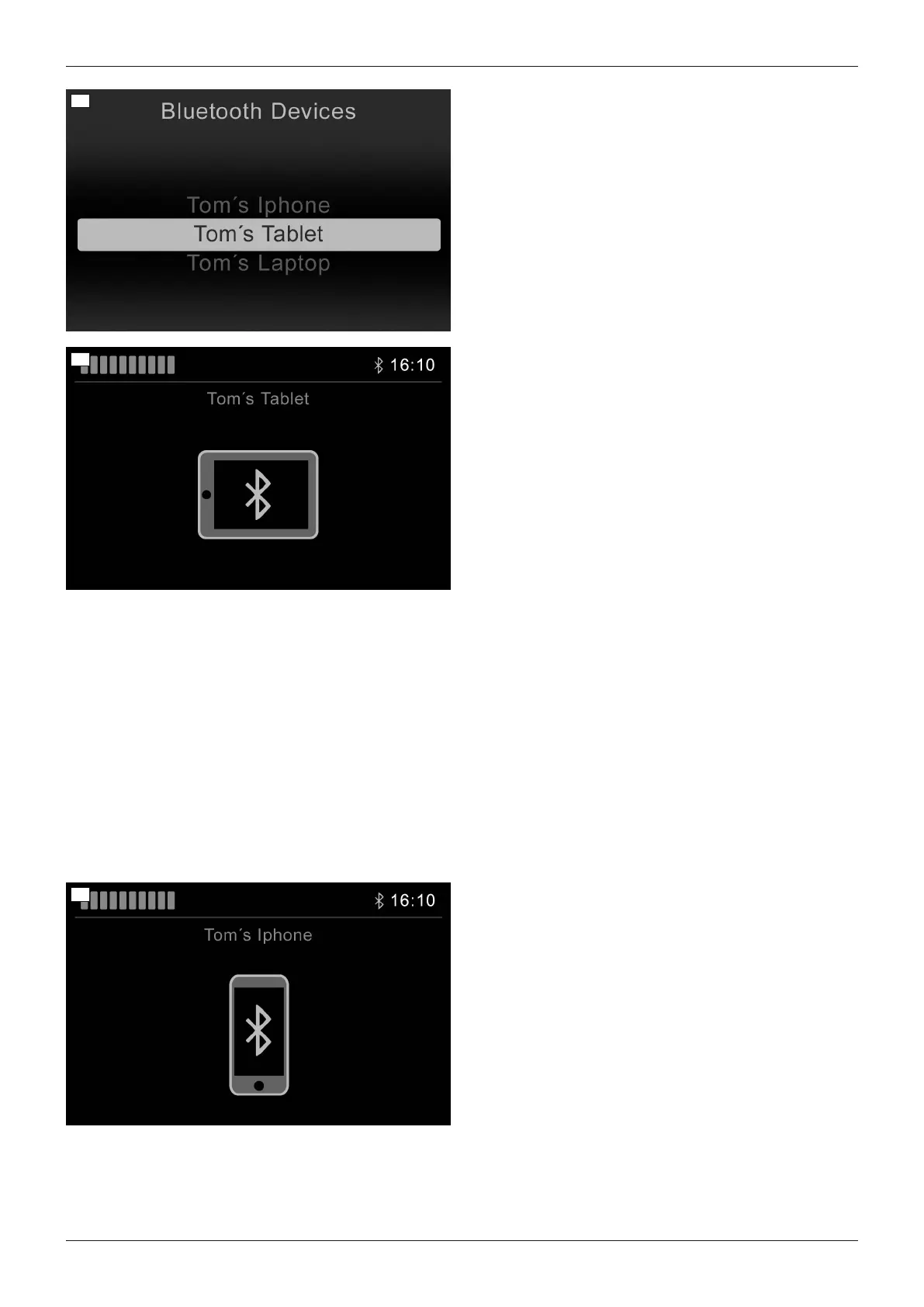
→ A list of the available devices is displayed.
5) Start the pairing process by selecting a suitable
device name, e.g.Tom's tablet (to scroll through
list: joystick front/back; to select an entry: joystick to
the right).
→ The tablet symbol is displayed (see Fig. at left).
6) Move the joystick forwards for approx. 10seconds
until an acoustic signal sounds.
7) Move the joystick back for approx. 10seconds until
an acoustic signal sounds.
→ The Bluetooth symbol at the top of the control
panel display (next to the time) should flash. The
TEN° control panel is ready to establish a con
nection.
8) Wait until the device name selected in step 5 is dis
played on the Android device.
WARNING! If additional Bluetooth devices are
nearby, these are also displayed.
9) Tap the device name displayed on the Android
device to establish the pairing.
10) After the device has been successfully added, the
Bluetooth symbol is continually displayed in blue on
the TEN° control panel and the Android device can
be operated using the joystick on the control panel
or via the connected special control.
Pairing with an iDevice
To pair with an iOS device (e.g. iPhone, iPad), perform the following steps:
32
> Prerequisite: The device registration has been
activated (see Page36).
1) Turn on the wheelchair control device.
2) Tap Settings > Bluetooth on the iOS device.
Remain on this screen until the steps for pairing
with the TEN° control panel have been completed.
3) Select the Bluetooth mode on the TEN° control pan
el by pressing the [Profile/mode] button a number
of times if necessary.
→ A list of the available devices is displayed.
4) Start the pairing process by selecting a suitable
device name, e.g. Tom's iPhone (To scroll through
list: joystick front/back; to select registration: joy
stick to the right).
→ The iPhone symbol is displayed (see Fig. at
left).
38
Use
Juvo







 To Next Page