Display Information
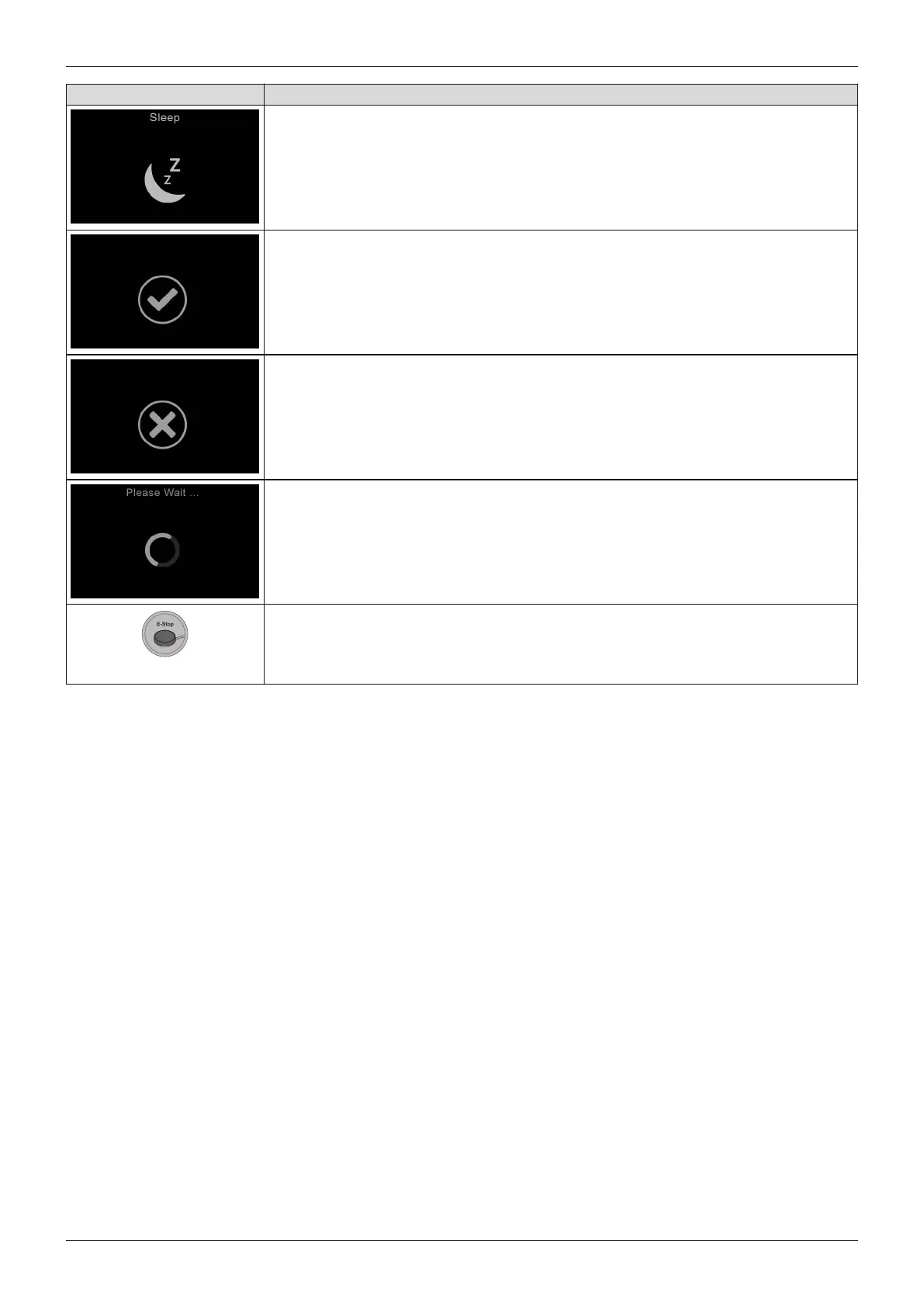
Sleep symbol (control unit shortly switches to sleep mode)
This symbol is displayed during configuration procedures
Procedure successful
This symbol is displayed during configuration procedures
Procedure unsuccessful
This symbol is displayed during configuration procedures
Procedure running; please wait
"Stop button" in latched drive mode (cruise control); the wheelchair brakes when a
brief joystick command is executed in the opposite direction; the wheelchair stops
when the joystick is moved more than 50%in the opposite direction
Alternative: display with special controls
[Horn] button
The horn will sound as long as the button is pressed.
Rotary multi-selector right: [Increase speed]
Moving the rotary multi-selector to the right increases the speed level see Page46. The acoustic signal changes
when the maximum speed level is reached. Depending on the programming of the control system, additional sym
bols may be displayed when the rotary multi-selector is operated.
Rotary multi-selector left: [Decrease speed]
Moving the rotary multi-selector to the left decreases the speed level see Page46. The acoustic signal changes
when the minimum speed level is reached. Depending on the programming of the control system, additional sym
bols may be displayed when the rotary multi-selector is operated.
LCD screen
The LCD screen is the communication interface between the user and the control unit. It indicates the selected
profile or the selected mode, the battery charge level and the status of power options and special functions as well
as warnings and errors.
Further LCD display functions
Further LCD display symbols are described in the following sections:
• Section "Drive-away lock" (see Page48)
• Section "Power seat functions" (see Page61)
• Section "Troubleshooting" (see Page104)
6.6.2.3 Adjustment possibilities
The user can change settings on the display:
34
Use
Juvo




 To Next Page