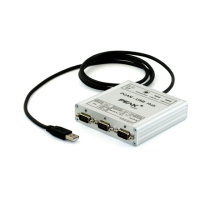
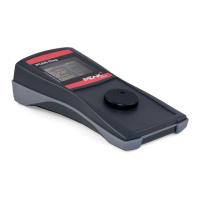
PCAN-Ethernet Gateway FD DR – User Manual
33
5.3.1 Manage Routes
On the page
Routing > Manage Routes
the message forwarding
instances are listed with basic information and control options. For
each of these, the index, the status, the used transmission protocol,
the source and destination, used filters, as well as user notes are
specified.
Index: For saving routes, the PCAN-Gateway uses a table with
16 rows that are addressed with the unique index.
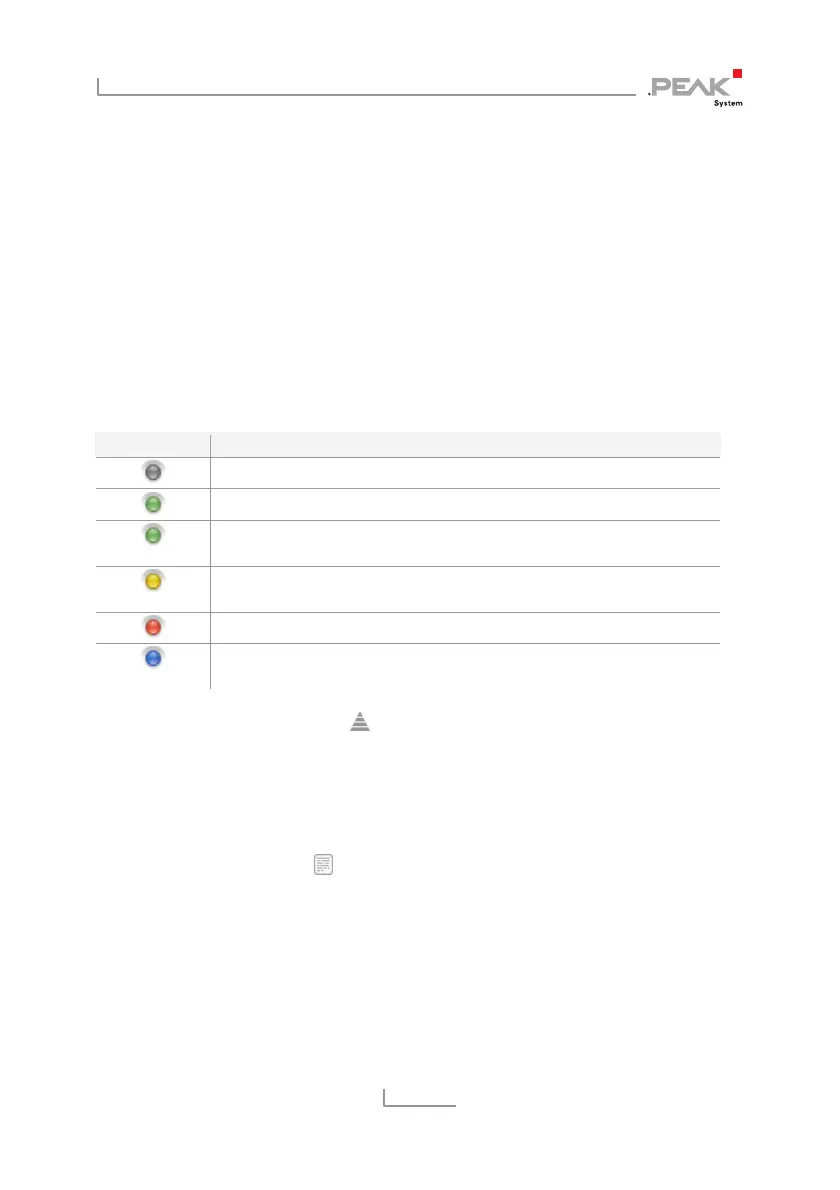
Status: The LED indicates the status of a route.
LED Symbol Meaning
The route is inactive.
For send routes: The route is active.
For receive routes: The route is active and connected with the
remote site.
Warning! The route is active but not connected with the remote
site.
Warning! More than one remote site tries to connect to this route.
The PCAN-Gateway handshake is inactive. No status information
is gathered for this route.
Filter: Hover the filter icon with the mouse cursor to display a list
of the attached filters. The list refers to the indices of the filters.
Perform a left-click on the icon to open the page
Filters > Manage
Filters
with the corresponding rows highlighted. The icon is not
visible if no filter was set.
Notes: Hover this icon
with the mouse cursor to display the user
notes of this route. The icon is not visible if no user notes are
available.
Source / Destination: The source and the destination depend on the
direction of the message forwarding.


 To Next Page