PCAN-Ethernet Gateway FD DR – User Manual
39
Note: Transferring data between 2 PCAN-Gateways always
consists of a Send and a Receive route. Note that both should
use the same transmission protocol (TCP or UDP) and the same
port.
5.3.3 Scan for Devices
Usi
ng the
Routing > Scan for Devices
page a broadcast message
can be sent to the IP network, to which all PCAN-Gateway products
report. From the obtained information, a list of available devices is
created. The detected devices can then be used as target
destinations while creating or editing routes.
Note: When changing the network topology, the list is not
updated automatically. If a device is removed from the network,
it will remain visible in the list of detected devices until the scan
is performed again and the list is updated.
Detected Devices:
This table shows all PEAK-System gateways that were detected
during the last network broadcast scan. If no other devices are
currently in the network or no scan has been performed, this table
will not be shown.
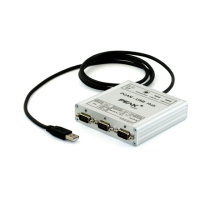
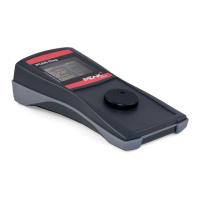
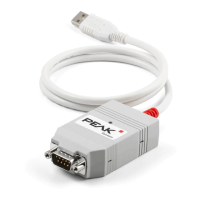
Each PCAN-Gateway is displayed with its product name, the custom
device name, MAC address, and serial number. This information
can be used to identify the device. In addition, the IP address and a
small icon of the device are displayed. With a left-click the
configuration website of this device can be opened in a new tab.
Perform Scan: By clicking on the Perform Scan button, the list of
available devices is updated. The scan takes a short time. Please
wait until you are forwarded.


 To Next Page