Recording
06
48
En
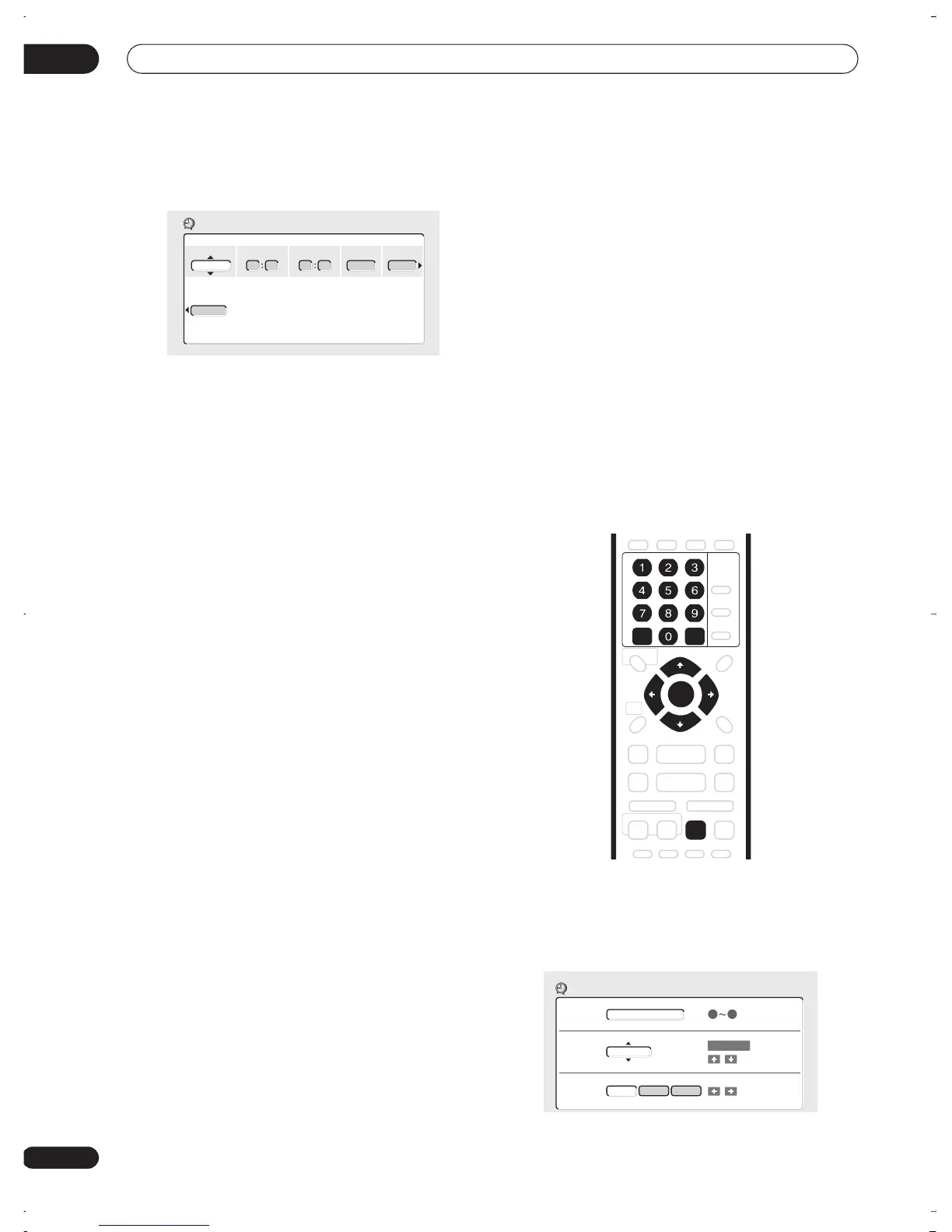
2 Select ‘New Input’ to set a new timer program,
then press ENTER.
3 Enter the timer recording settings.
Use the
/
(cursor left/right) buttons to select a field;
use the
/
(cursor up/down) buttons to change the
value.
•
Date
– Choose a date up to one month in advance, or
select a daily or weekly program.
•
Start
– Set the recording start time.
•
Stop
– Set the recording end time (maximum length
of a timer recording is 6 hours).
•
CH
– Choose a channel (1–99, excluding skip
channels), or one of the external inputs from which to
record.
•
Mode
– Select
FINE
,
SP
,
LP
or
EP
(See
Setting the
picture quality/recording time
on page 44). If Manual
Recording is on, then you can also select the
MN
setting.
•
Recorded Title Name
– Optionally, you can enter a
name for the recording up to 32 characters.
4 After entering all the timer recording
information, press ENTER.
The main timer recording screen is displayed again. The
timer program you just input appears in the list.
• The rightmost column in the timer recording screen
(
Result
) shows whether there’s enough space to
record your timer program. If you selected a daily or
weekly program, the date of the last recording that
will fit on the disc appears (up to a maximum of one
month ahead).
• If the timer program is too long to fit into the available
disc space, the message
Time Over
appears. The
program will record until the disc is full.
• If
Optimized Rec
(see
Optimized Rec
on page 83) is
set to
On
, the recorder will adjust the recording
quality to try and fit the recording on the disc. If the
program is too long even when recorded in
EP
(extended play), the message
Time Over
appears.
• If there are already the maximum number of titles or
chapters on the disc, the message
Title Over
or
Data Over
appears. (There can be up to 99 titles on
a disc.)
• If a timer program overlaps another in the list, the
message
Overlap
appears.
• If no recordable disc is loaded, the message
Can’t
Rec
appears.
•
6 Hour Over
is displayed if a recording over 6 hours
is set.
5 To exit the timer recording screen, press HOME
MENU.
Timer recording using the VCR Plus+
®
programming system
This system makes programming timer recordings very
simple. Most TV guides publish PlusCode programming
numbers with their program details. If you want to make
a timer recording of a program, you just input the
corresponding code. The date, start, stop and channel
settings are made automatically. All you have to do is tell
the recorder the recording mode, and whether it’s a
once-only recording or a regular recording.
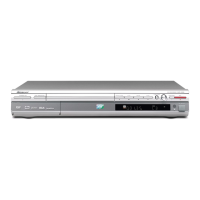
1 Press ‘VCR Plus+’ to display the VCR Plus+
program screen.
You can also access this screen from the Home Menu
(press
HOME MENU
, select
Timer Recording
, then
VCR
Plus+
).
Recorded Title Name
Date Start Stop CH
Rec Mode
Input
TUE
12/12
10 00 11 00 Pr 7
SP
Timer Recording
ENTER
CLEAR
REC MODE
VCR Plus+
to input
3 9 9 2 4
09
PlusCode#
Rec Mode
Rec Times
VCR Plus+
MN21
Once Daily
Weekly
REC MODE
to change
to change level
to change
DVR-03_RD.book 48 ページ 2003年9月18日 木曜日 午後9時2分


 To Next Page