The Initial Setup menu
12
75
En
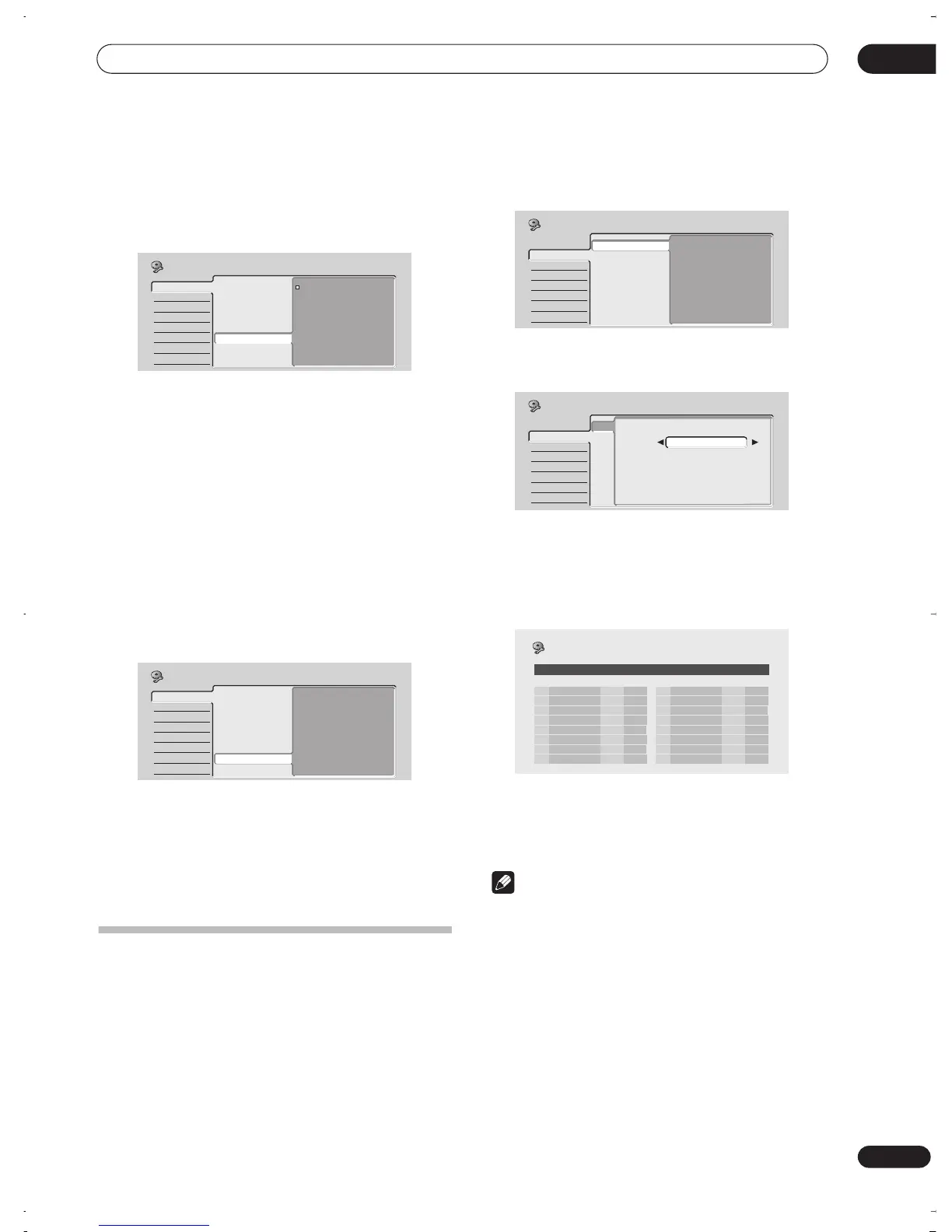
Remote Control Set
• Default setting:
Recorder1
You only need to set this if you are using more than one
Pioneer DVD recorder in the same room.
So that each remote control operates only its own
recorder, make this setting different for each recorder
and remote in the room.
There are three different recorder IDs. When set to
Recorder2
or
Recorder3
, the remote control mode is
shown in the front panel display.
Note that as soon as you change the recorder ID, the
remote becomes inoperative until you change the remote
to the same ID.
To set the remote, press and hold
RETURN
and a number
button (
1
,
2
or
3
) until the indicator on the remote lights.
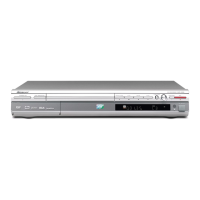
Setup Navigator
• Default setting:
n/a
The Setup Navigator appears automatically when you
switch on the recorder for the first time (or after resetting
the recorder). It is also available from the Initial Settings
menu should you need it at any other time.
See also
Switching on and setting up
on page 23.
Tuner settings
Auto Channel Setting : Auto Scan
This recorder has a built-in TV tuner for recording TV
programs off the air or from analog cable TV. We
recommend that you first use the Auto Channel Setting
described here to tune into the channels in your area,
then if there are any unwanted channels, you can disable
them using Channel Skip (described below).
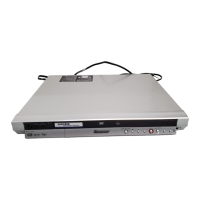
1 Choose ‘Tuner’ from the Initial Setup menu, then
‘Auto Channel Setting’, then ‘Next Screen’.
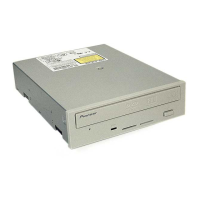
2 Select your country then press ENTER to start
tuning.
• You can cancel before auto tuning has finished by
pressing
ENTER
again.
After auto scanning has finished, the channel mapping
screen appears showing which channels have been
assigned to which program numbers.
Use the
PREV/NEXT
buttons to display the previous/next
page.
3 Press HOME MENU to exit this screen.
Note
• You can fine-tune individual stations using the
Manual CH Setting
feature. See
Manual CH Setting
below for how to use this.
Manual CH Setting
The channel skip function lets you skip channels where
there is no station so that as you change channels using
the
CHANNEL +/–
buttons, number buttons or the front
panel
SMART JOG
, you only change to channels that
have a station.
The manual tuning function allows you to manually tune
to stations, should you need to.
Basic
Tuner
Video In/Out
Audio In
Audio Out
Language
Recording
Playback
Clock Setting
Input Line System
On Screen Display
Front Panel Display
Power Save
Remote Control Set
Setup Navigator
Recorder1
Recorder2
Recorder3
Initial Setup
Basic
Tuner
Video In/Out
Audio In
Audio Out
Language
Recording
Playback
Clock Setting
Input Line System
On Screen Display
Front Panel Display
Power Save
Remote Control Set
Setup Navigator
Start
Initial Setup
Basic
Tuner
Video In/Out
Audio In
Audio Out
Language
Recording
Playback
Auto Channel Setting
Manual CH Setting
Channel Swapping
VCR Plus+ CH Setting
Initial Setup
Next Screen
Basic
Tuner
Video In/Out
Audio In
Audio Out
Language
Recording
Playback
Auto Channel Setting
Manual CH Setting
Channel Swapping
VCR Plus+ CH Setting
Auto Channel Setting
Auto Channel Setting
Country
Mexico
Initial Setup
Pr System CH
Name
1 M/N 26
2 M/N 33
3 M/N 23
4 M/N 30
5 M/N 37
6 M/N 35
7 M/N 39
8 M/N 26
Pr System CH
Name
9 M/N 9
10 M/N 25
11 M/N 11
12 M/N 12
13 M/N 13
14 M/N 14
15 M/N 15
16 M/N 16
Initial Setup
1/7
Channel Mapping
DVR-03_RD.book 75 ページ 2003年9月18日 木曜日 午後9時2分


 To Next Page