955725_4
14
• A third way to change the map orientation is to place two fingers on the map and rotate the map.
Rotating the map in this style will lock the map into the orientation that it was rotated to. To switch
back to North Facing press the compass button. Press it a second time to switch to Implement Facing.
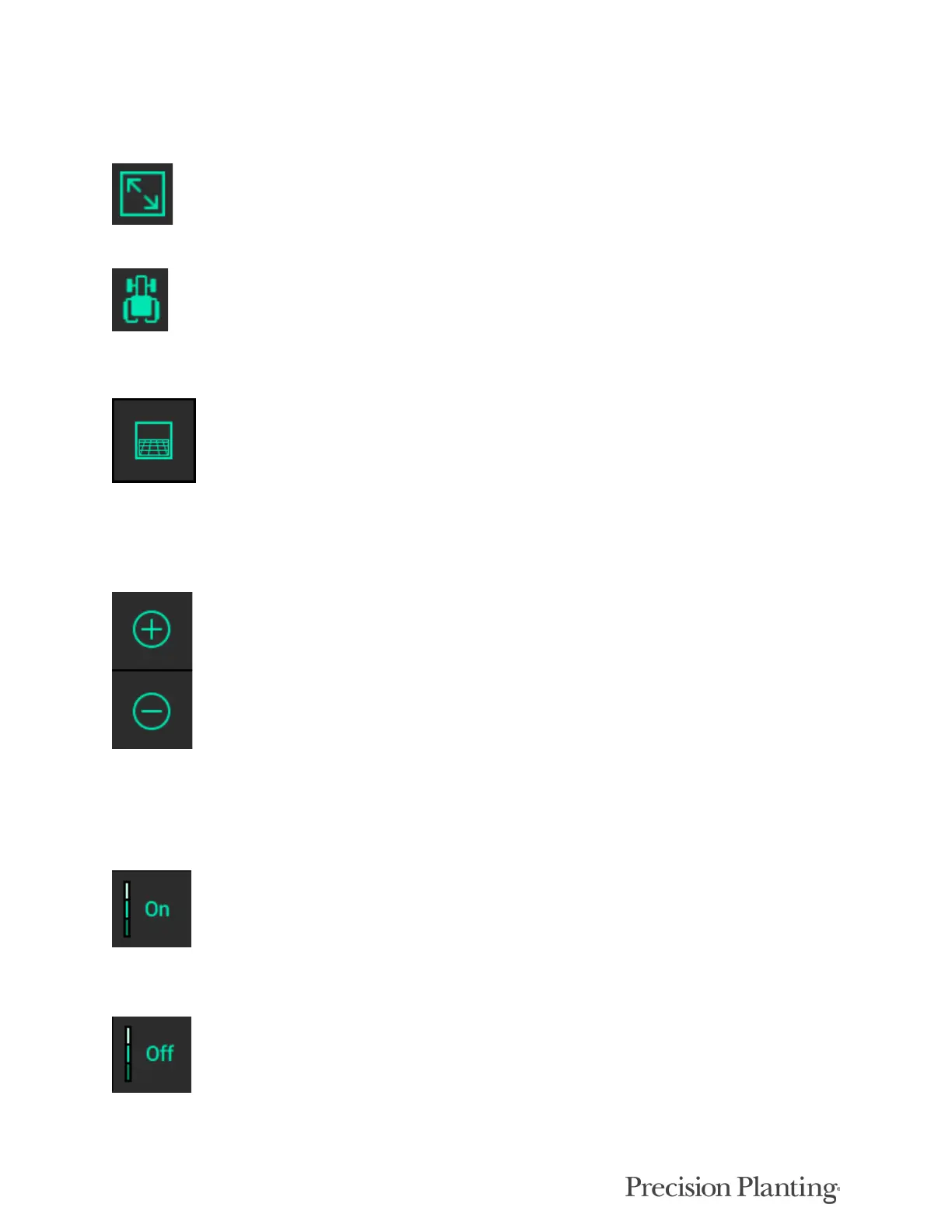
Zooms to a view where the entire field is displayed.
Pressing this button will cause the tractor/planter icon to stay centered in the screen. Additionally,
the zoom level will be reset and zoomed in on the tractor icon.
The Perspective View button will toggle the map view angle from 0, 65, and 75 degrees.
Note: The Perspective View button can only be used once WiFi and background imagery have
been enabled. Refer to the Connectivity and Display sections of this manual for further details.
There are two ways to adjust the zoom level of the map.
1. Use the Zoom In (+) and Out (-) buttons to change the zoom level of the map.
2. Use the standard two finger pinch-in & pinch-out gestures.
Legends for each map can be toggled on by pressing the “On” button in the lower left hand
corner of the map screen.
Toggle Legends off by pressing the “Off” button.
Most legends can be edited. There are two ways to edit legends:


 To Next Page