955725_4
13
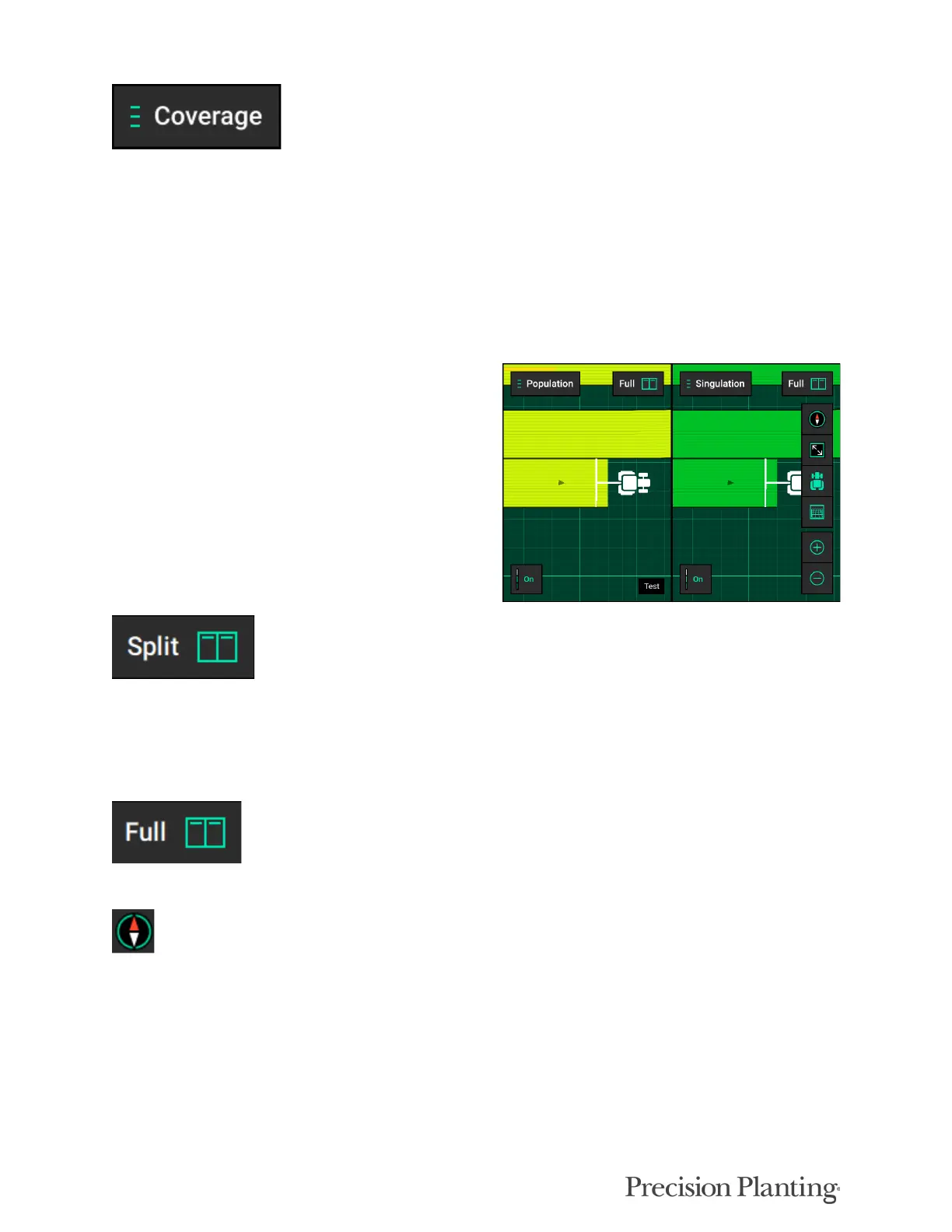
Selecting the Map Type name (e.g. Coverage) at the top of the map will display the Map Layer
Selection screen. All map types are listed on this page (the systems installed and configured will
determine which map types will build a map). Map types are categorized by General, Air Seeder,
and Seed. For more information on what each map type is mapping see Appendix B.
Controlling the Map
The map will default to displaying the tractor/
seeder in the center of the screen at a preset zoom
level. There are control buttons located around
the map to adjust settings.
To split the map viewing area into two maps at the same time press “Split” in the top right hand
corner of the map screen. When viewing two maps simultaneous, any adjustments done to one
map (other than adjusting the legend) are also applied to the other map. For example, zooming in
on one map will apply the same zoom to the other map.
To exit the split map view, press “Full” on either map type to view only that map.
Change the map orientation by pressing the compass button. Switch between two orientation
modes:
• North Facing – The top of the map is always pointed towards north. The tractor icon will move around
the screen in different directions. This is the default orientation mode. Indicated by the red compass
arrow always pointing towards the top of the screen.
• Implement Facing – The implement icon is always pointed towards the top of the screen and the map
itself moves around the implement. This is indicated by the red compass arrow moving to always
show which direction north is.


 To Next Page