955725_4
21
Customizing the Home Screen
Customizing the Home Screen
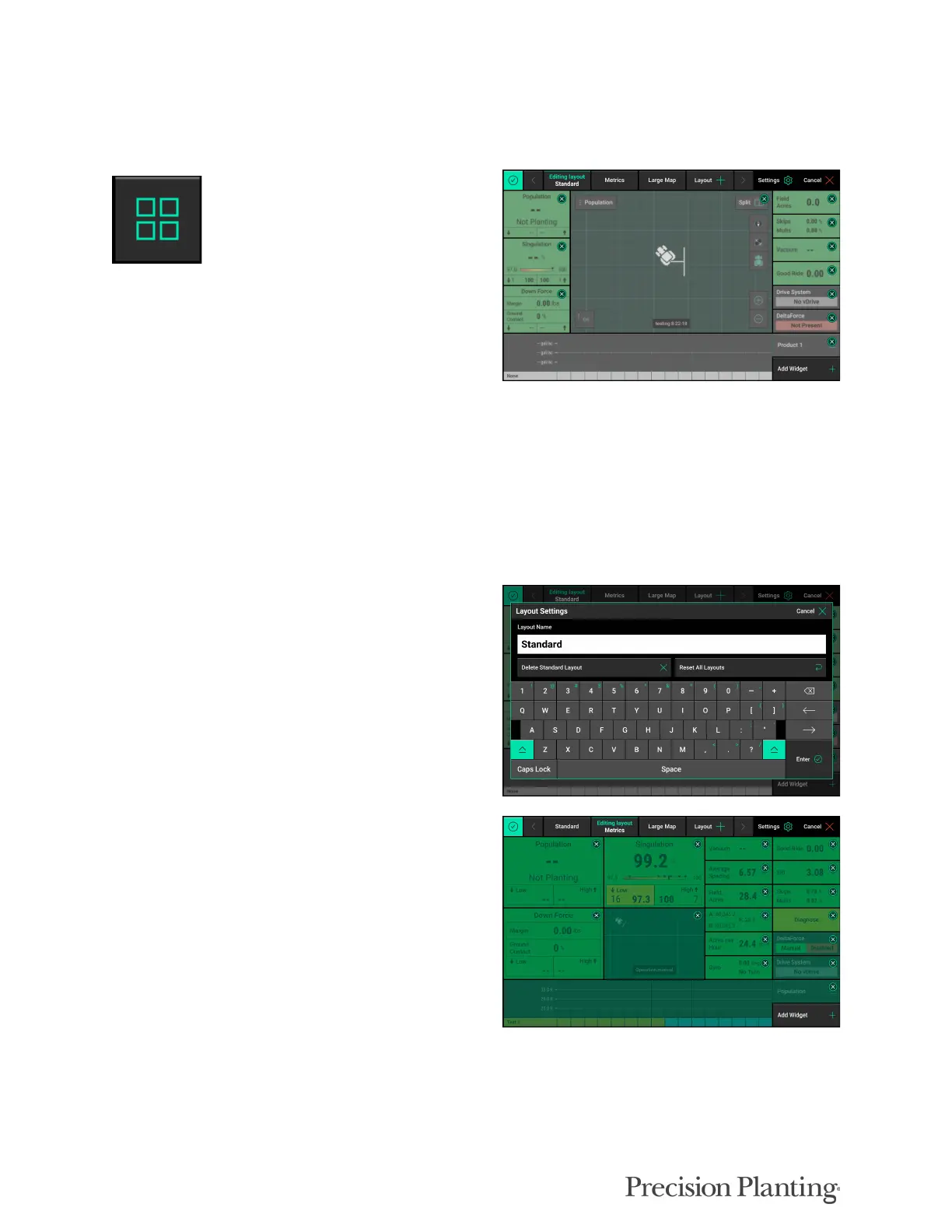
To begin the process of customizing the home
screen, select the button in the top left hand
corner of the screen. When pressing this button
the home screen will be dimmed with a grid
pattern laid on top. Each screen will be divided
into grids, that the buttons will fit into.
The grids overlaying the home screen are used to place buttons such as, Metrics, Maps, and the
Dashboard Mini Chart (these are all referred to as widgets). Every widget takes up a certain about
of grid spaces. For example a 2 x 2 metric takes up four grid spaces (two columns and two rows).
To remove a widget, press the ‘X’ at the top right corner. Press and drag a widget to move it to a
new location.
At the top of the page is a “Settings” button that
can be used to rename the layout and reset all
screen layouts back to the factory default.
New Layouts can be added by pressing the
‘Layout +’ button at the top of the screen. Up to
eight home screen layouts can be created for each
implement type. Layout options can be moved by
pressing and dragging them to the desired
position.
To begin editing the home screen, select “Add Widget” from the bottom right corner.
There are four different types of widgets that can be added to the home screen:


 To Next Page