Chapter 6: Tekterm Application
Displaying The Unicode™ Pop-up Window
192
Psion Teklogix 7530 Hand-Held Computer User Manual
• Press the <DOWN> arrow key to accept the value and move the cursor to
the next field.
When you have finished creating the Unicode™ characters you want to use:
• Press <F4> to save your changes.
• Reset the 7535 – press and hold down the <ENTER> and <BLUE> key
simultaneously for a minimum of six seconds.
6.17.2.2 Displaying The Unicode™ Pop-up Window
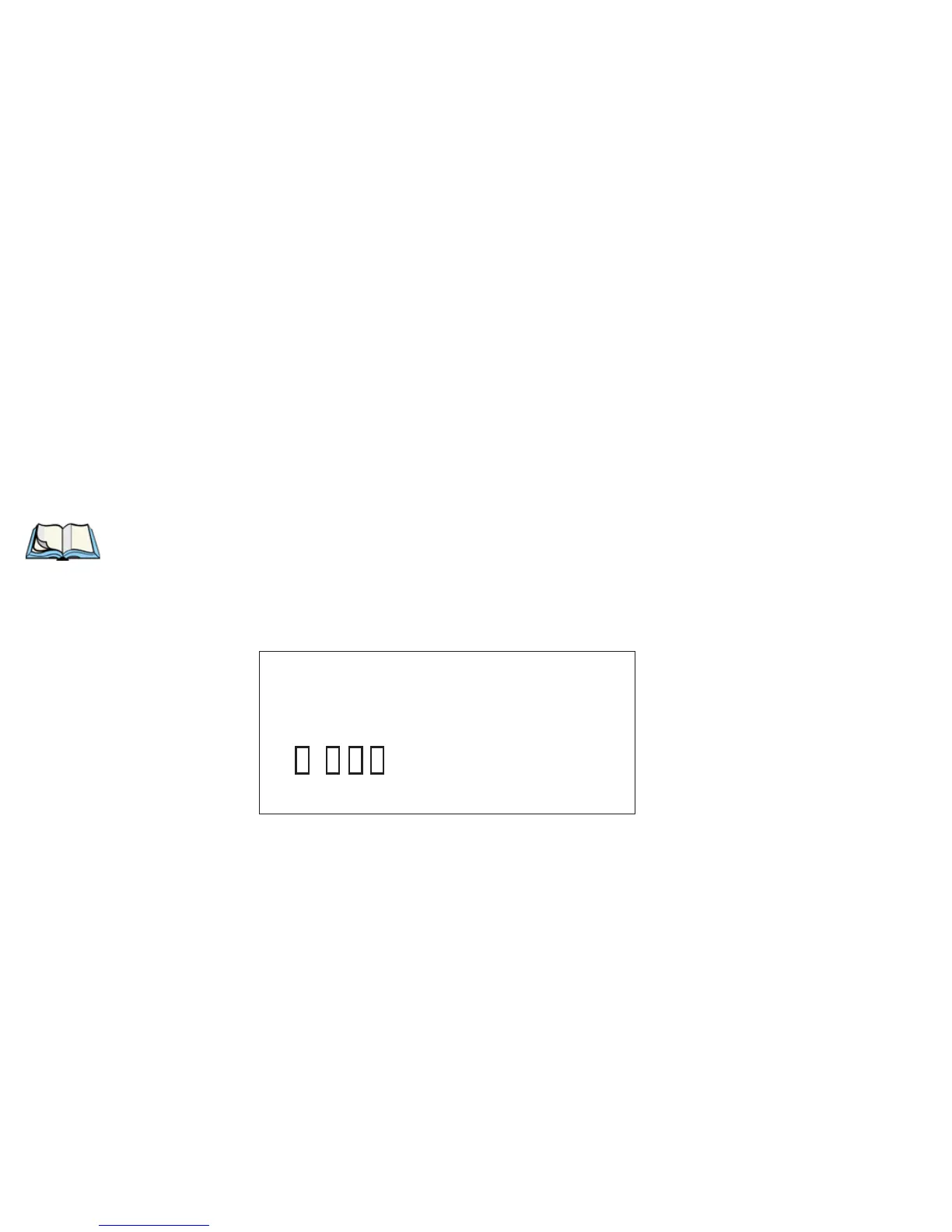
The Unicode™ values you create are stored in a pop-up window that you can access
from any application.
To display the pop-up window within any application:
• Press <CTRL> <ALT> <A>.
Note: Unicode™ characters that cannot be displayed on your screen with the
font you are currently using are displayed as rectangles in the pop-up
window. (See the sample menu on page 192.) However, the actual Uni-
code™ value you created will be sent to the host.
• Use the <LEFT> or <RIGHT> arrow key to position the cursor on the
Unicode™ value you want to use, and press <ENTER>.
To close the pop-up menu when you’re done:
• Press the <ESC> key.
Select item with arrow keys.
Press ENTER when done.
Press ESC to cancel.


 To Next Page