Chapter3:Getting To Know Your 7530
The 36-Key Keyboard
38
Psion Teklogix 7530 Hand-Held Computer User Manual
3.4.4 The 36-Key Keyboard
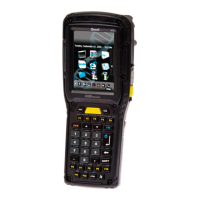
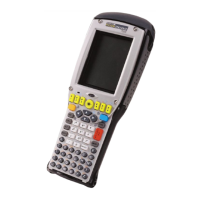
On 36-key 7530s, all alpha characters are printed on the unit plastic in orange
typeface above the numeric keys. To access an alpha character, you must first press
the <ORANGE> key and then press the numeric key above which the alpha
character you want to type is printed.
Because the alpha keys on a 36-key keyboard are laid out much like the letters on a
telephone – generally in groups of three letters per numeric key – you need to take a
few extra steps to access the alphabetic characters. The examples in this section help
illustrate how to access alpha characters.
Choosing A Single Alpha Character
Note: Keep in mind that the following examples assume that ‘One Shot’ is
enabled for the <ORANGE> key. Refer to “Keyboard One Shot Modes”
on page 94 for details.
The examples below illustrate how to access A, B and C, all of which are printed in
orange characters above the numeric key, <2>.
To choose the letter ‘a’:
• Press the <ORANGE> key, and press the numeric key <2>.
To choose the letter ‘b’:
• Press the <ORANGE> key twice to lock it ‘on’, and press <2> twice.
• Press the <ORANGE> key again to unlock or turn it off.
To choose the letter ‘c’:
• Press the <ORANGE> key twice to lock it ‘on’.
• Press <2> three times, and then
• Press the <ORANGE> key again to unlock or turn it off.
Creating Uppercase Letters
To display a capital letter:
• Press the <ORANGE> key and then the <SHIFT> key before typing the
alpha character.


 To Next Page