EasyManua.ls Logo

Radio Shack PRO-651 - User Manual

Radio Shack PRO-651
140 pages
Print Icon
To Next Page IconTo Next Page
Loading...
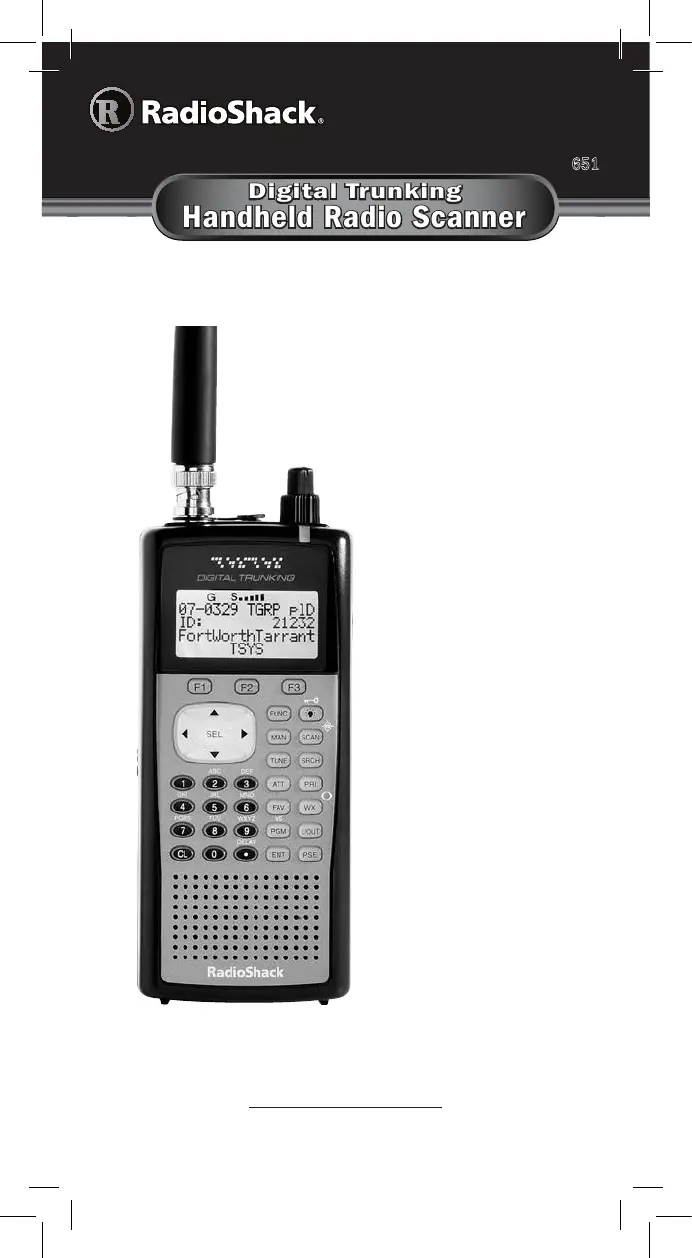
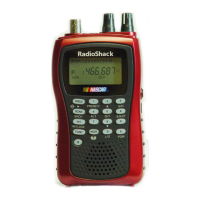
Digital Trunking
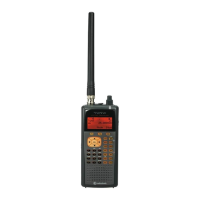
Handheld Radio Scanner
Thank you for purchasing your Digital Trunking
Handheld Radio Scanner from RadioShack.
PRO-6
51
Please read this user’s guide before installing, setting
up, and using your new scanner.
www.RadioShack.com
What’s Included
Scanner
Antenna
Belt Clip
Yellow (Rechargeable)
Battery Holder
Black (Non-rechargeable)
Battery Holder
V-Scanner
Preprogrammed Data
User’s Guide
Quick Start Guide

Table of Contents

Other manuals for Radio Shack PRO-651

Questions and Answers

  • K
    kathleenpowellAug 1, 2025
    How to unlock keypad on Radio Shack Scanner?
    • J
      joshuabrownAug 1, 2025
      If the keypad on your Radio Shack Scanner does not work, it might be locked. To unlock it, press the FUNC KEY/ LIGHT key. If this doesn't work, the scanner may need to be initialized.
  • M
    michaelhudsonAug 8, 2025
    What to do if my Radio Shack Scanner scans slowly?
    • P
      patrick80Aug 8, 2025
      If your Radio Shack Scanner scans slowly or stops on noise or silence, the SQUELCH control might not be set properly. You should set the SQUELCH according to the instructions. Also, the subaudible squelch mode might not be set for conventional objects. Set the correct subaudible squelch mode.
  • V
    Vanessa PhillipsAug 16, 2025
    Why Radio Shack Scanner does not receive digital transmission?
    • J
      Justin WelchAug 16, 2025
      Your Radio Shack Scanner might not be receiving digital transmissions due to several reasons: * The digital channel or talkgroup might not be using APCO-25 digital modulation. The scanner can only receive APCO-25 C4FM/CQPSK IMBE digital signals. * The digital channel or talkgroup might be encrypted. The scanner will not receive encrypted traffic. * The digital channel or talkgroup is being transmitted from a distant location. Reposition the scanner or use an outdoor antenna to improve reception.
  • E
    Edward RojasAug 25, 2025
    What to do if error message appears when trying to upload from computer to Radio Shack Scanner?
    • J
      Jason JenkinsAug 25, 2025
      If you receive an error message when trying to upload or download to your Radio Shack Scanner from a computer, it could be because your computer is using Windows XP and lacks the necessary USB cable driver. You should download and install the appropriate driver, then try again. Ensure the correct COM port is selected in device manager.

Summary

Understanding your Scanner

Understanding the Keypad

Explains scanner keypad layout and functions.

Understanding the Display

Details the scanner's LCD display icons and information.

Scanner Setup

Powering Your Scanner

Details how to power the scanner using batteries or external power.

Scanner Setup (Continued)

Installing Batteries

Steps for installing batteries in the scanner.

Turning on the Scanner and Setting Squelch

Procedures for powering on and adjusting squelch for clear reception.

Creating Scannable Objects

Understanding Object Menus

Explains how to navigate and use object menus for programming.

Creating Scannable Objects (Continued)

Conventional Channel Objects

Details on creating and configuring conventional channel objects.

Trunking Talkgroup Objects (TGRP)

Information on creating and configuring talkgroup objects for trunked systems.

Trunking System (TSYS) Objects

How to create TSYS objects for trunked radio system parameters.

Scanning

Basic Scanning Operation

How to start and manage the scanning process.

Scanning (Continued)

Organizing Objects

Grouping Objects with Scan Lists

How to group and manage objects using Scan Lists.

Organizing Objects (Continued)

Object Searches

Limit Search Object (LMIT)

Details on creating and using limit search objects for frequency ranges.

Object Searches (Continued)

Service Search Object (SRVC)

How to create and use service search objects for specific radio services.

Dedicated Searches

Dedicated Searches (Continued)

Weather Scanning

Weather Radio Mode

How to use the scanner to receive weather broadcasts.

Weather Scanning (Continued)

Scanner Memory

V-Scanner Storage

Explanation of V-Scanner memory for storing configurations.

Scanner Memory (Continued)

Advanced Settings

Advanced Settings (Continued)

Troubleshooting

Troubleshooting (Continued)

Radio Shack PRO-651 Specifications

General IconGeneral
TypeDigital Trunking Scanner
DisplayLCD
Dimensions9.5 x 3.0 x 6.0 inches
Weight1.5 lbs
Banks10
Priority Channels2
Memory Banks10
Modulation TypesFM, AM, NFM
Power SourceAC Adapter or Batteries

Related product manuals