13
PAIR/CONNECT THE TAC WITH THE TEAL 2
NOTE: Most GE/TAC kits come already
paired and only need to be
reconnected. The system remembers
the relationship and re-establishes link
upon Teal QGC launch.
The icon to initiate both the pairing and connecting
functions is the same and following these instructions
will result in a successful connection between the Teal
2 and TAC. Please see the PAIRING section in
TEAL 2
sUAS DETAILS for more details/options.
Stand at least 25 feet away from the drone.
Ensure the GPS lock is acquired. This ensures the
correct flight mode.
NOTE: GPS lock is indicated by a three-
tone chime from the drone, as well as
indicated on the TAC screen at the top
satellite icon.
Open the Teal QGC application on the TAC.
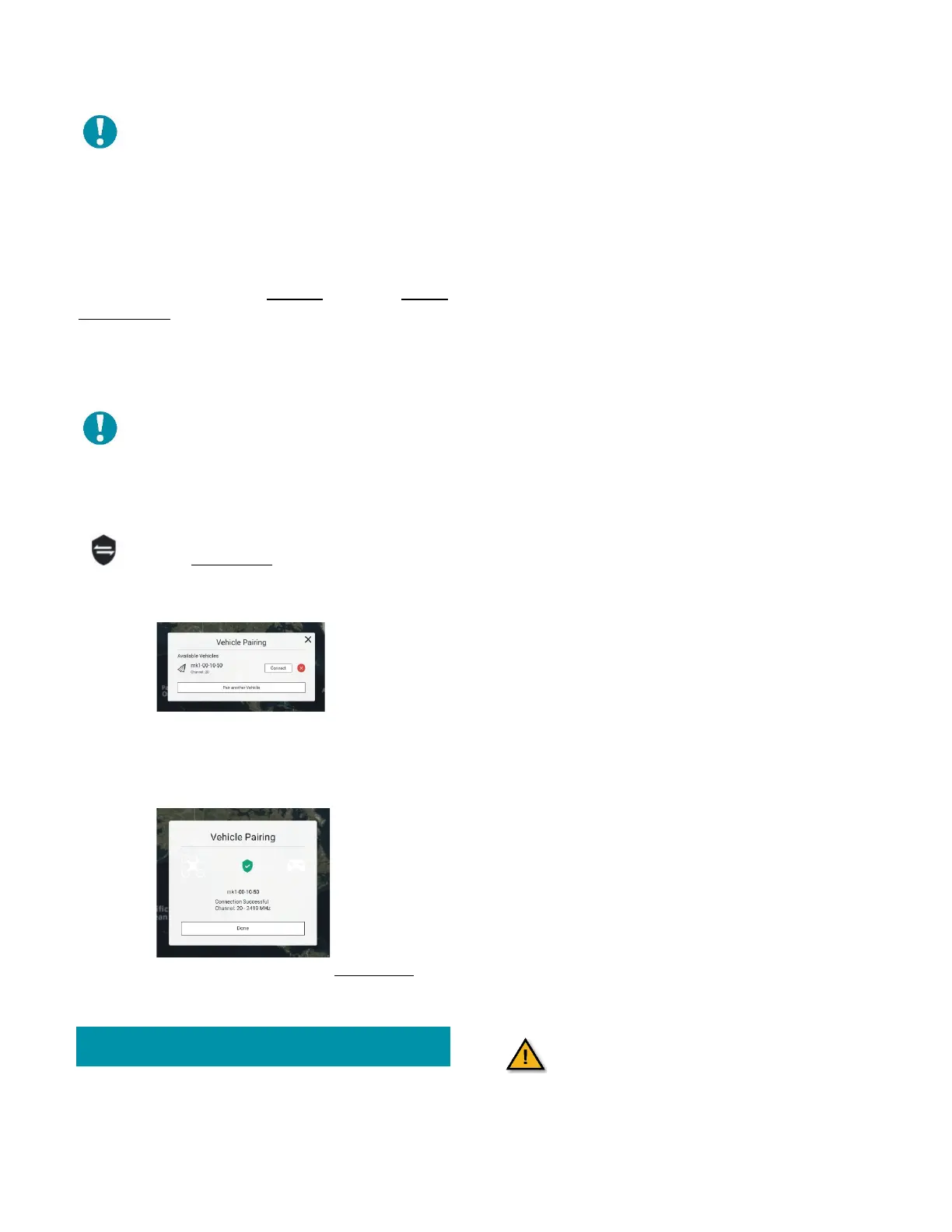
Touch the SHIELD icon in the top-right corner
of the FLY SCREEN
to connect/pair the TAC
with the drone.
Select CONNECT.
When the pairing is complete, a CONNECTION
SUCCESSFUL status will appear.
Click DONE to exit and return to the FLY SCREEN
. The
vehicle ID should now be visible at the top of the TAC
screen.
CHANGE DEFAULT ADMINISTRATOR PASSWORD IN
sUAS RADIOS
The sUAS and ground station connect through an IP
network with two radios. The radios have a web based
user interface that requires a username and password
to access their settings. Changing these default
passwords adds security and prevents unauthorized
access to the radio settings.
To change the default password on the sUAS:
1. Open the QGround Control.
2. Swipe down on the screen. This opens the icon
tray tab on the right of the screen.
3. Swipe the icon tray tab to open the icon tray.
4. Tap the Chrome icon.
5. In the search bar, type the drone IP address,
192.168.168.1 to connect to the drone.
6. In the Sign in dialog box, enter admin in the
username field. Enter teamteal in the
password field. The System Information page
appears.
7. Tap the Admin tab at the top of the page. The
Access Control page appears.
8. Under password change, enter a new
password in the New Password field.
9. Enter the password again in the Confirm
password field.
10. Tap the Change password button.
Once complete, do the same for the TAC. Repeat the
steps above using the TAC IP address. The TAC IP is
192.168.168.2.
FLIGHT MODES
Out-of-the-box, the Teal 2 automatically defaults to
either Position Mode or Manual Mode. Position Mode
is the safest manual mode for new pilots.
It will also default to Altitude Mode if it loses GPS signal
while in flight.
If the Teal 2 acquires GPS before it is paired with the
TAC, the system will automatically be set to Position
Mode.
If the Teal 2 is paired with the TAC before it acquires
the GPS, the system will automatically be set to Manual
Mode, but can then be set to Position Mode by moving
the left castle switch up. The system can be set to
Position Mode both before and during flight.
The flight mode will be announced audibly from the
TAC as well as visibly at the top of the TAC screen.
Ensure that you are in the desired
flight mode before arming the drone.



 To Next Page