17
FLY SCREEN MAIN TOOLBAR
The Main Toolbar horizontally spans the width of the
screen at the top of the Fly screen and displays system
information.
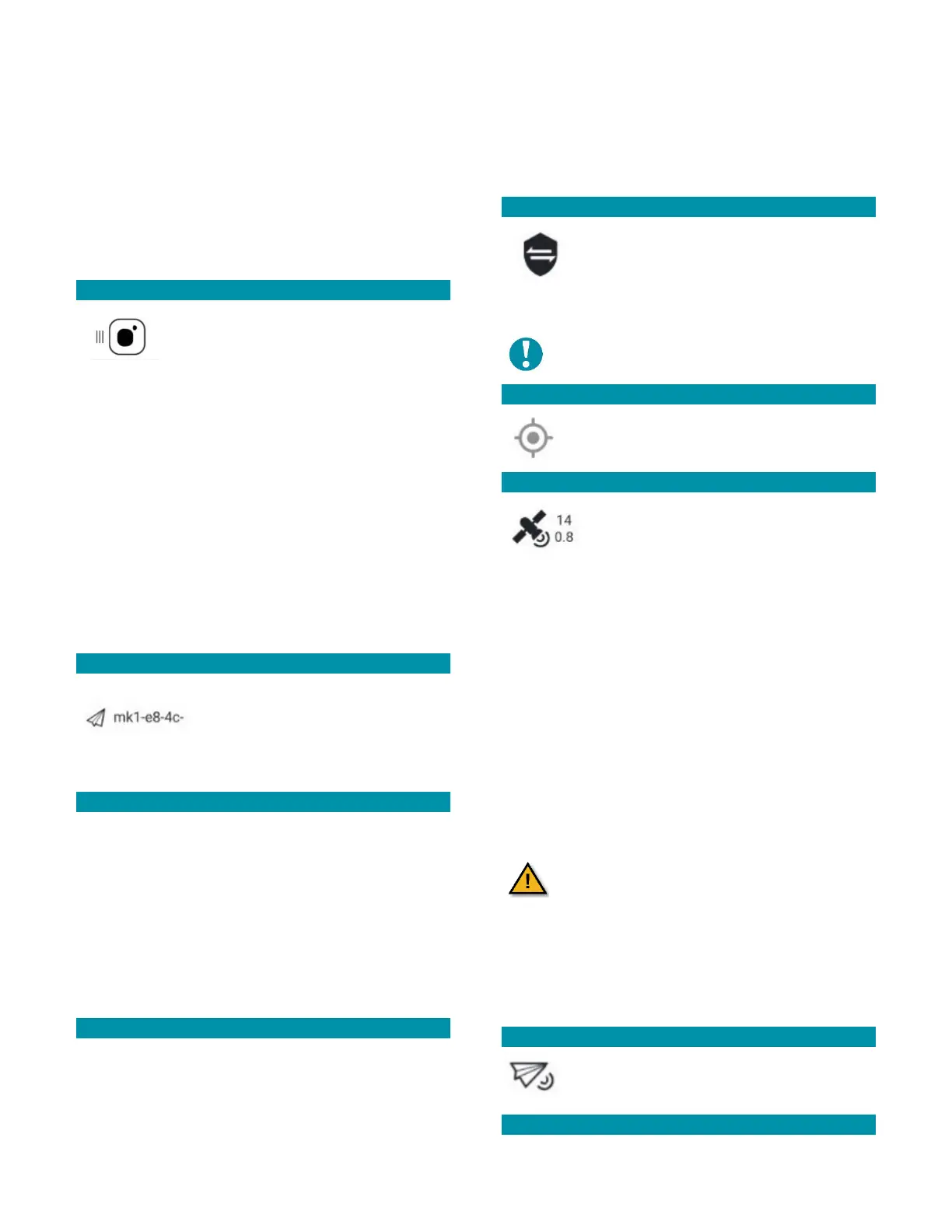
Status icons are displayed when Teal QGC is connected
to a vehicle. Some can be clicked on to show detailed
information.
These icons/indicators are:
VIEW-SELECT MENU
Touch the Teal logo at the far left of the
MAIN TOOLBAR to reveal a vertical
VIEW-SELECT MENU. This menu allows
the user to access the following features, which are
discussed more in detail throughout the manual:
FLY: Control and monitor the drone and view streaming
video while in flight.
PLAN: Create autonomous missions.
ANALYZE: Download logs and access the MAVLink
console.
VEHICLE SETUP: Configure and tune the vehicle.
PHOTOS: Manage downloaded photos, and view photo
metadata.
SETTINGS: Configure the Teal QGC app.
PAIRED VEHICLE IDENTIFIER
This icon displays the UID (Unique
Identifier) of the paired vehicle. If a
vehicle is showing here, then the
telemetry link between the TAC and
drone is established.
FLIGHT MODE INDICATOR
The flight mode indicator displays which flight mode
the system is in. Touch this icon to display a drop-down
menu to select either Altitude Mode or the Position
Mode.
This is an alternative to selecting the flight mode via
the left castle switch.
ARMED / DISARMED STATUS
Centered on the Main Toolbar is an indicator of
whether the vehicle is currently armed or disarmed.
Touch this icon to display a confirmation slider box to
arm (if currently disarmed) or disarm (if currently
armed) the drone.
This is an alternative to the left top button which arms
the drone, and the right top button which disarms the
drone (also known as the Emergency Stop or E-stop).
PAIRING ICON / SHIELD ICON
Touch the shield icon to view information
about the connected vehicle. Touch the
shield icon to connect/pair the Teal 2 and
the TAC, or to unpair/disconnect the TAC from the
drone.
NOTE: Loss of link between the drone and TAC
will result in an “SOS” tone from the drone.
REGION OF INTEREST ICON
This is currently under development.
GPS STATUS ICON
The upper number of the icon indicates
the satellite count, and the lower number
indicates the current horizontal dilution of
precision (HDOP) value. A very good HDOP value is
below 1, and an acceptable HDOP value is below 2.
Touch this icon to view details of GPS Count, GPS Lock,
HDOP, the Vertical Dilution of Precision (VDOP), and
Course Over Ground (COG).
GPS LOCK: Indicates the type or level of GPS lock
currently.
COG: Indicates the compass direction the vehicle is
traveling. Note that this may or may not be the same
as the “heading” which is the compass direction the
vehicle is pointed. Wind may cause the COG to differ
from the vehicle’s actual heading.
It is critical for Teal 2 to be connected to
a sufficient number of satellites to be
able to triangulate the position of the
vehicle. It is critical to have at least eight
(8) but recommended that ten (10)
satellites are indicated on the GPS icon
prior to takeoff.
TELEMETRY RSSI ICON
This is currently under development.
RC RSSI ICON



 To Next Page