19
CUSTOMIZING PERSONAL SETTINGS
Use the GENERAL SETTINGS screen to customize user
preferences. The most commonly used ones are
referenced here. For a more complete list, please see
the TEAL QGC APP
section.
Touch the MENU icon in the top left of the
screen.
Select GENERAL.
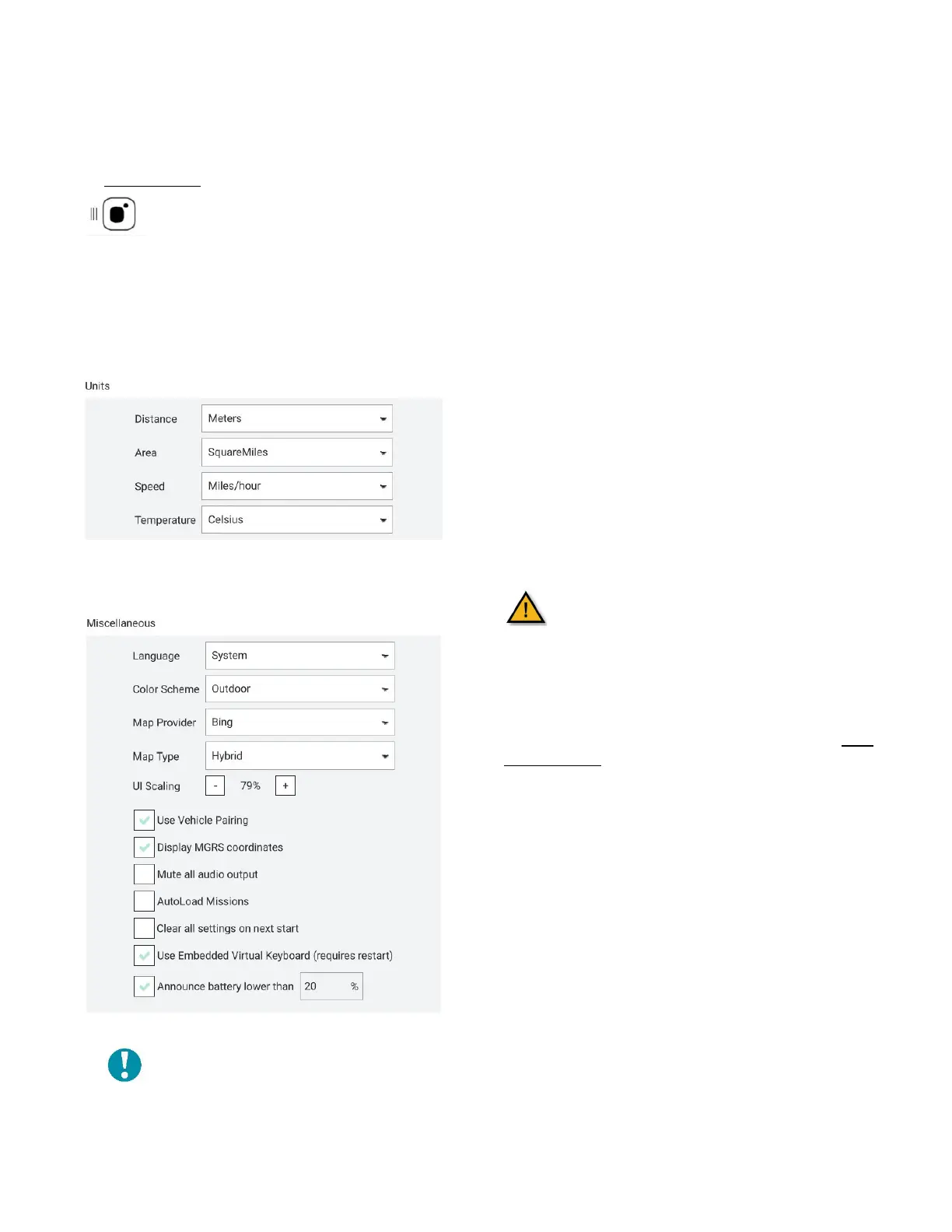
A list of several settings will appear.
UNITS: Allows selection between feet and meters,
imperial and metric, and Celsius and Fahrenheit.
MISCELLANEOUS: Select your language, dark/light
mode, map provider and map type, etc.
NOTE: As of the publication of this
manual, a software bug has made
selecting a different language not an
option at this time and is being
DATA PERSISTENCE: Disabling this option will result in
telemetry logging and map tile caching to not be
written to disk. This can be useful for security reasons
but can also result in unintentional data loss.
TELEMETRY LOGS FROM VEHICLE: Saves telemetry logs
in different formats to the vehicle which can later be
downloaded to the TAC, to include logs in a CSV format
for importing data into other programs for data
analysis, such as spreadsheets.
FLY VIEW: These user preferences include using the
pre-flight checklist, centering the map on vehicle,
setting gimbal joystick and slider speeds.
PLAN VIEW: Entering the DEFAULT MISSION ALTITUDE
value here sets the altitude in the Plan screen at which
missions fly by default, unless otherwise specified.
VIDEO & VIDEO RECORDING: These preferences are
still under development.
PICTURE SETTINGS: Configures full-resolution images
whenever a snapshot is taken.
Check the DOWNLOAD
FULL RES IMAGE IN FLIGHT box.
Enable all photo functions before flight or
else they will not be stored locally on the
TAC and will not be transferrable after the
mission.
TEAL QGC SOFTWARE VERSION: The current version of
the Teal QGC software version that has been
downloaded onto the TAC is shown here. See the
TEAL
UPDATER APP section for instructions to update the
software/firmware.



 To Next Page