36
TAKING A PHOTO
A camera icon is fixed in the lower
right-hand corner of the Photo screen.
Touching this icon snaps a photo on the
vehicle and downloads it immediately
to the TAC.
Pressing the front right momentary switch on the TAC
will also either take a photo or start recording video.
A symbol appears when the camera icon
is touched but download is not enabled.
Ensure that the photo functions in the
SETTINGS are enabled as instructed in
the previous page.
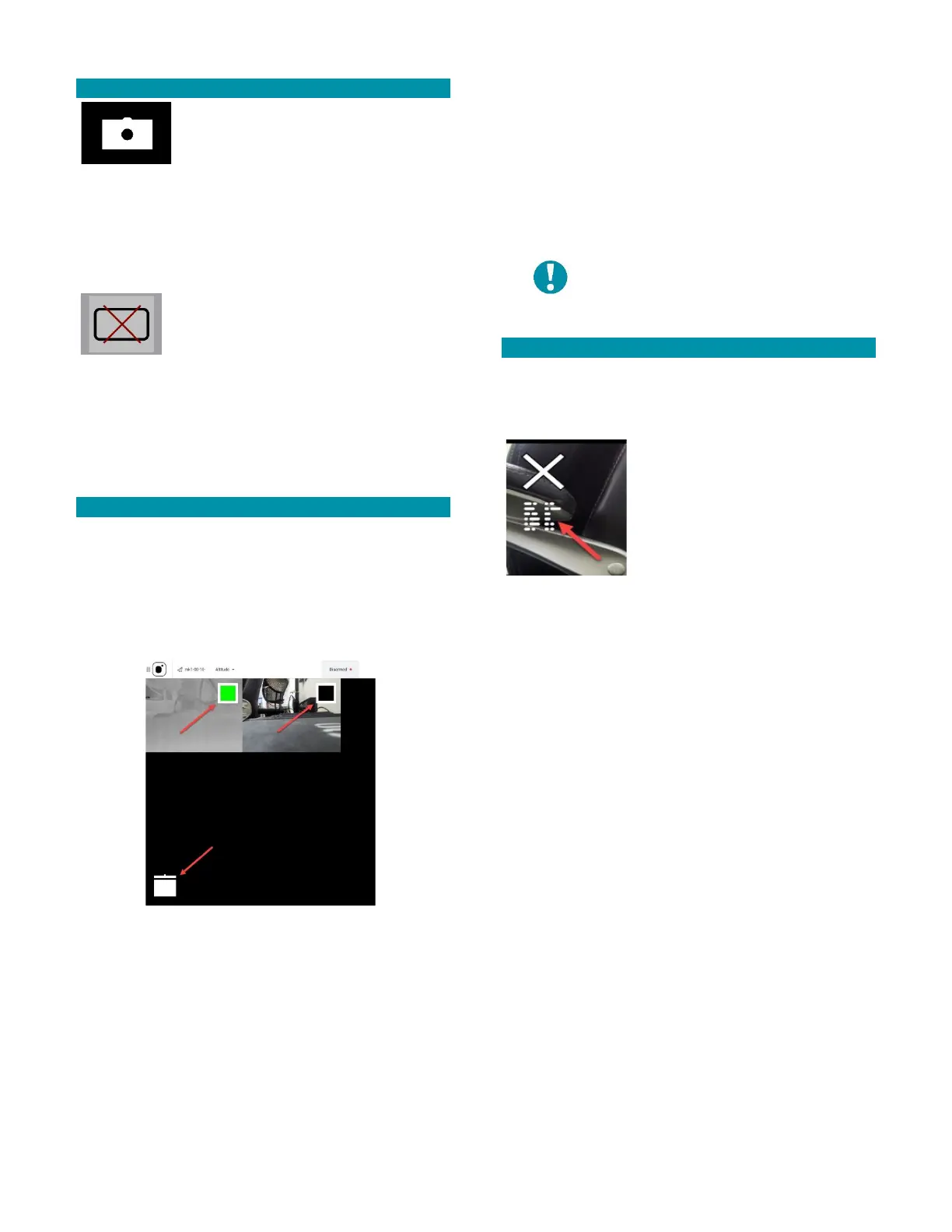
The background of the Photos screen is largely a blank
black screen, until it is populated with photos taken
from the drone. Snapshots appear sequentially left-to-
right and top-to-bottom on the Photos screen.
DELETING A PHOTO
Touch any photo in the photos screen to enable a
selection box in the upper-right corner of each photo
and the trash can icon in the lower-left corner. The box
for that photo immediately turns green and indicates
that it is selected for deletion. All others are black until
selected.
Immediately touching that first photo again causes all
the selection boxes to disappear. All selected photos
can be deselected one at a time. As soon as the last
selected photo is touched to deselect it, all the
selection boxes disappear.
Once photos are selected for deletion, touch the trash
can icon.
NOTE: Deleting photos from the TAC
does not delete the original photo
stored on the Teal 2.
VIEWING A PHOTO & METADATA
Select an individual photo for viewing by touching that
photo. The selected photo will fill the entire Photo
screen.
In the upper left of the individual
photo view is a metadata icon.
Touch this icon to display the
timestamp of when the photo was
taken. Touch the icon again to
cause the metadata to disappear.
Above the metadata icon is the exit (X) icon. Touch this
icon to exit the individual photo view and return to the
main Photo screen that shows all the downloaded
photos.
In the lower left of the individual photo view is a trash
icon. Touch and hold this icon for about 1 second to
delete the photo from the TAC photo screen.
LANDING & DISARMING
Please review the following functions to appropriately
land and disarm the drone in both normal and
emergency situations.
LAND
The land function is used under normal circumstances
and brings the drone straight down from its immediate
position in a controlled descent. The drone



 To Next Page