20
DOWNLOADING MAPS
Maps need to be downloaded for each area only once.
We recommend you download maps before going into
the field. This can be done while in the field as long as
there is a wi-fi connection.
Follow along with our instructional video, Downloading
Offline Maps: Teal Teal 2 Drone on our website at:
https://tealdrones.com/support/video/
NOTE: “Offline maps” is the name
given to the maps on the TAC. There
are no “online” maps. Different map
areas are called “Tile Sets”.
INSTRUCTIONS
Touch the TEAL SETTINGS icon to launch the app.
Change the Active network from DRONE to WIFI.
Login into the WIFI system with the appropriate login
credentials.
Open/Enlarge the QGC app by sliding the SETTINGS
screen all the way to the right.
Touch the MENU icon in the top left of the screen.
Select SETTINGS at the bottom left of the screen.
Select OFFLINE MAPS.
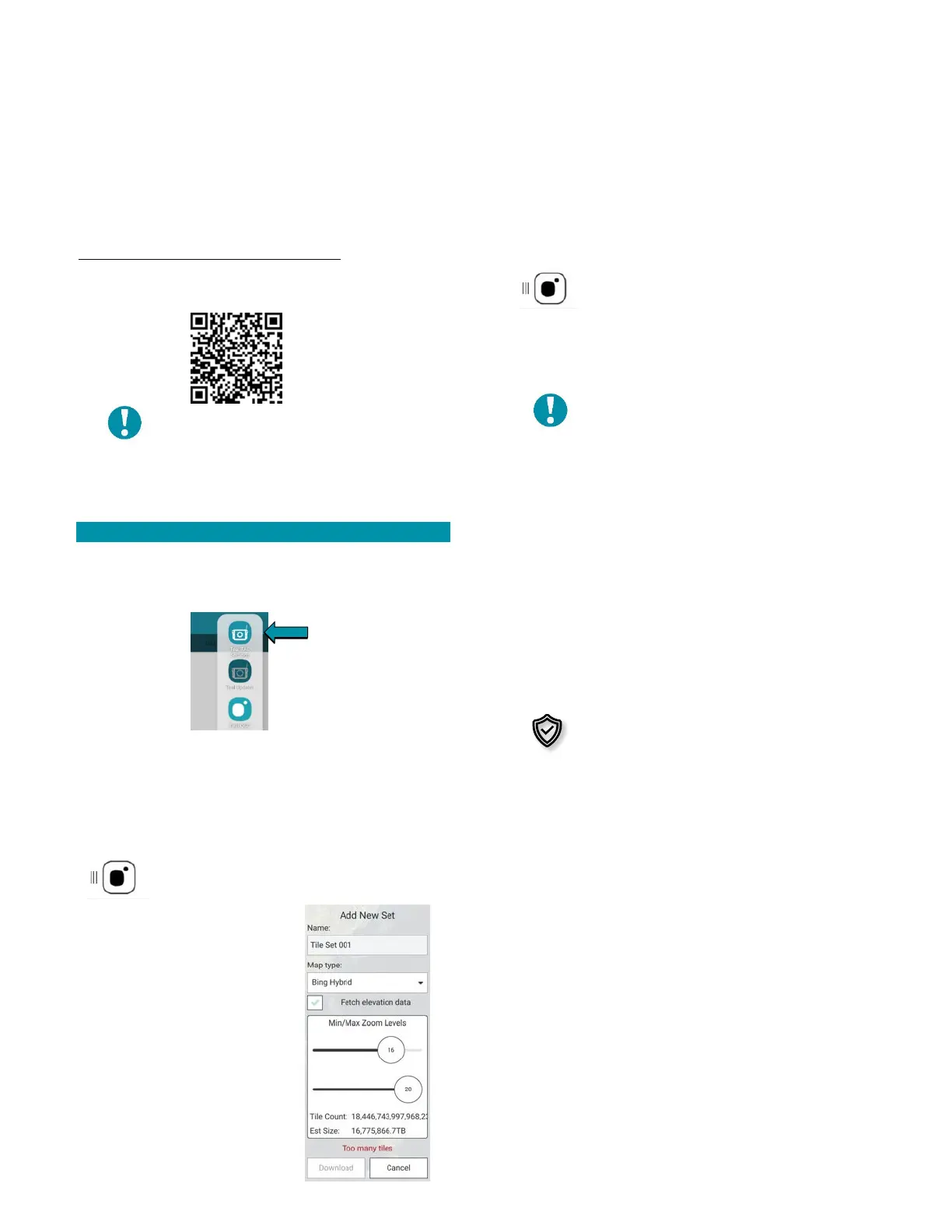
Select ADD NEW SET.
Set and zoom to the area that you would like to save.
Create a name for map set in the ADD NEW SET field.
Set the desired map type.
Check the FETCH ELEVATION DATA box to
include elevation data with the tile set.
Select DOWNLOAD when finished.
NOTE: The TOO MANY TILES error
appears and the download button is
grayed out if the estimated memory
usage is too large. Zoom out to reduce
the tile size. We recommend keeping
the tiles between 50-80 MB.
Touch the MENU icon in the top left of the screen.
Select the FLY button.
Reconnect to the drone by going back into the TEAL
SETTINGS app and switching back to DRONE from WIFI.
Once the TAC acquires the GPS signal, the map screen
will automatically load that tile set, so long as the map
provider in the general settings match your tile set.
File sets are downloaded for planning
and running missions in specific
geographic areas. Depending on the
mission type and location, cyber
security best practice dictates that
these prior tile sets should be deleted
from the TAC.



 To Next Page