42
After transferring the files onto the PC, you will need to
put the TAC back into kiosk mode. This is for both
security and functional reasons while in the field.
Disconnect the USB cable from the TAC.
Access the vertical side-bar menu.
Touch the TEAL TAC SETTINGS icon.
Switch the ACTIVE NETWORK to WIFI.
Access the vertical side-bar menu once more.
Select the gray gear SETTINGS icon.
Scroll to the bottom of the menu.
Select ABOUT TABLET.
Select SOFTWARE INFORMATION.
Select KNOX CONFIGURE.
Select APPLY LATEST PROFILE.
• You may see the screen rotate 90 degrees and
go through a status update.
• This will take only a few seconds, and once
completed, the TAC will be back in kiosk mode.
SWITCH ACTIVE NETWORK BACK TO DRONE
To resume flying missions, access the vertical side-bar
menu.
Touch the TEAL TAC SETTINGS icon.
Switch the ACTIVE NETWORK to DRONE.
CLEARING MEDIA
We recommend clearing all media from the drone after
each flight. After media has been successfully
transferred:
Power on and connect the TAC and Teal 2 WITHOUT a
media card inserted.
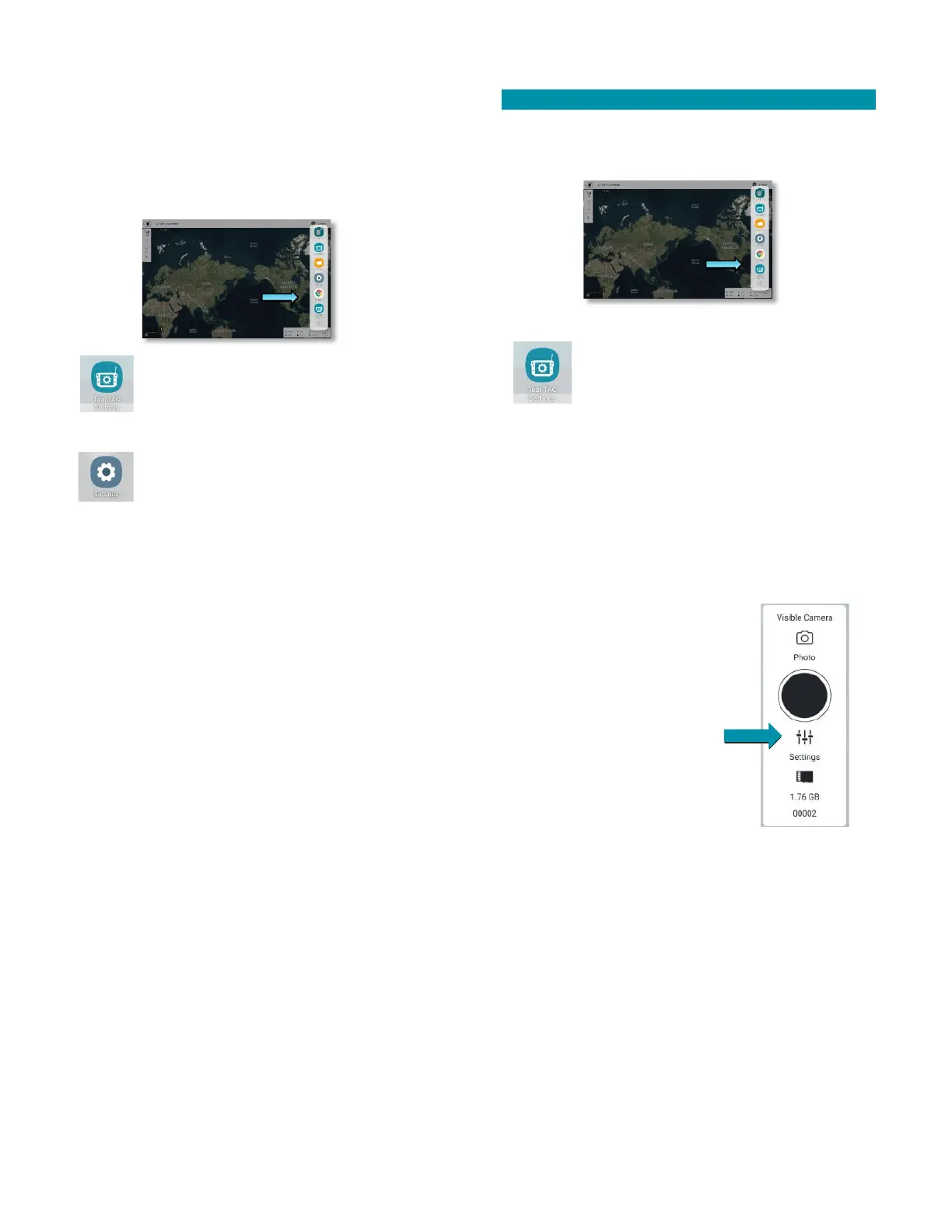
Select the SETTINGS icon in the
CAMERA CONTROL PANEL in the FLY
SCREEN.
Select VISIBLE CAMERA from the
drop-down menu.
Scroll to the bottom.
Select ERASE.
• This will delete all the EO
photos and videos on the
drone.
Select IR CAMERA from the drop-down menu.
Select ERASE.
• This will delete all the IR photos and videos
on the drone.



 To Next Page