35
PHOTOS SCREEN
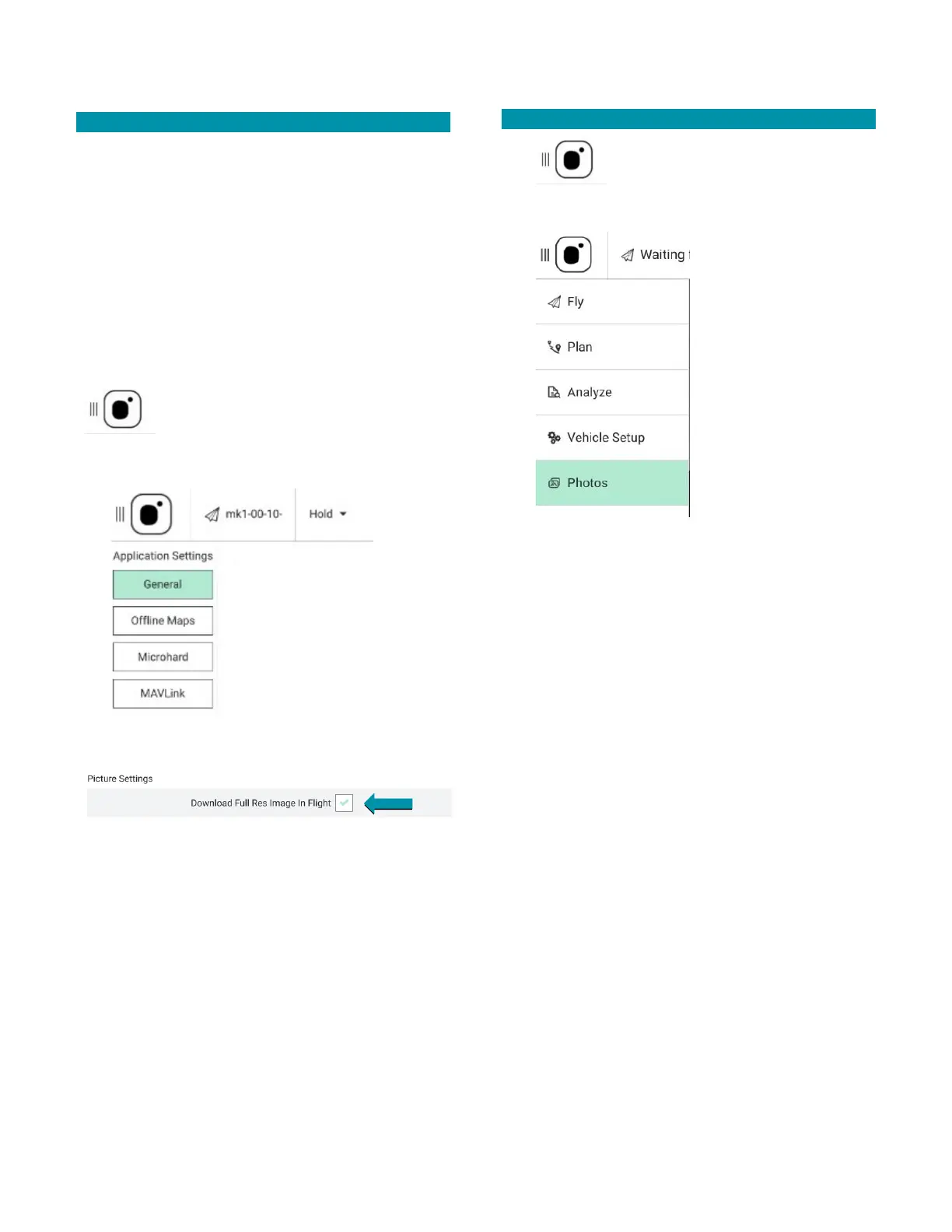
ENABLE PHOTO SETTINGS INSTRUCTIONS
All photo functions must be enabled before flight or
else the media will not be stored locally on the TAC and
will not be transferable after the mission.
However, the tradeoff to having the media stored
locally on the TAC during flight is a reduction of
bandwidth which could degrade the quality of the
media seen on the TAC fly screen during the mission.
If possible, we recommend storing media on the SD
card, but realize some security protocols will not allow
this.
Touch the MENU icon.
Select SETTINGS at the bottom of the
screen.
Select GENERAL.
Scroll down to PICTURE SETTINGS.
Check the DOWNLOAD FULL RES IMAGE IN FLIGHT box.
PHOTO SCREEN SETTINGS
Touch the MENU icon at the top of
the TAC screen.
Select PHOTOS.
This opens the PHOTOS SCREEN from which you can
customize the following functions:
• Take EO & IR snapshots and download them
immediately in-flight to the TAC
• View thumbnails of downloaded EO & IR
photos
• View a selected photo at full resolution
• View metadata of a photo
• Delete downloaded photos from the TAC



 To Next Page