58
TEAL TAC SETTINGS APP
Teal TAC Settings is the application software running in
Android on the TAC for changing a few important TAC
settings and functions. The Teal TAC Settings app
manages which network that TAC is using, screen
brightness, relaunch of Teal QGC when needed, and
indicates the TAC’s current software version.
Launch the app to open the TAC SETTINGS screen.
TEAL DOCUMENTATION APP
Teal Documentation is the application software
running in Android on the TAC that enables electronic
viewing of Teal documentation. The user can access
and view electronic versions of the system
documentation, such as the Operator Manual, in the
field right from the TAC, eliminating the need to carry a
hard copy or another electronic device.
TEAL UPDATER APP
Teal Updater is the application software running in
Android on the TAC. Teal Updater manages the details
of the otherwise-complex software and firmware
update process.
If an update is needed, the Teal Updater app will guide
you through the process via an automated “wizard”.
UPDATING SOFTWARE/FIRMWARE
SYSTEM REQUIREMENTS:
• You will need to have access to a wireless
network (2.4GHz or 5GHz) with access to the
internet.
• Ensure the system is paired and
communicating prior to proceeding.
• Use a fully charged battery pack in both the
drone and in the TAC.
• Do not power off the drone or the TAC at any
time during the update process.
ESTIMATED TIME: 15-25 Minutes
Follow along with our instructional video, Firmware
Updates: Teal Teal 2 Drone, on our website at:
https://tealdrones.com/support/video/
Touch the TEAL SETTINGS icon to launch the app.
Change the Active network from DRONE to WIFI.
Login into the WIFI system with the appropriate login
credentials.
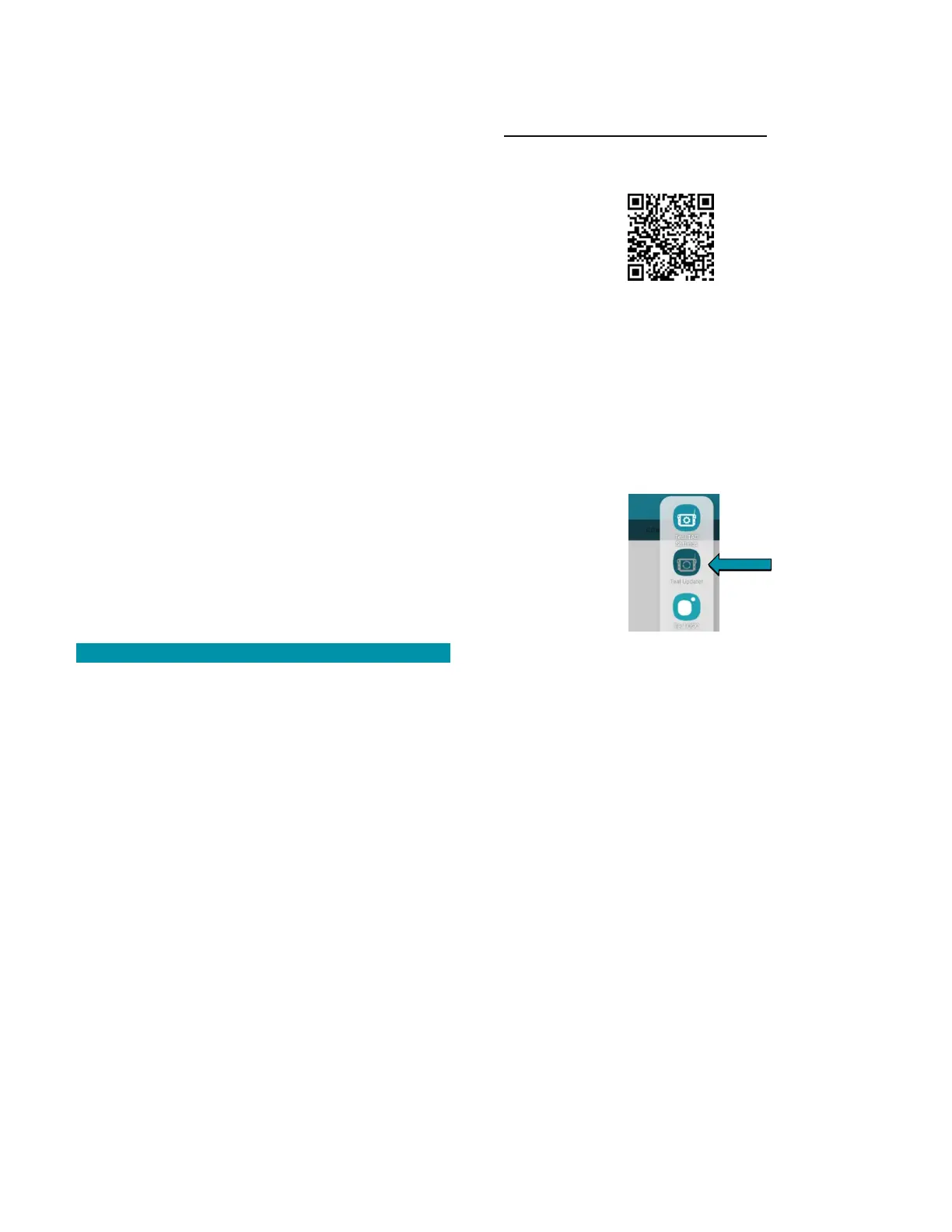
Touch the TEAL UPDATER icon to launch the app.
Select the CHECK CLOUD FOR NEW VERSION button.
• You will see the latest version available.
Select DOWNLOAD FROM CLOUD.
• You will see a DOWNLOAD COMPLETE
notification when finished.
• You can now reconnect the drone and begin
the installation process.
Connect to the drone by going back into the TEAL
SETTINGS app and switching back from WIFI to
DRONE.



 To Next Page