12
POWER UP THE TAC
Press and hold the TAC battery pack power button for
four (4) seconds, then release. Verify that the center
LED is lit, indicating that the battery power is on.
Press and hold the TAC tablet power button for two (2)
seconds, then release. The tablet will then display an
animated Teal logo, indicating a successful start-up.
Swipe up to start the Teal QGroundControl (Teal QGC)
application when prompted.
At this time, you can upload maps, create missions,
define safety parameters, and all other user setting
preferences, such as units of measurement. Please see
the TAC DETAILS section for more information.
POWER UP THE TEAL 2
Press and hold the drone battery power button for
four (4) seconds, then release.
Verify that the center LED is lit, indicating that the
battery pack power is on.
Listen for exhaust fan start-up.
Verify that the illuminating side panel lights turn on,
indicating successful system start-up. This will take
approximately 15 seconds.
Verify gimbal start-up, indicated by its movement to a
properly centered level and forward-facing position.
ACCESS THE APPS
The TAC is built around a Samsung Galaxy Tab Active
Pro tablet PC running the Android operating system. A
number of Android applications are installed on the
TAC.
The Teal QGroundControl (Teal QGC)
app is launched upon system bootup.
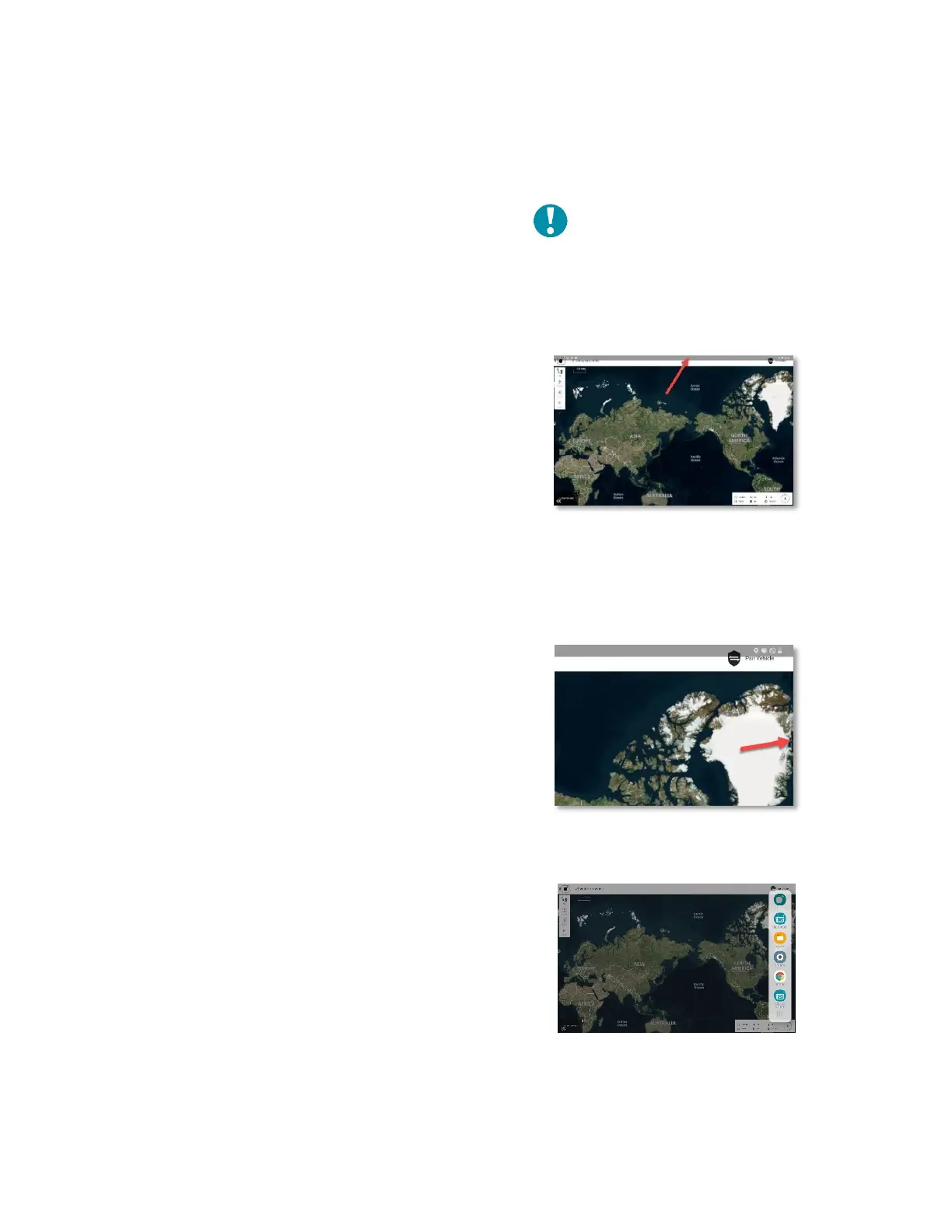
Touch anywhere along the top edge of the screen and
swipe downward.
A very narrow vertical gray side-bar menu tab appears
on the right edge of the screen.
Touch and slide this gray side-bar menu tab to the left.
This opens a vertical sidebar menu that shows the most
recently used apps.
Touch this icon at the bottom right of the sidebar
menu to see all available apps.
Touch the icon for the app that you would like to
launch.



 To Next Page