16
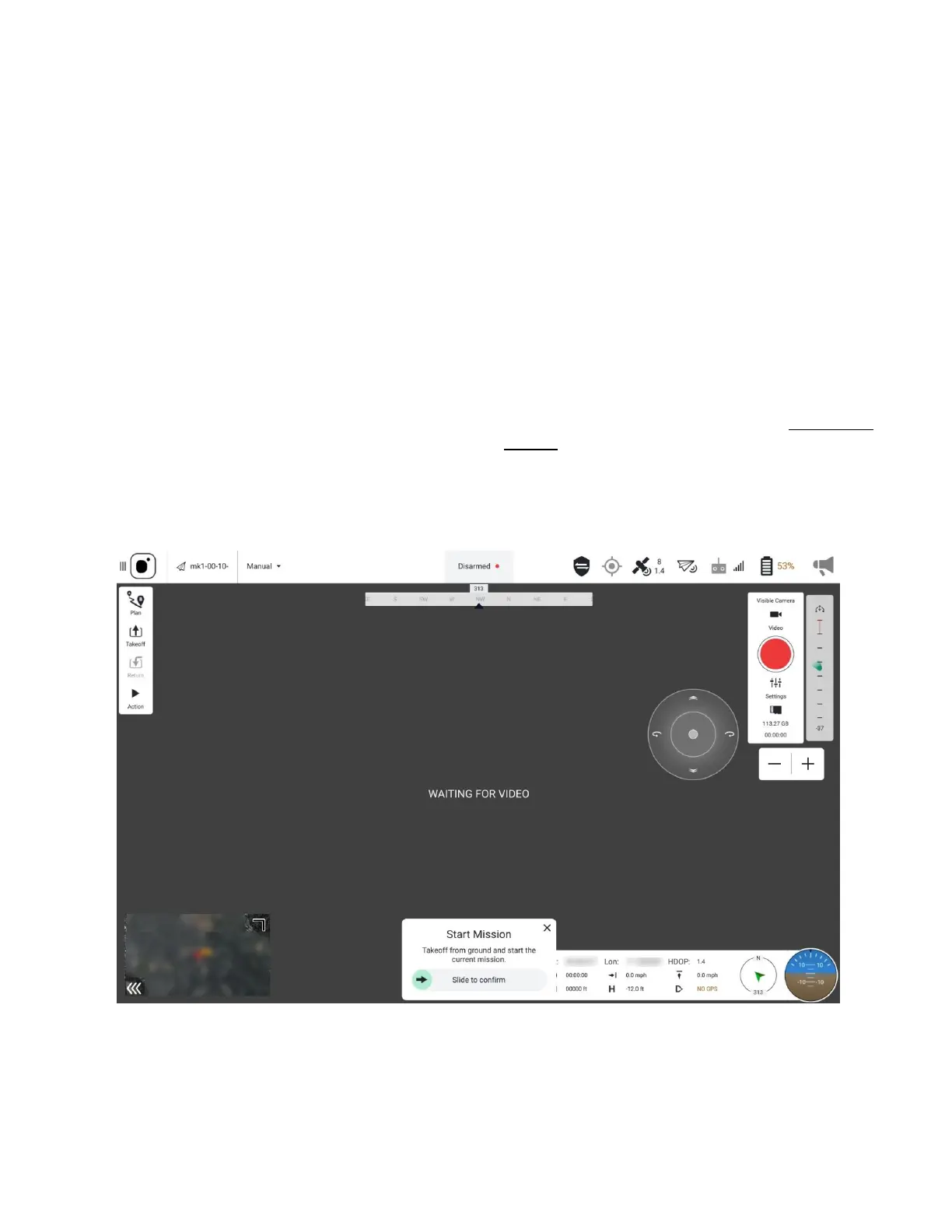
FLY SCREEN OVERVIEW
The fly screen automatically starts up when the TAC is
powered on. The fly screen is used to command and
monitor the drone and includes the following
functions:
• Run the automated pre-flight checklist, if
enabled
• Control missions
• Arm / disarm the drone, to include the E-stop
function
• Takeoff / land / Return to Launch (RTL)
• Go to or orbit a particular location
• Switch between the map view and video view
• Display video, mission, telemetry, and other
information for the drone
FLY SCREEN MAP OVERVIEW
The entire background of the fly screen can be either
map view or the video view. Tapping the smaller screen
in the left bottom corner will swap the screens.
The map displays the position of the TAC, the drone
when paired, and the mission (when programmed).
The map can be repositioned with a finger. The map
automatically re-centers after ten (10) seconds if the
position of the drone is moved off the screen.
To zoom in on the map, touch the screen with two
fingers and slide them apart. To zoom out on the map,
touch the screen with two fingers and slide them
together.
More in-depth information is in the
FLY SCREEN
DETAILS section for guidance on what functions are
available in-flight.



 To Next Page