18
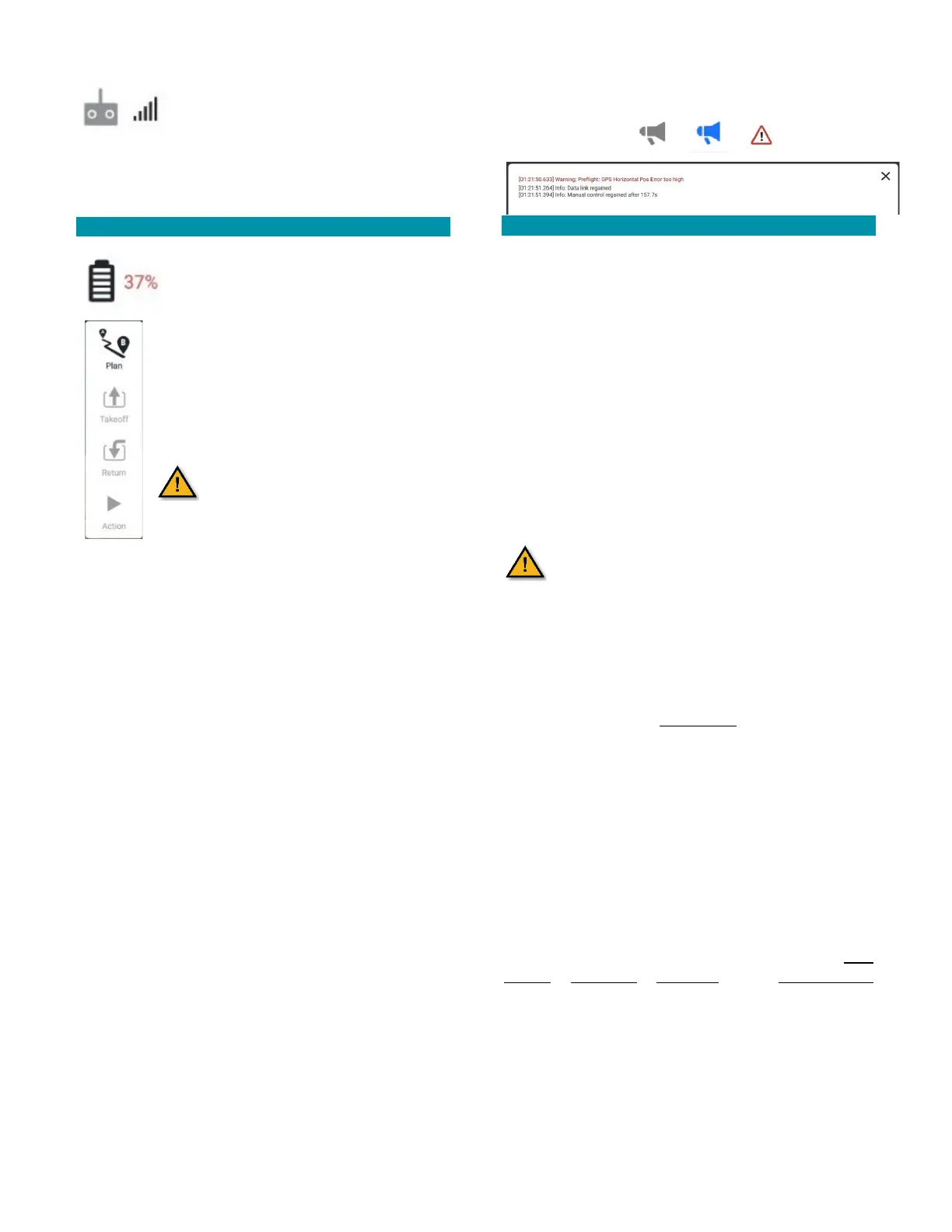
This icon indicates the radio signal
strength as is common on consumer cell
phones.
Touch this icon to view the RSSI values for the TAC
signal strength at the vehicle (MK1 RSSI), and the
vehicle signal strength at the TAC (TAC RSSI).
BATTERY ICON
This icon conveniently shows the battery
charge level of the drone (the TAC’s
battery charge level is checked by
tapping the battery power button on the
back of the TAC).
Touch this icon to view the vehicle battery’s
current voltage level and the accumulated
amount of power consumed by the vehicle
(in mAh) in this session.
The drone will not arm when
the battery pack charge level is
20% or less.
VEHICLE MESSAGES ICONS
This icon notifies the use of any operator messages. It
is grayed-out until there is an operator message at
which point it turns to blue, or changes to a warning
icon in the case of a critical message. Touch the icon to
view the messages.
Closing (X) this window turns the warning icon back
into the gray horn icon.
Old messages can be reviewed by touching the gray
icon. All messages will remain until the user
permanently deletes them by touching the trash can
symbol in the lower right-hand corner of this window.
Messages cannot be individually deleted.
All messages will be deleted if this
function is selected.
FLY TOOLS OVERVIEW
The FLY TOOLS box is fixed vertically near the upper
left-hand corner of the FLY SCREEN
.
These functions found in the Fly Tools are the Pre-flight
checklist, Takeoff, Land, and Return/Return to Launch
(RTL).
The Pause function causes the drone to hover and can
be used in most operations, to include takeoff, land,
orbiting, etc.
The Action button offers additional options, to include
changing the altitude, and starting and resuming a
mission.
More detailed information can be found in the
PRE-
FLIGHT, IN-FLIGHT, LANDING, and TAC DETAILS
sections, depending on the function.



 To Next Page