59
• You will see a CONNECTED message at the
bottom of the screen of the TEAL UPDATER
app.
Select NEXT to update the Teal 2 and all its subsystems.
• The system will first prepare the Teal 2. This
should take less than a minute.
Select NEXT to continue.
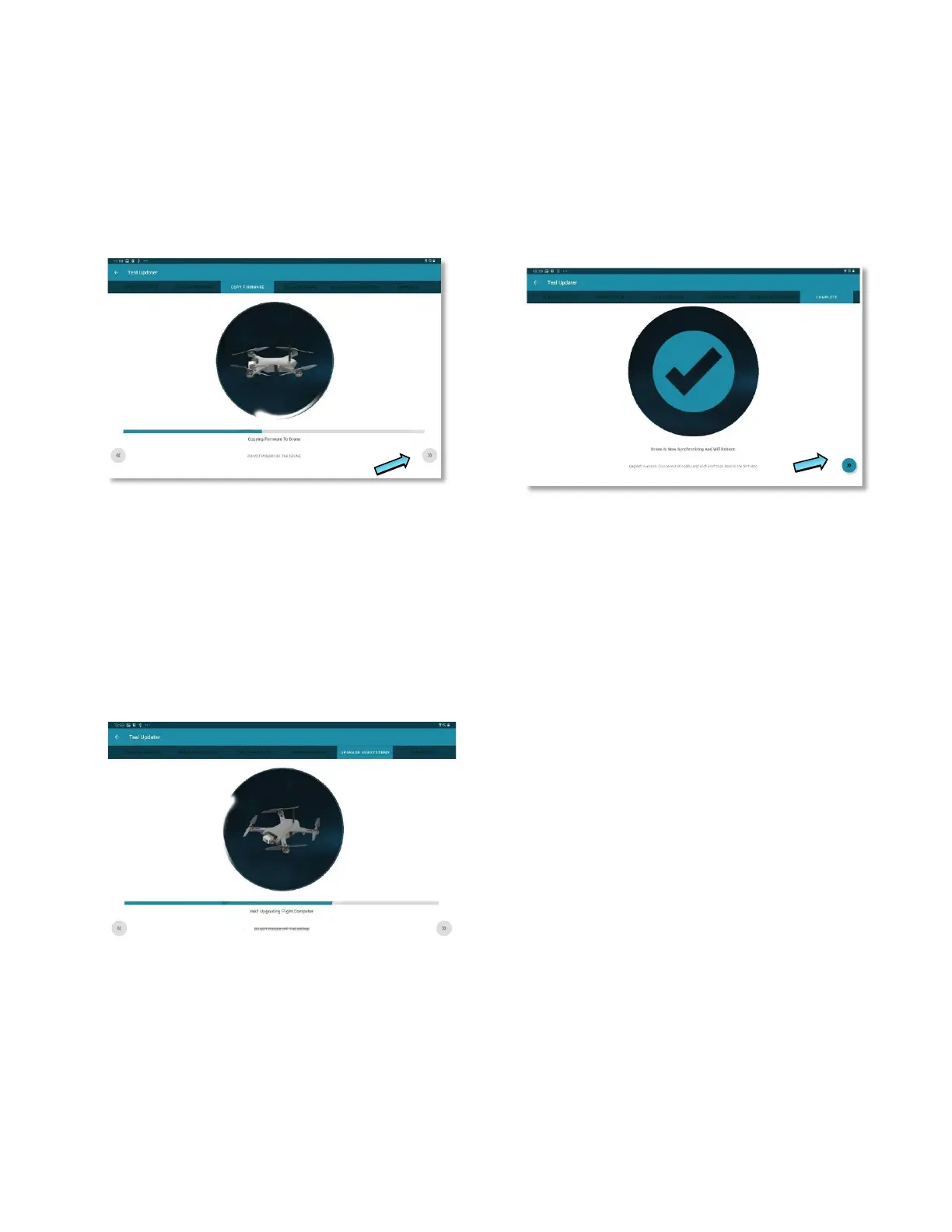
• The system will then copy the firmware on the
TAC to the Teal 2. This may take 5 minutes or
more.
Select NEXT to continue.
• The system will then update all subsystems
and will take about 5 minutes.
Select NEXT to continue.
• The system will then update all the ESCs, and
chirping sounds and small movements from
the drone are normal.
• Once all subsystems are updated, you will see
a confirmation screen.
Select NEXT to continue.
• The system will then reboot the drone. Once
the reboot is complete, the update process is
complete.
Select either the EXIT button to return to the Teal QGC,
or, select NEXT to go back to the beginning of the
upgrade wizard to verify the new firmware version on
the drone.
Known errata: the firmware update process may take
several reboot cycles to be successful. Please be sure to
verify that the new firmware version is on the drone.



 To Next Page